Exploring the RumbleTalk admin panel

When you look at the admin panel, you might be overwhelmed the first time that you see it. That’s why, in this guide, we’re going to run you through the different options and settings on the admin panel.

Let’s start with the upper part of the admin panel.

Upper part – header

At the upper-most row, you will see the RumbleTalk logo; the number of seats, rooms, admins, and keywords; the upgrade page; and your username.

Below that, you will see the following:

  • Selected chat
  • Overview
  • Settings
  • Design
  • Monetize (deprecated)
  • Page
  • Embed

Let’s talk about what each of these buttons does.

Overview

admin panel

The Overview tab shows you everything about your chat room. You will see the following:

  • Chat type – This shows what chat type you’re currently using
  • Chat room – A miniature version of your chat room
  • Upgrade your plan – Upgrading your current plan
  • Manage administrators – Managing your current admins
  • Edit your page – Edit your Page and publish it
  • Hash – The chat hash code
  • Open your chat – Opening the chat in a new tab

When you click on these buttons, it will take you to another page that’s on the description above.

Settings

The Settings tab has the following:

  • General & Logins – This includes chat types and login options.
  • Multimedia – You can set your multimedia settings here (link embedding, emojis, etc).
  • Menu Options – Hide or show chat menu options.
  • Keywords – Add or delete active InText keywords.
  • Users – Add or delete chat room users.
  • Polls – Set up, publish, or delete a poll. You can also see the polls’ answers here.
  • History – See here the chat history and archive.
  • Chat Operations – Take the chat online or offline.
  • Banned IPs – Add or delete banned IPs.

Design

The Design tab includes the following:

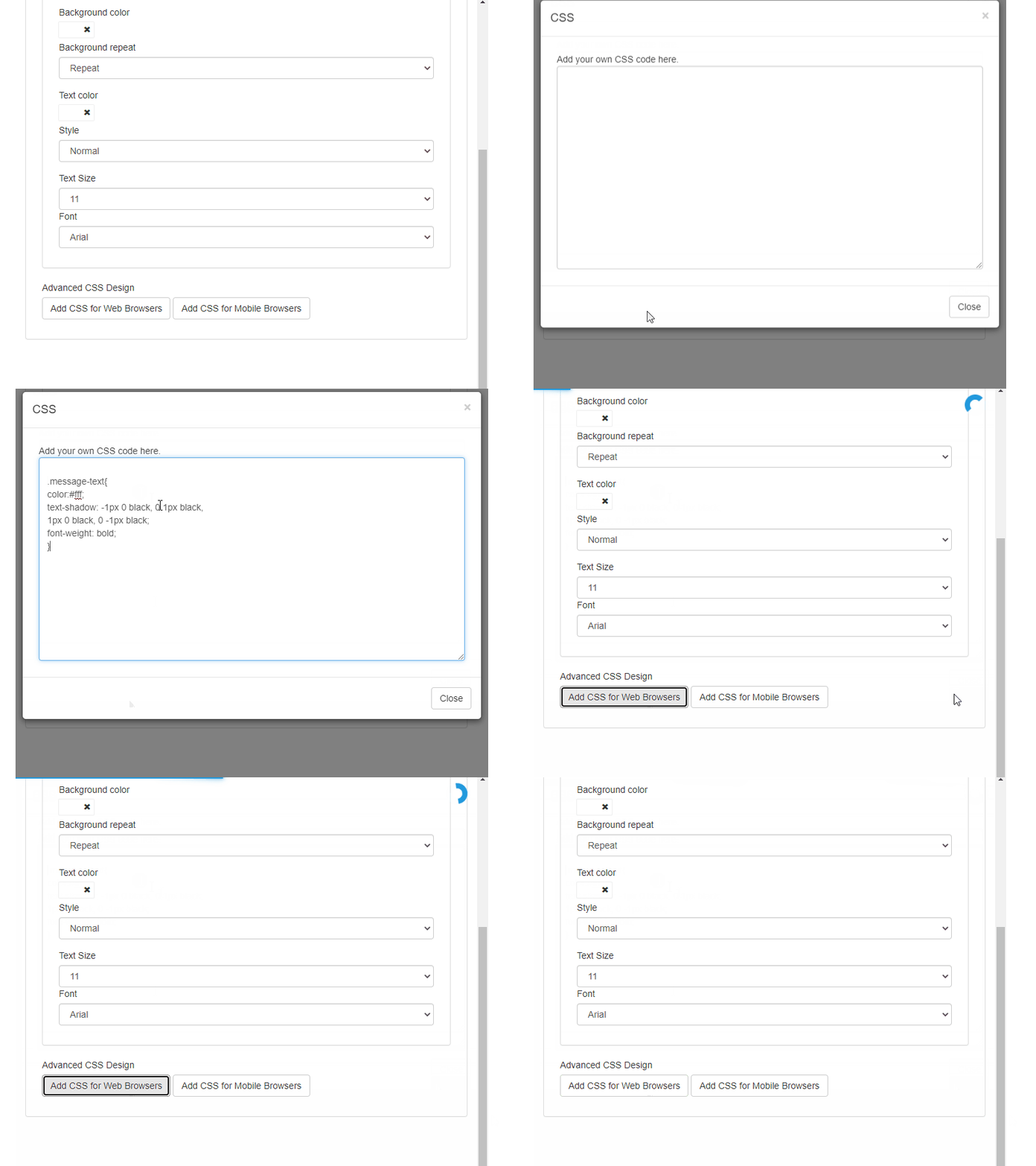
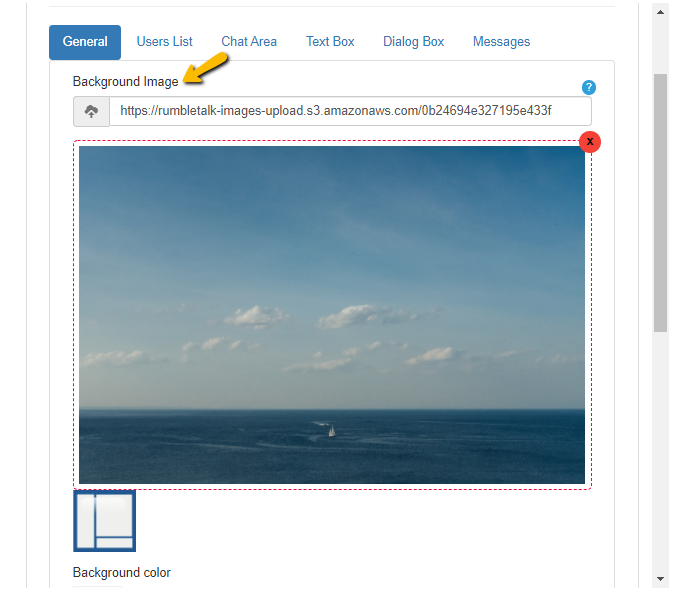
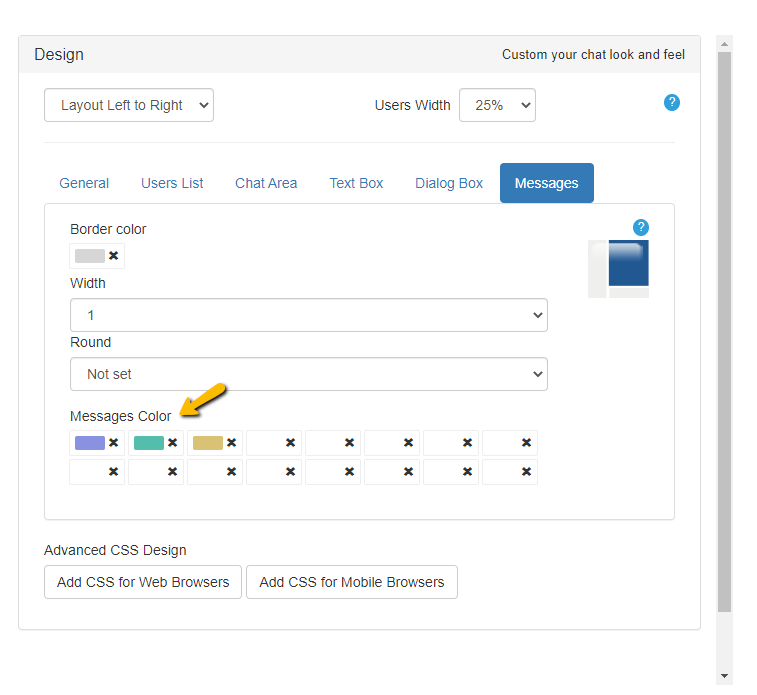
  • Visual Design – Customize your chat room with chat backgrounds, fonts, and more. For advanced customization, you can also inject CSS code.
  • Skins – Change into a templated chat room design.

Monetize (deprecated)

The Monetize tab lets you set up a paywall option for your chat room.

  • Monetize Settings – This lets you enable the various monetization options for your chat rooms, such as donations, payment requests, and paywall.
  • Monetize Records – This shows you the current records of the in-chat payment feature. It will show you who paid, the time and date, and what they paid for.

Page

The Page tab is where you can see your minisite. Here, you can edit all the elements of your minisite. After that, you can add a page password and publish it. This can be used for online classes, consultations, small communities, and more. For more information about RumbleTalk Pages, read this blog.

Embed

admin panel

The Embed tab shows you how you can embed your chat. Here, you can generate an HTML code for your chat room. You can choose from two options: Embedded and FloatingAfter that, you can just copy and paste the generated code into your website.

The RumbleTalk admin panel

When you take time to study the admin panel, it’s not hard to know which is which. With this guide, we hope it can help you navigate the admin panel so you can play more with various settings. We post daily on our social media accounts, so follow us there if you want to see tips and tricks you can use on the admin panel.

In this regard, if you still don’t have an account, you can start with a free chat room here. Have a larger user base and need a dedicated group chat platform? Schedule a demo call and email us at support@rumbletalk.com.
Network, socialize, and enjoy your exclusive virtual space in a Private Chat

Private chats have been one of the most used chat types in almost any industry. Whether you’re an aspiring entrepreneur with big plans and bold dreams or someone who has been in the business world for many years. A private chat is a convenient way to network, socialize, and enjoy your exclusive virtual space with your business partner, client, or teammate. Furthermore, they are totally secure and only accessible by the people you choose to let in.

Keep on reading to learn more about how RumbleTalk Chat differs from any other private chat rooms you’ve tried!

What is a Private Chat?

private chat

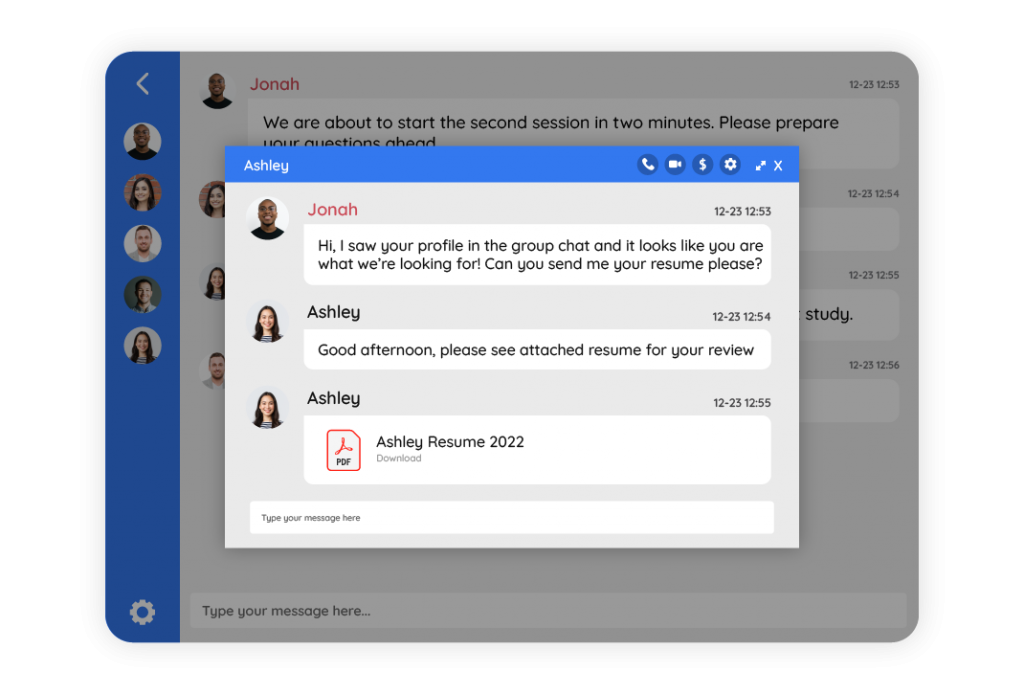
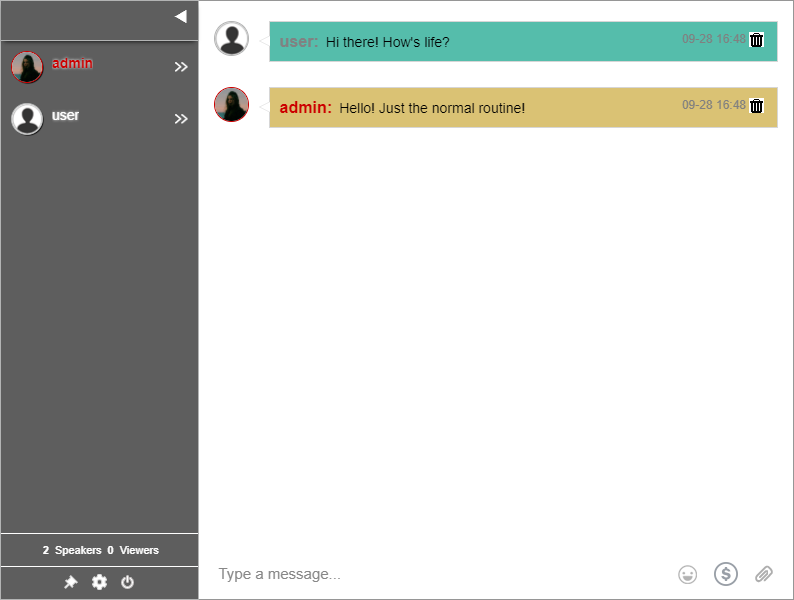
This allows you to enjoy your own personal chat with other people who are interested in the same niche or topic as you. You can do this without the distractions and noise of having it on a general public forum. Moreover, with RumbleTalk, you can have as many one-on-one private conversations as you need, simultaneously. And, anyone can start their own private chat with anyone from the list of online users.

Features and Functions

Perfectly built for networking and exclusive conversations, here’s what Private Chat can do for you.

  1. Make video and audio calls – Make each conversation more personal by using this feature, it’s free and you don’t have to install anything to make it work.
  2. Customize the chat design – Personalize the look of your chat room to fit your business, live event, brand, or even a holiday.
  3. Send any type of files – Share photos, videos, documents, PDF files, PowerPoint presentations, links, and more by just clicking on the paperclip icon at the bottom of your chatbox.
  4. Play Youtube videos – Watch Youtube videos together directly into your private chat. No need to transfer to a new window.
  5. Speak in any language – RumbleTalk supports 36 languages that you can use, and change, in real-time.

Other features that make RumbleTalk unique

  1. HTML5 – Your chat will work perfectly on any browser since it is made with HTML5. You can even customize the design using our ready-made template, or develop your own look using CSS.
  2. WebRTC – Live audio and video calls are now more seamless than ever because of the latest WebRTC technology. You can enjoy this for free, without extra plugins, installation, or add-ons.
  3. Restful API for easy integration – Integrate this smartly-designed chat platform on your website using our integrations, add-ons, and chat plugins. RumbleTalk is available for YouTube, WordPressWixJoomlaAngular, and React.
  4. RumbleTalk Pages  – You can use RumbleTalk Pages to create your own mini-website, where your Private Chat will be embedded. Perfect for those who don’t have a website to start with.

Set up your RumbleTalk Private Chat

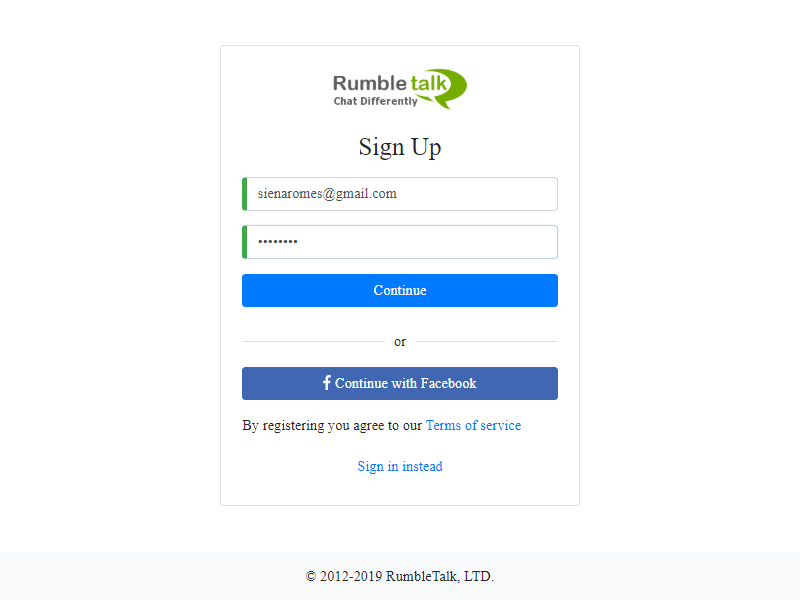
To get started, create your free account, choose Private Chat, click on the user you want to chat with, and you’re good to go! If you need a detailed guide on setting up your free account, follow the instructions here.

If you want to integrate the Private Chat into your own website, go to the chat settings, and copy the provided one line of code. Finally, paste it into your website’s back end.

RumbleTalk comes with a free plan. But if you need more seats, admins, and keywords, we’d be glad to customize a plan just for you! If you need help with a personalized plan, or you want to start with a demo from our support team, please send us a message at support@rumbletalk.com.

A Private Chat for exclusive, safe, and healthy communities

These spaces are meant for friendship, dating, online learning, debating ideas, support groups, and any other sort of community you can imagine sharing together. The Private Chat is an exclusive space that keeps other users from seeing what’s said inside them.

Furthermore, the chat supports more than 30 different languages. So, you can speak with people from around the world or just connect with those who share your interests.

If you want to try it out, click here to create your own chat now.

Instantly send audio and video messages with RumbleTalk group chat

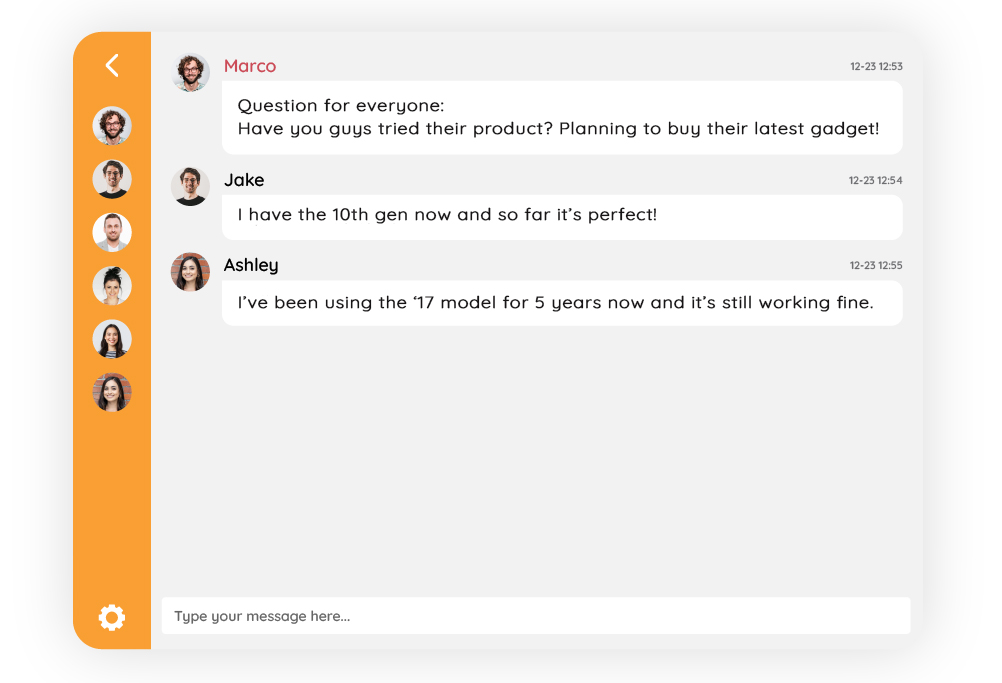
It’s not just about sending text messages in a group chat. Sometimes an image or video is required to better explain a topic. For example, if you are holding a community discussion, you will need to share videos to present the topic. This is the time to send audio/video messages to the community to better explain the situation.

Not only that, but a feature like this is beneficial to businesses and professionals who provide their services online.

Audio and video messages can be sent in the chat room

You can send audio and video messages in the group chat.

You can use the feature in two ways:

  • Record up to 30 seconds of audio or video message and send it to the group chat, where all members can see it.
  • For private chats, you can record up to 30 seconds of audio or video messages.
virtual socializing

You can record audio and video messages that can be seen by the receiver/s when you open a group chat or a private chat.

Simply click the paperclip button in your group or private chat to send audio and video messages.

Then, you can record the message, review it, and send it to your colleagues.

How does recording work?

You can record almost anything using this chat feature.

For example, a step-by-step guide for a new process, a brief introduction to your students, or a video sample for your new product, the recording feature is brief but to the point.

Regardless of how you use it, the extended recording time will benefit your chat experience.

Bonus feature: Sending photos and copy and pasting images for faster sending

It’s simple to send photos in the group chat. There are two approaches you can take.

The first option is to directly upload photos.

communication solutions
  1. To begin, click the paperclip button in the text box. This will take you to the attachments page.
  2. To upload an image from your device, click Add file.
  3. Click Take photo if you want to share a new photo. This will take you to the camera, where you can take the photo you want to share.
  4. You can repeat these steps in the private chat. The only difference is that you’re only sharing it with one person rather than the entire group chat.

Another approach you can take is to copy and paste an image.

video messages
  1. First, locate an image that you’d like to share. You can find some on the internet.
  2. Then, with your mouse, right-click and select Copy image.
  3. Switch to RumbleTalk group chat and use the right-click or Ctrl + V to paste the image into your text box.
  4. Include the image in your group chat.

Find more information here: Copy and Paste Images in your Group Chat

Sending photos and videos is a must-have feature for any group chat

You should be able to send photos and videos to a group chat for your business or community at any time. Why is this the case? These are useful for any instructions or guides that cannot be easily explained in a message.

This can be avoided if you include a visual example for the members of your group chat. Others are welcome to add their thoughts if they notice anything unclear. As a result, any topic becomes easier to grasp.

Sign up for RumbleTalk to share your photos and videos with your colleagues, community, and clients.

Interested to learn more about RumbleTalk’s features? You can connect with us by sending us a message through our social media platforms (Facebook and Twitter). For a demo call, mail us at support@rumbletalk.com.