Expert’s Chat achieves your need for online consultation with clients

In the past, online consultation is not our first choice for people who needed professional advice. We usually have to book a physical visit with a doctor, lawyer, or other professional. Nowadays, they can consult with professionals in the comfort of their homes. 

RumbleTalk has been the bridge between a professional and a client in terms of online communication. We do this with Expert’s Chat. This chat type serves as an online private consultation room that offers clients the opportunity to chat with experts in different fields. This service is designed for people who want to get expert advice but can’t afford it, don’t have time for it, or live a hundred miles away. 

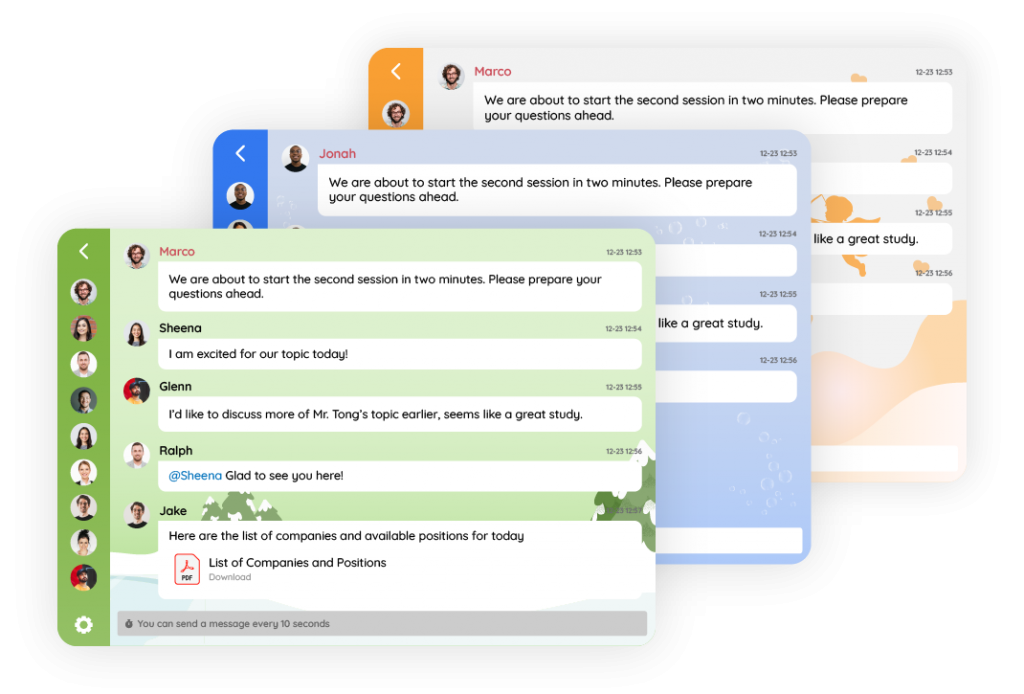
Seamlessly embed the Expert’s Chat into your website, podcast, or community page. And then, you, the “expert,” can create a virtual chat room where you can have a one-on-one conversation with your clients. As the owner of the Expert’s Chat, you can message as many users as you want, simultaneously.

Here are 4 features you can maximize during your online consultation.

Share anything: Documents, images, videos, and more

online consultation

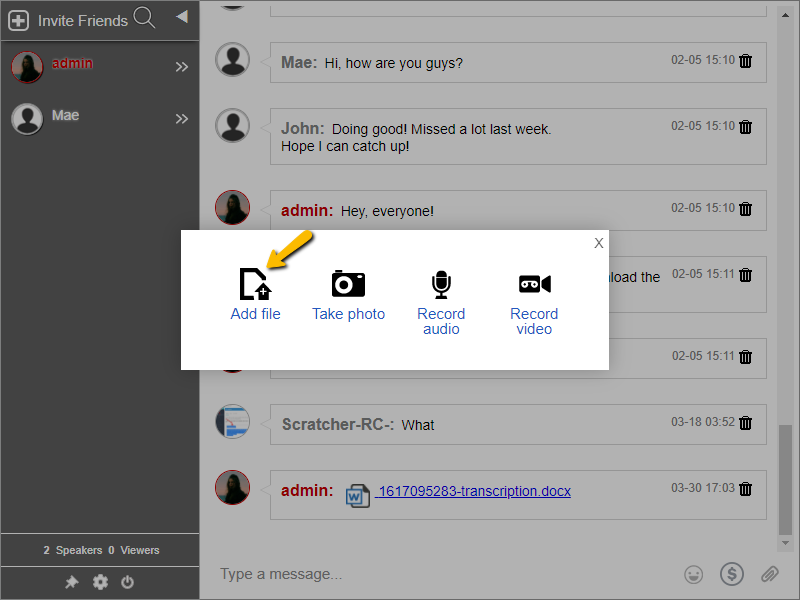
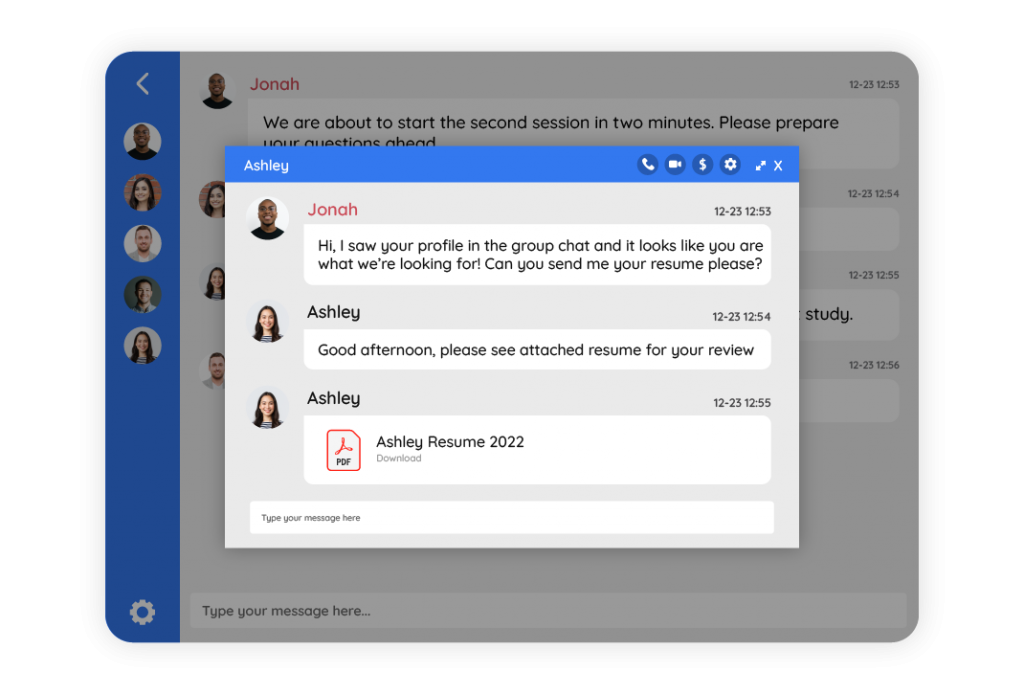
Add visual materials to your conversations by sharing any type of file, image, video, links, or emojis to the chat. Using RumbleTalk’s file-sharing tool, the expert and the client can just click the paperclip icon at the bottom of the chat window and choose the file they want to share. This is perfect for when you need a visual aid for an easier explanation, videos for tutorials, links to your forms, and so much more.

Play YouTube videos directly in your online consultation

Unlike other chat platforms, RumbleTalk allows you to embed the YouTube video directly into the chat room. This removes the extra effort to transfer to another window. Given this, the expert and the client can conveniently watch the same video together while discussing it. 

To do this, just copy the URL of the Youtube video or Vimeo videos you want to share, then paste and send it in to the chat.

Save time when you turn words into links with Keywords 

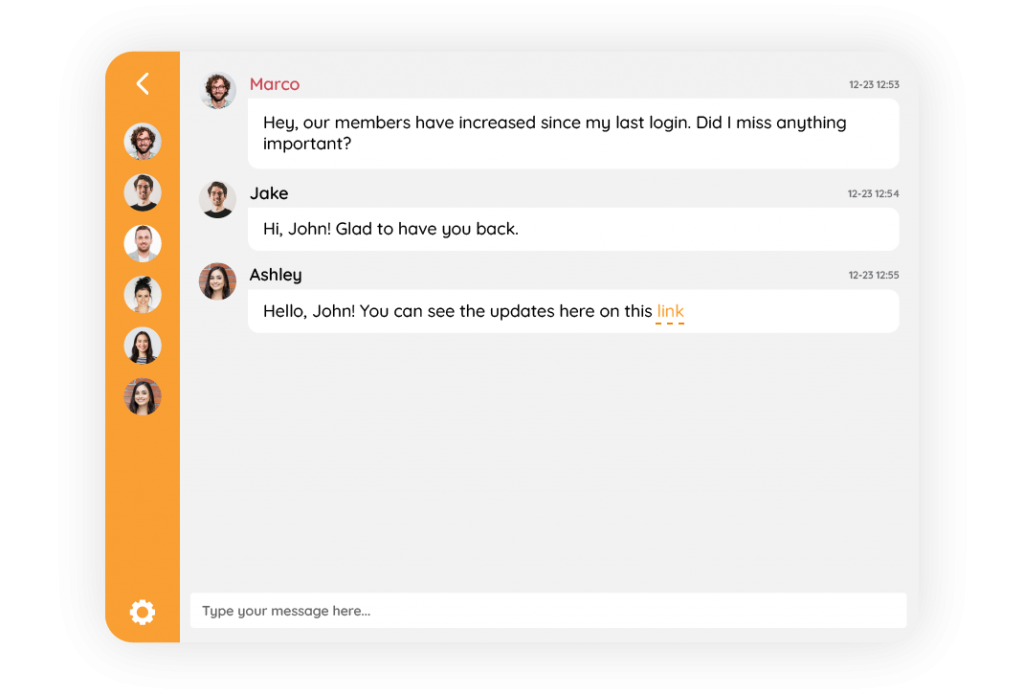
RumbleTalk Keywords (InTEXT) identify specific words and dynamically turn these words into links. The links can be redirected to any webpage, downloadable files, online documents, presentations, spreadsheets, PDFs, videos, and more. This feature saves you time and the extra effort to copy and paste each information you use on all of your clients.

online consultation

Make your online consulation more personal with video or audio calls

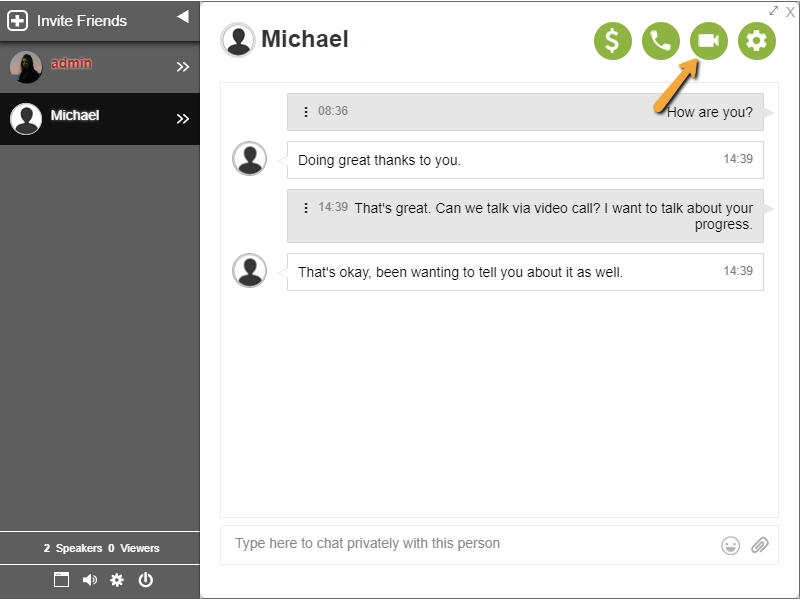
Aside from sending text messages, you can also make video and audio calls in the chat without having to install anything. This feature makes your consultations personal since you can speak face-to-face and easily identify visual cues. In turn, this will lead to a superior level of engagement and a stronger relationship with your clients.

Efficient, affordable, and engaging online consultation

A personal visit from a client might be the ideal way of doing your consultations. But, using the right tools, an online session can be just as effective. So, RumbleTalk made sure that reaching out to your client is now more convenient than ever with the Expert’s Chat.

Get the Expert’s Chat, along with other chat types now! Available on a free or paid plan. It’s a truly remarkable international communication platform for all businesses, organizations, and professionals. It is built with video and private messaging at the core of its features, allowing organizations to share information in cutting-edge ways and bridge the gap between businesses and clients.

Send us a message at support@rumbletalk.com for a free demo call!

Don’t let your virtual event die down by neglecting interaction

When running any virtual meeting or event, it is critical to capture the audience’s unfiltered thoughts in real-time via Q&A and Polls sessions. This will encourage audience participation. This creates an interactive environment and provides useful information for your next strategy. It’s no surprise that the Moderated Q&A and Polls features are two of the most popular live chat features in the digital space. They significantly increase the impact of every session. Even if there’s no physical interaction, they make the audience feel involved.

From the organizer’s perspective, these powerful tools are a huge help in assisting decision making and ensuring that everyone’s voice is heard when planning for future developments.

RumbleTalk gives you the tools you need to perform both Moderated Q&A and Polls functions smoothly. These features have also been intended to provide convenience and ease of use in mind. In just a few clicks, you can start your Q&A and Poll sessions throughout a live meeting/event.

Moderated Q&A Chat permits for inclusive, two-way communication and interaction

Promote an inclusive environment so that everyone in the chat room has a chance to speak. This could be attained by enabling the Moderated Q&A Chat, which will inevitably make your presentations more interactive and inclusive.

This function may be incredibly beneficial in a virtual business meeting, seminars, trade fairs, classes, podcasts, or any other type of event in which the organizer and participants talk across both directions.

Establish the Moderated Chat as a Q&A chat

interaction
  1. Navigate to the admin panel. Then, select Moderated Chat as your chat type.
  2. Appoint an admin to serve as the chat room’s moderator. He will have complete control over the Moderated Chat’s functions. This includes the capacity to accept or disapprove messages before they go live. Go to your admin panel, click Users, and then add a new user.
  3. Select admin for rooms if you only want your moderator to have access to a single chat room. Alternatively, select one with global access to authorize them to act as a moderator in all chat rooms.
  4. You can now pose your questions to your audience upon appointing your admins. Moderators can sort through the questions and pick the ones to approve before they go live. Your audience will only see questions that have already been approved.

Polls are an interesting and engaging method to get real-time feedback

Real-time audience interaction is facilitated by Polls. Allowing your participants to partake in a particular subject keeps them engrossed throughout the virtual event. Aside from that, Polls can assist with making business decisions. Before the end of your event, conduct a quick post-event survey.

Note that it is advisable to use the poll feature every 15 minutes or so to maintain your participants’ interest.

Establishing Polls

The Polls feature can be enabled in two ways.

  • Using the RumbleTalk admin panel
  • Logging in as an admin

First, we’ll demonstrate how to enable the Polls feature through your RumbleTalk admin panel.

chat polls
  1. To access your RumbleTalk admin panel, go to Settings. Then, select Polls.
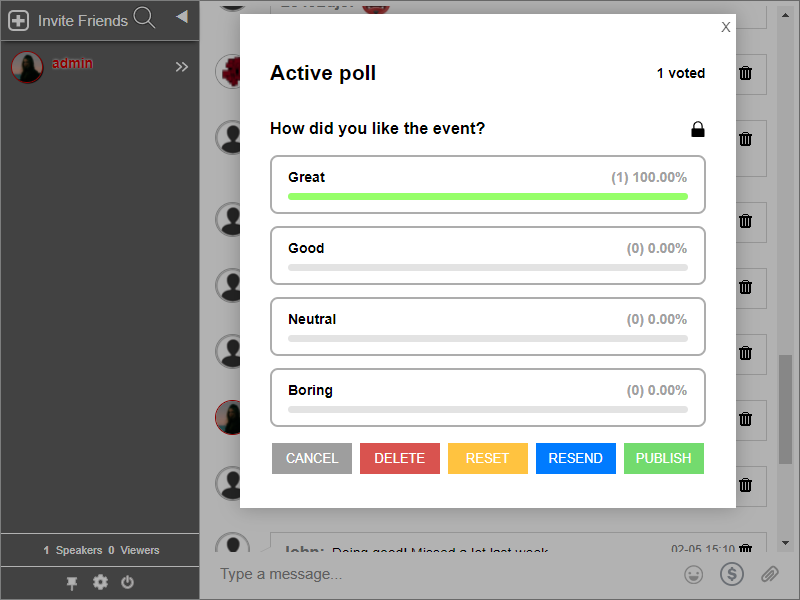
  2. The polling options will appear. After you’ve filled in the question and answer boxes, click Save.
  3. Click the View Answers button in the Polls section to see the results. The next step is to enable it in the group chat.
  4. Log in to your group chat as an admin. Then, in the lower-left corner of the chat, click the gear icon. Select Polls. Choose New Poll from the drop-down menu.
  5. A prompt will display after you click Create New Poll. Fill in the blanks with your query and four pre-programmed answers.
customer experience

Moderated Q&A Chat and Polls functions create unending interaction

RumbleTalk promotes interaction between speakers and audiences. Q&A sessions and Polls are a great way to keep your attendees involved in an online setting. From getting accurate responses to getting to know your attendees, you’re covered. Allowing them to ask questions, vote in polls, and see real-time results will make them feel more valued, thus enhancing customer experience.

Begin with a free account. Then, customize your plan based on the number of attendees, rooms, and administrators you require.

Why a live chat is essential for live streaming

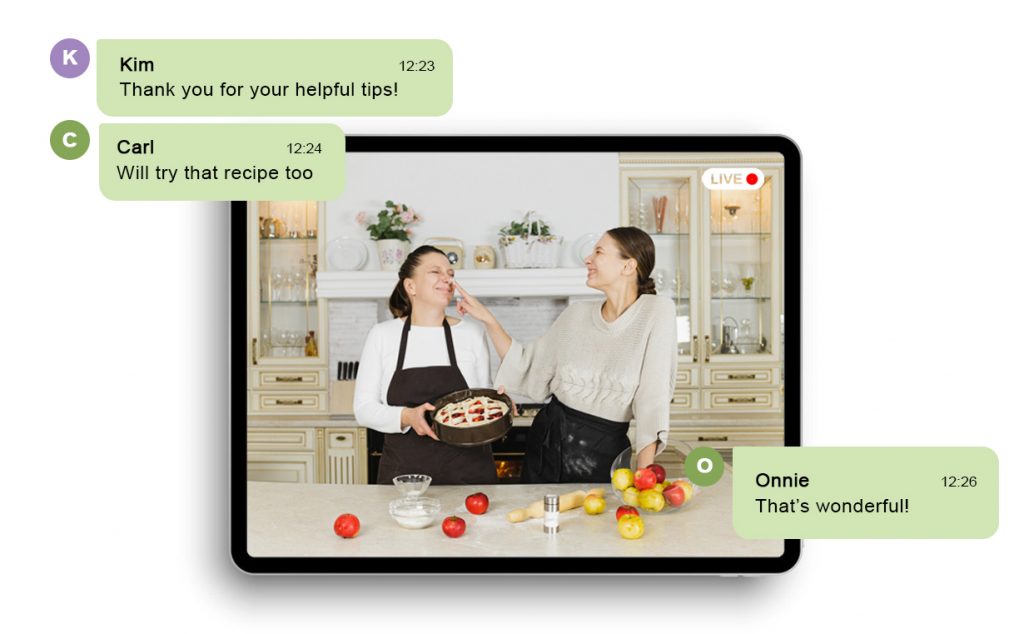
Despite the fact that social media has become a huge part of our lives, event management still needs to explore more of the internet to run a successful live stream. Every event organizer requires a live event chat because we’ve seen the shortcomings of live streaming websites and social media in managing live events over the internet. One of the most effective solutions is to include a live event chat. This, in conjunction with video streaming and social media, is proven to improve the overall live event experience.

Why does live streaming need a live chat?

What do talk shows, seminars, conferences, and debates all have in common? All of these events feature speakers and a Q&A session, so a conversation is unavoidable. Attending the event becomes possible when it is broadcast live via video streaming or social media.

Because anyone in the world can tune in, audience reach has skyrocketed thanks to the internet. As a result, real-time feedback is made possible via a chat room. Furthermore, a live chat allows remote viewers to submit a question in the Q&A session. A moderator, for example, can ask a question directly to the speaker, and the speaker can respond via chat room or directly via live stream.

This allows the event’s organizer to serve both audiences, namely those who attend the event in person and those who attend remotely. The audience at the event’s venue will be able to watch the event live at the location. The combination of live streaming and live chat will provide a convenient way for remote audiences to interact with the event.

Running a live streaming session

As previously stated, a live chat is required. We provide you with two options for hosting a live stream.

Group chat – This is the typical chat that we see and use on a daily basis. To begin a group chat, each member must first log in. They can then resume normal conversation!

streaming chat

Simply select Group Chat from your admin panel. Then, members simply log in and type whatever message they want!

Check the example above to see what the Group chat would look like.

Moderated chat – You can add a layer of security in your online community by using the Moderated Chat. This chat type allows your administrator to filter the messages before they appear in the chat room.

To enable this, choose Moderated Chat as your chat type. This is useful when you want to delete unwanted messages.

chatting website

Here’s an illustration of how a moderator approves or deletes messages. On the right side of the message box, you can see check and cross boxes. It’s straightforward.

live events

All you have to do is click them to approve or delete the message. This reduces the number of mishaps or negative messages in the chat. You can also prevent harassers and spammers from joining the chat.

The live chat is running concurrently with your event. The best part about having a live chat is that it is also available on smartphones! Simply open a mobile browser and copy the link for your audience. A group chat like this has an undeniable audience reach.

chat for live events

The Advantages of Using a Group Chat

The hustle and bustle of organizing a live event are surrounded by logistics and event planning. It is a natural law that when you organize a larger event, you must prepare more. You must consider a larger event venue, more food, and refreshments, more parking space for attendees, increased traffic and transportation challenges, and many other factors. This is only the beginning.

Those setbacks will not occur if you inform the audience to attend and communicate your live event via RumbleTalk chat. You can handle even larger events and audiences without worrying about larger logistical issues. You can continue to use your current venue, food catering, and parking space. Simultaneously, you can reach a larger audience for your live event. That is the most important advantage of the RumbleTalk live chat. If you want to make your own group chat for live streaming, you can do so here: Make your own live streaming chat.

More information is available on our Facebook and Twitter pages. If you want to schedule a demo call, you can contact support@rumbletalk.com.