New Feature: Copy and Paste Images in your Group Chat

Here’s a new feature that you can try! Copy images from your computer or from anywhere and paste them to your RumbleTalk group chat.

Previously, you need to save an image on your device before you can upload it on a group chat. Now, it’s possible to just copy an image and paste the image on your chat.

This saves space on your device and time as you don’t need to download anything just to share an image.

Paste images as you chat

Copying and pasting images this way is a time and space saver. You don’t need to save an image to your device. Additionally, this saves time as you just need to copy the image directly.

For example, if you want to send your chatters an image, you can just copy and paste the images on the chat.

Since other chatters want convenience and immediacy, there will be limitations if this wasn’t introduced. So, it’s for this purpose that this functionality was added.

This feature is useful if you’re always on the go and want to send images immediately. Try this feature out and let us know if you’re having fun with it!

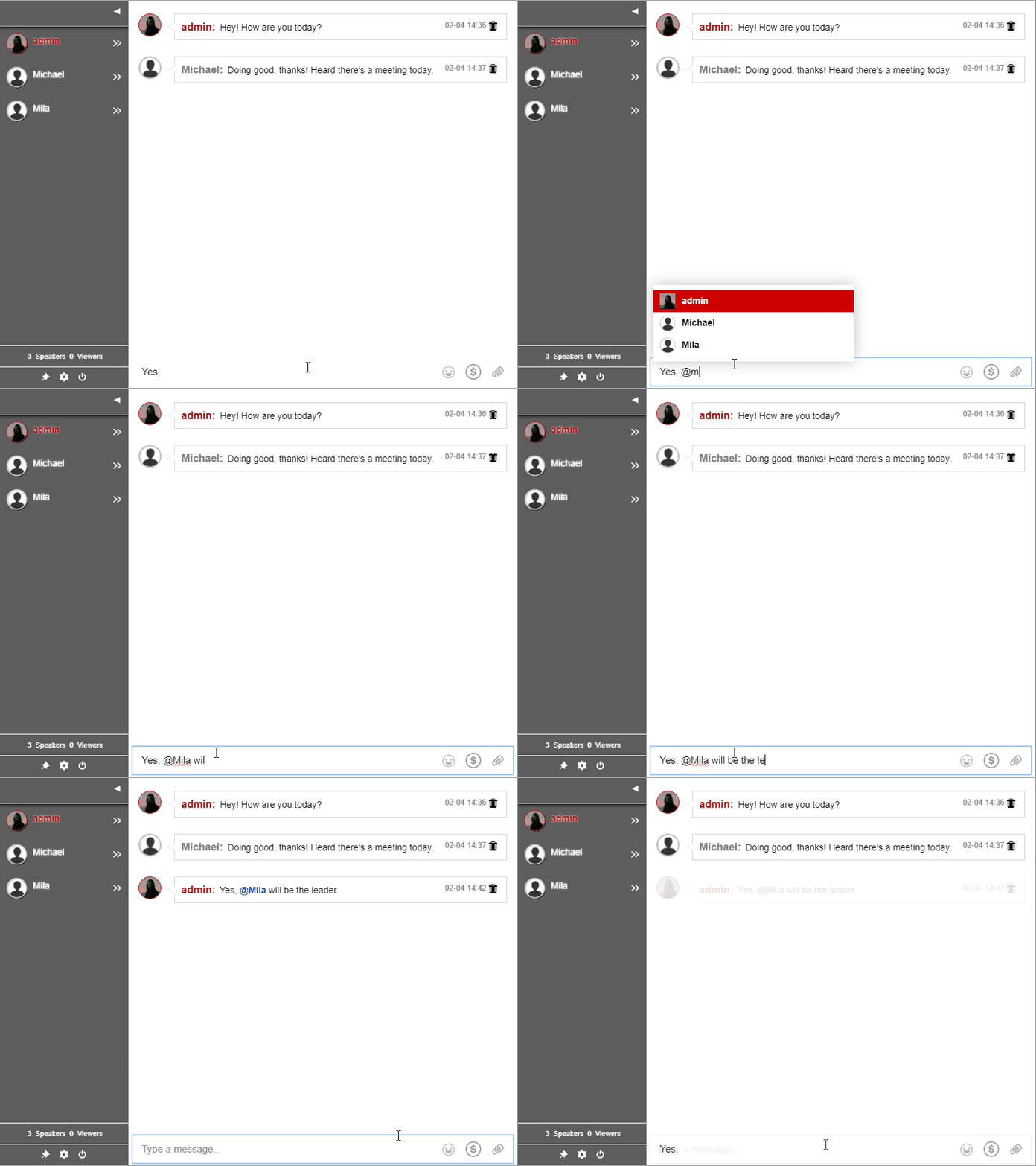
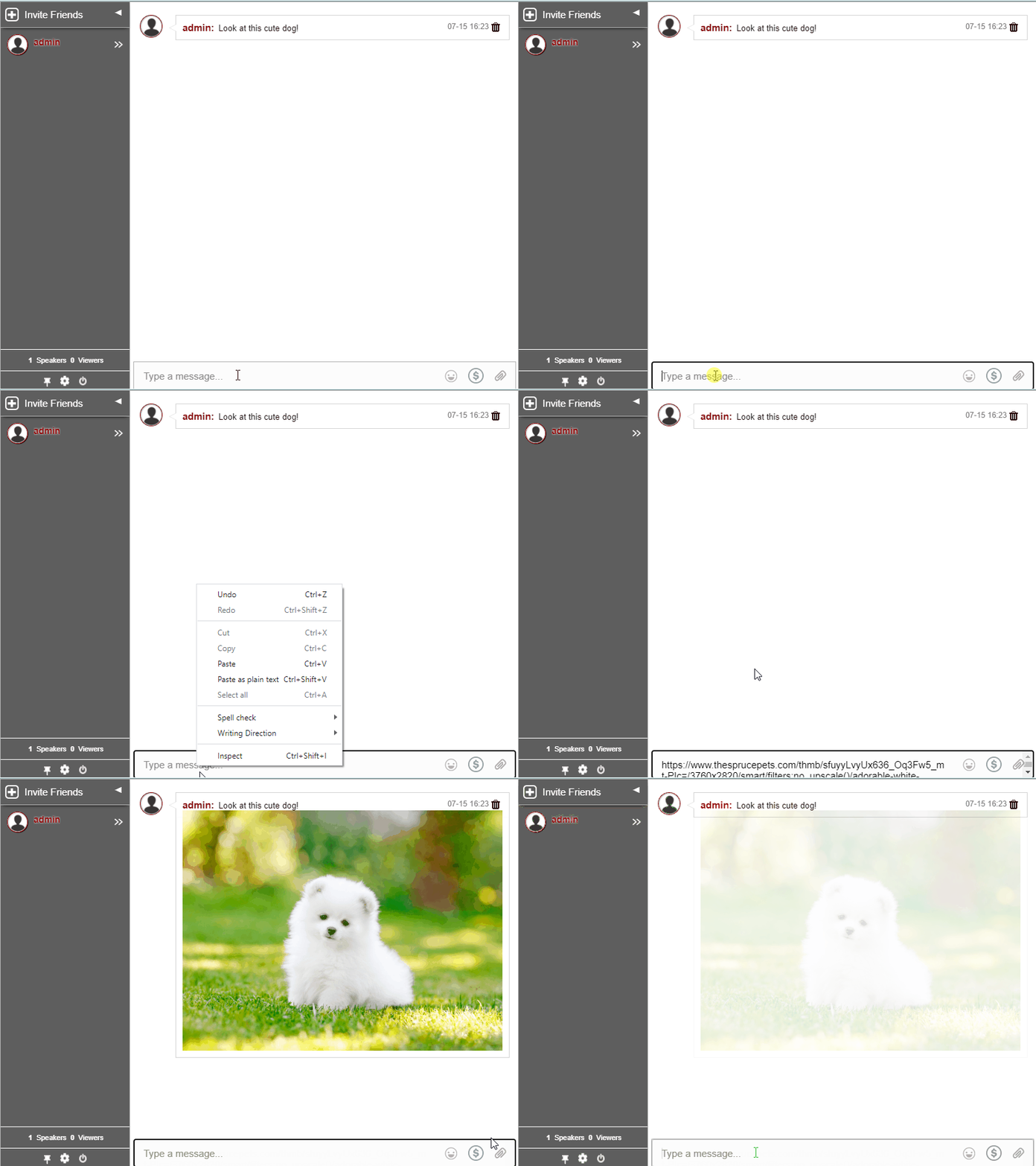
Here’s the feature in action.

How to copy any image and paste it on your group chat

The copy and paste feature is a feature that we’re all familiar with. We’re just applying it to images, not just text. So, here’s a quick tutorial on how you can copy and paste images on your group chat.

  1. Find an image that you like.
  2. Hover over the image that you want to copy. Press the right-click on your mouse and choose Copy image.
  3. Go over to the RumbleTalk chat and paste the image on your text box by using the right-click or Ctrl + V.
  4. Send your image to the group chat.
paste images

Pasted images will appear immediately in the chat.

chat room online

Added chat functionality

Since we all want new features and functions in our chat, why not tell us what you want to see? Send us a message on Facebook or Twitter!

We might just add it to our next update! If you want to check out our other features, then head on to our website. Explore some products and functionality that you’re not yet familiar with.

How using a webcast chat can help you stay connected

These days, more and more employees are choosing remote jobs. To keep up with the trend, a webcast chat is your best solution to keep in touch.

Live streaming and video streaming platforms are booming. With that said, webinars are favored for businesses and workshops for improving skills.

Tools like moderated chat in RumbleTalk are enabling employees and customers worldwide to stay connected. Also, they are given a chance to learn from the business leaders and those within the organization.

Why a webcast chat?

A webcast chat within a webinar provides two-way communication. Usually, businesses hold them to educate employees, customers, or prospective customers, to hone their skills and improve relationships.

What do you need to run a webinar?

Firstly, you need a quiet space. Secondly, you’d need a camera to record the virtual event. Next, you need a webcast chat. This is where RumbleTalk can help. It includes a moderated chat that you can use throughout the event.

How can you get your own webcast chat?

To get your own webcast chat, you can create an account on RumbleTalk.

Follow the steps below.

monetize
  • First, create your RumbleTalk account.
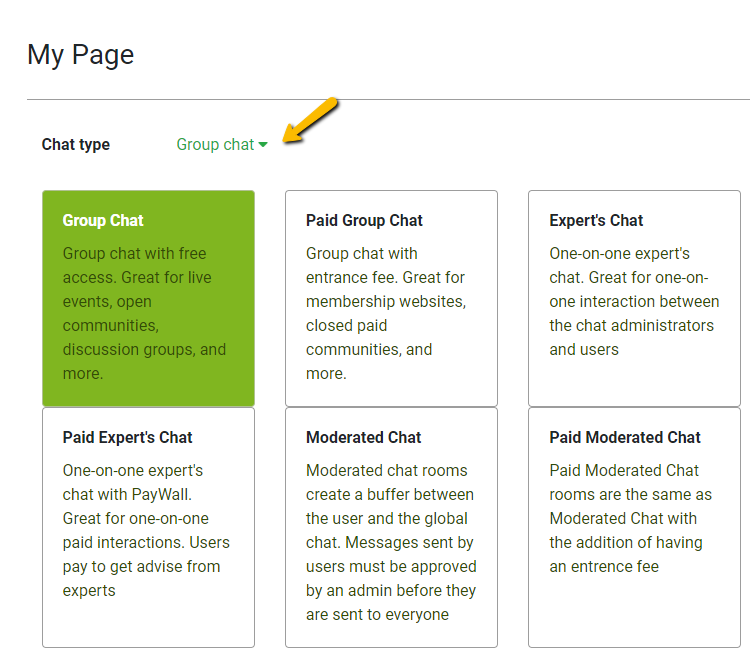
  • Next, choose moderated chat as your preferred chat type.
  • Agree to the terms and conditions.
  • Finally, you have your own account. If you want to change your chat settings, you can do so on your admin panel.
  • Lastly, share your chat link or embed it on your website.

By sharing your link to your groups, you make sure you involve everyone. Once you’ve set up your chat, you can now pre-approve messages before they get sent out. So, choose questions to be answered in the webinar.

Take full control of the community conversation

If a question does not fit the chat standards, you can immediately delete it. Therefore, no one will feel negative or threatened.

If a user is persistent in sending those kinds of messages, there are different chat moderation features that you can use. They are as follows:

  1. Ban IP addresses
  2. Disconnect users from the chat
  3. Ignore messages from a particular user
  4. Block and filter words

You can see all of these features on the chat and admin panel. So, be sure to discover that first!

How to ask questions during a live webcast?

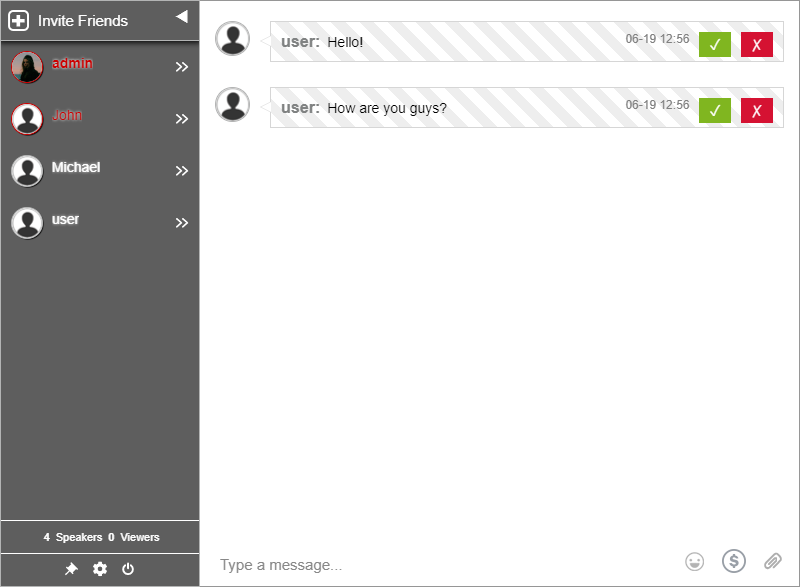
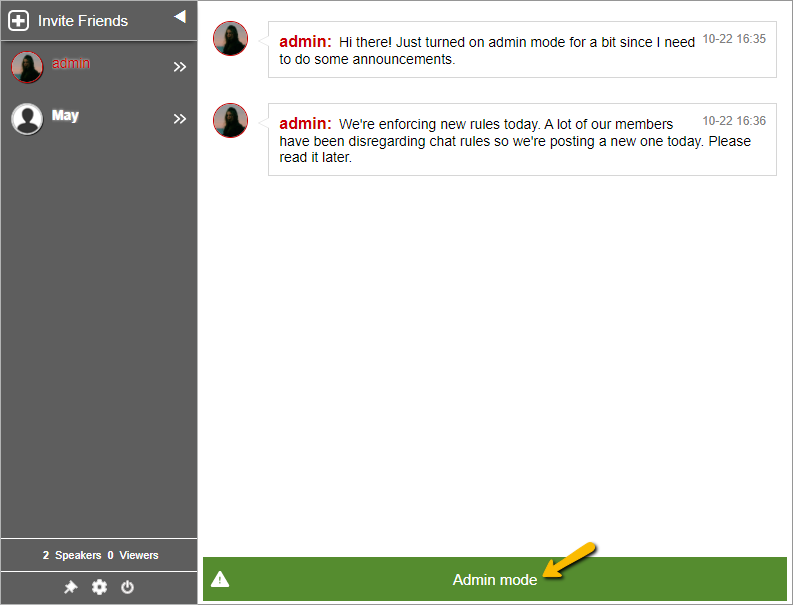
When you are using moderated chat as your chat type, the admins need to approve questions before they get sent out. Here’s how admins see the messages of the non-admin users.

q&a live session
admin view

As for the customers and employees, they can ask their questions normally. However, they will not see other users’ questions if they’re not approved. For non-admin users, only approved questions will be shown. Here’s an example of a non-admin user’s view.

digital event
user view

Even if non-admin users cannot see the other users’ questions, they can still send their own. If their question is chosen by the admins, it will appear in the chat room.

rumbletalk chat

The moderated chat type is great as a webcast chat since the admins can keep an eye on the chat discussion. Moreover, admins are given different chat moderation tools so they can effectively moderate the chat.

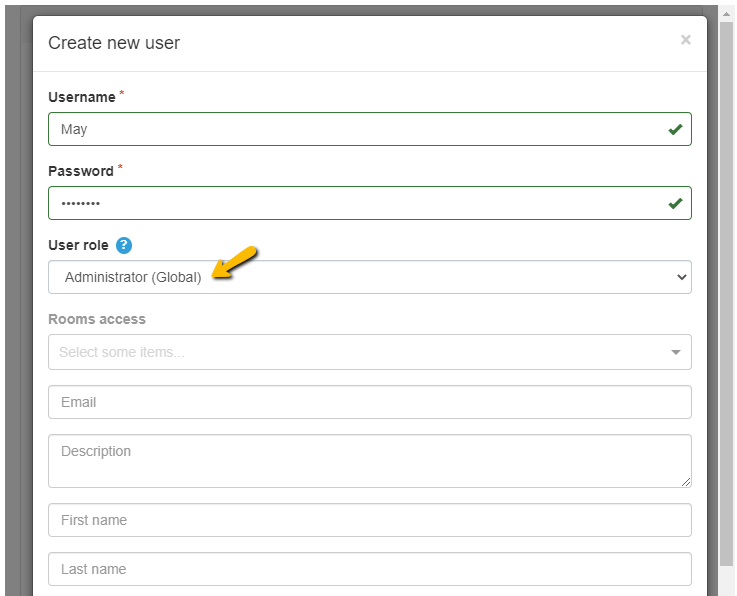
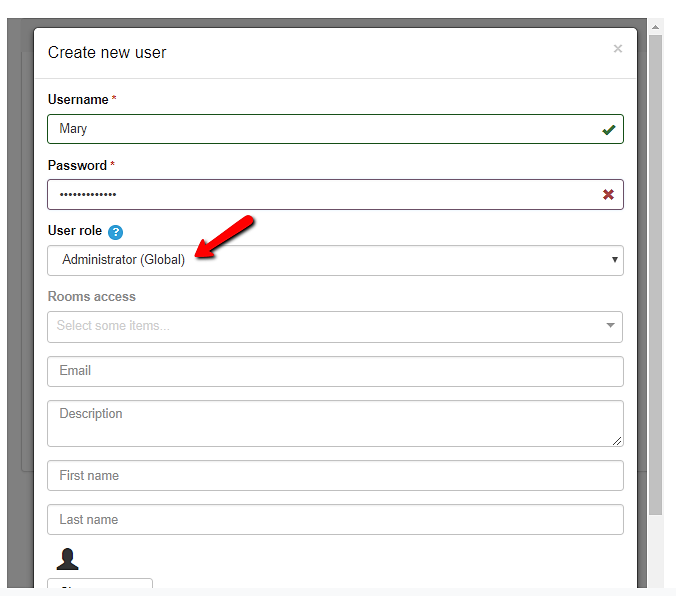
Adding admins to your chat is simple. Click “Users” on your admin panel. Type in the username and choose administrative rights. Add admins as your webinar needs.

Effectively collaborate with your customers and peers

Hosting a webinar is stressful, especially if it’s your first time. Therefore, it’s a great idea to be prepared. With a webcast chat, you’re sure to have the perfect medium for conversation.

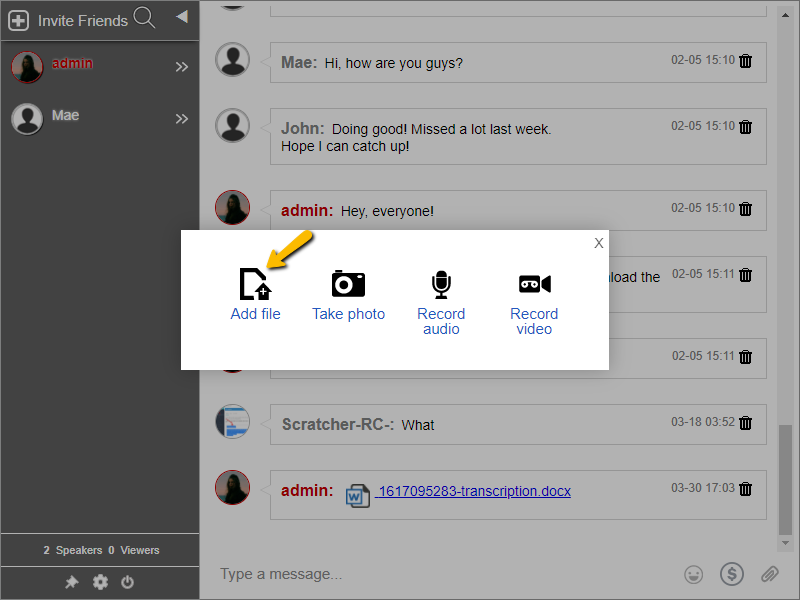
Another thing that chatters can take away is a copy of your webinar. For example, did you use slides or any document on your webcast? If yes, you can send that in the chat as an admin. This will let all users download the necessary material.

online chat tool

It’s a win-win situation for the company and its employees and customers. Need more seats for your webinar? You can also upgrade your account to premium or add seats manually.

After your webinar, don’t forget to follow up with everyone. You can also use the chat as a group chat and let your users send in their feedback. To change chat types, go to your admin panel. Then, choose group chat.

It’s as easy as that! You can do more if you check out your admin panel. So, tinker with it as much as you can.

Got any questions about the platform? You can reach us on Facebook and Twitter. Just send a message or DM. We’ll get back to you ASAP.

Already a RumbleTalk user? Then, click Support on your admin panel. You’ll be redirected to the contact form.

I hope this helps you with your next webinar. As a business owner or an entrepreneur, a webcast chat is the way to go for webinars. Get your own today.

Audience interaction made easy with moderated Q&A chat

Audience interaction is the key to a successful event. If you’re reading this article, this means you’ve realized that one-way communication is not as effective as a two-way one.

Your audience wants to be heard. To be heard, they need a voice.

By adding a moderated Q&A chat on your live events, you give them a voice. This platform will help improve interaction and feedback on your events or your service.

To do it, take it one step at a time. You can easily slide in a question and answer session on your events. Moreover, you can adapt it to your usual event schedule.

Let’s talk about how you can do just that.

Create a two-way interaction with your audience through a Q&A chat

audience interaction

A moderated Q&A chat is your best bet in creating audience interaction. Your audience has their smartphones, tablets, or laptops, so let’s chat with them.

Interacting with your audience is simple. You do a live stream and make them ask questions through the Q&A chat. Therefore, they make good use of modern technology.

This interaction is moderated by the admins that you appoint. Besides, you can also moderate the chat while holding the stream. Know that audience interaction will only be successful when it’s a two-way conversation.

Always ask your audience what they want to know, answer them, and let them know when you’ll be holding your next live stream.

If you do this regularly, you’ll successfully grasp your audience’s interest and they’ll be back on your next live. Moreover, they can even spread your expertise to other interested individuals.

In this article, you’ll find tips on how you can communicate with your audience.

1. Getting to know your audience

Breaking the ice is a team favorite and a great activity to be more open with each other. As they say, you can’t get things started without a good icebreaker!

Ask your audience how they’re doing, leading them to open up to you. It’s not always a one-way communication.

As you start your live stream, ask trivia questions like “Which country produces the most coffee in the world“?

Alternatively, you can ask fun questions such as “How would you describe your workplace in one word“?

audience interaction

Therefore, it’s advisable to approve messages that are deemed appropriate for the topic.

2. Ask what your audience wants

Doing a live, right? Ask your audience what they want to learn and hear. If they want to know more about a specific topic, then try talking about it on your live stream.

This can help them speak up. Moreover, it also gives you an idea of what to tackle and topics to focus on.

Therefore, show your audience that you listen and care.

3. Have a question and answer session

Ask questions from your live event! See if your audience is really listening to what you’ve been talking about the past hour.

This is a good measure to see who are your biggest fans and who interacts the most. You can do this through a moderated chat.

In return, you can thank them or do a special shoutout. From time to time, you can also hold giveaways or give prizes. These can be mini prizes or trinkets just to show your appreciation.

It can also serve as a discussion starter. Your audience can have different answers based on the info they’ve gathered.

After every topic, try to hold mini Q&A sessions like this.

4. Establish that personal connection

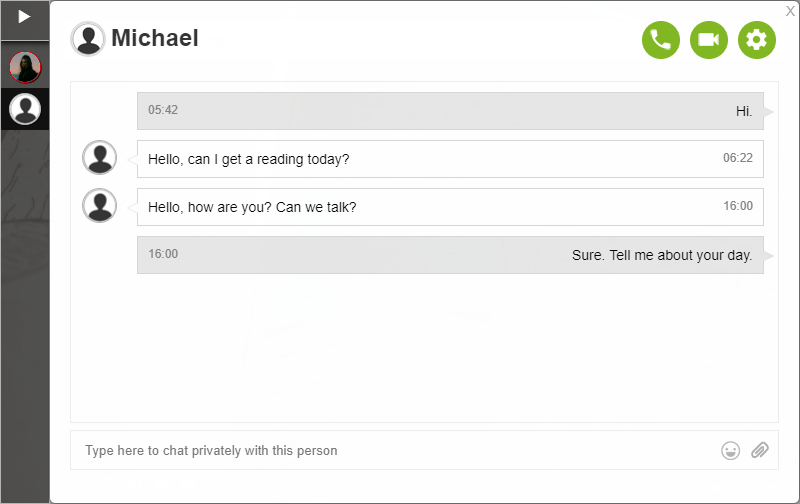
Before ending your live stream, you can slip in personal questions. Start from small questions such as how their day’s going.

From this, you can show that you care about their well-being and that you’re listening. You can also try complimenting them.

This strengthens audience interaction. Additionally, audiences who were shy at the start may open up after the session. Give them time to say what’s on their mind.

In turn, you build trust with your audience. Moreover, they’ll be back next time! They may even bring some of their friends with them.

5. Be open to comments and suggestions

Your audience’s feedback is the most important takeaway in your event. You need it to increase your audience’s numbers on your next live stream. With it, you can also improve the quality of your next live.

interactive presentations

Not only that, but you also improve yourself along the way. So, use your live stream to ask questions. Let your audience answer in the chat.

You can approve the messages or leave them for your own eyes. Be sure to do them on your next stream!

Audience interaction is a priority

Audience interaction is important for a successful live. By encouraging two-way communication, you build trust and widen your audience reach.

Therefore, grab your pen and paper and note these tips! I hope that these tips are helpful for your next live stream. So, try them and you won’t be disappointed with the results!

Additionally, you can keep up with the latest news and updates via our Facebook and Twitter pages.

Get your moderated Q&A chat here.