
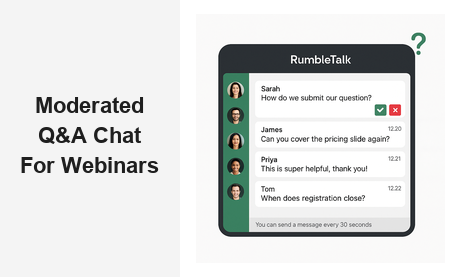
Running a moderated Q&A chat for webinars is one of the most effective ways to transform a passive online audience into an engaged, interactive community — without losing control of the conversation. Whether you host weekly product demos, annual virtual summits, or recurring customer training sessions, the ability to filter, approve, and prioritize audience questions in real time separates a polished, professional webinar from a chaotic free-for-all. In this guide, we cover everything B2B event organizers need to know about implementing a moderated Q&A solution for their webinars.
What Is a Moderated Q&A Chat for Webinars?
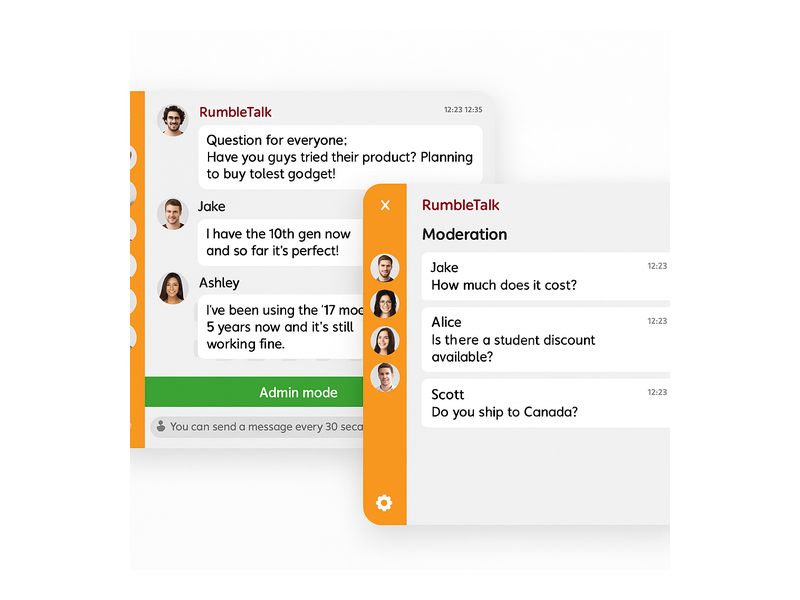
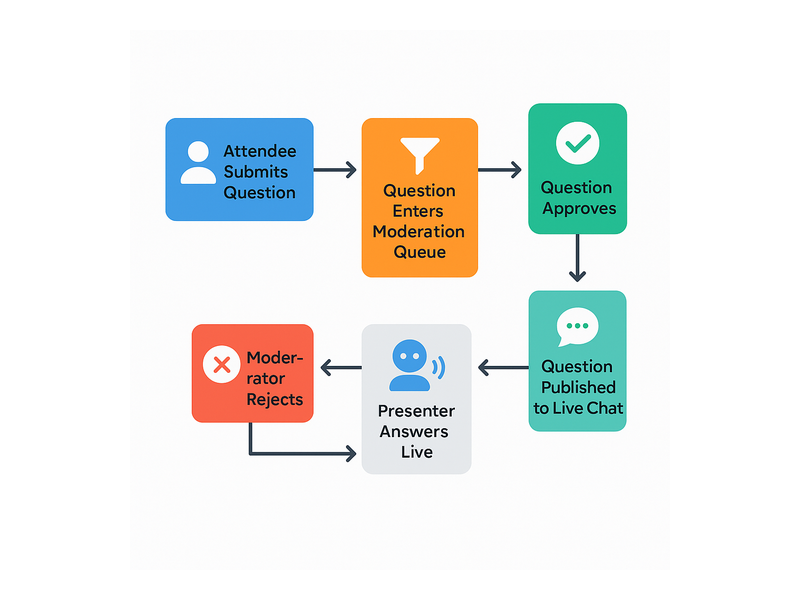
A moderated Q&A chat for webinars is a live chat tool embedded in or alongside your webinar page where all incoming audience questions are held in a backstage queue before going public. Unlike an open group chat — where every message appears instantly — a moderated Q&A solution inserts a gating layer that only hosts and admins can see. Moderators review every question and decide what gets approved, highlighted, or quietly discarded.
This distinction matters enormously in a B2B context. When a product manager is presenting a new feature to 400 prospects, or a compliance team is briefing clients on regulatory changes, there is no room for spam, off-topic comments, or duplicate questions cluttering the feed. A dedicated moderated Q&A tool gives event teams complete control over the quality and pacing of audience interaction.
It is also fundamentally different from turning off chat altogether. The goal is not silence — it is curation. Attendees still feel heard, questions still flow, and the presenter still delivers value. The moderation layer is invisible to the audience; all they see is a professional, well-organized stream of relevant questions being answered in real time.
Why Moderation Is Essential for Webinar Q&A Sessions
Picture a typical 500-person webinar with no moderation. Within the first five minutes of open Q&A, the chat fills with the same question asked fifteen times, a few attendees posting unrelated product complaints, a handful of spam links, and a pile of vague remarks that are impossible for the presenter to address. Genuinely valuable questions from engaged prospects get buried. Attendees feel ignored. The event loses credibility fast.
A well-configured moderated Q&A chat for webinars changes that experience entirely:
- Quality control: Only relevant, well-phrased questions reach the presenter. Spam, trolling, and off-topic content never enter the public feed.
- Pacing: Moderators release questions at the right moment — one at a time or in batches — keeping the session smooth and structured.
- Audience confidence: Attendees know their submission will be read by a human. The knowledge that a moderator is actively reviewing the queue encourages more thoughtful, substantive questions.
- Brand protection: No awkward moments from competitors attempting to derail your launch event or disgruntled users hijacking a product demo.
- Post-event intelligence: Rejected questions still exist in the backend. That archive is a goldmine — use it for FAQs, follow-up email content, and future webinar planning.
For SaaS companies, agencies, training organizations, and investor relations teams, these benefits translate directly into higher attendee satisfaction, better conversion rates from webinar leads, and a stronger perception of your brand as professional and well-organized.
Key Features to Look for in a Webinar Q&A Chat Tool
Not every live chat tool supports proper moderation. When evaluating a moderated Q&A chat for webinars, these are the capabilities that separate a professional solution from a basic chat widget:
Dedicated Moderation Queue
The moderator needs a dedicated backstage panel where every incoming question appears before it is published. One-click approve or reject — no navigating menus or switching tabs. This is the core function that makes a Q&A tool truly useful for high-stakes events.
Multi-Admin Support
Large webinars often require more than one moderator — one person managing the live chat while another briefs the presenter and a third handles follow-up questions. Look for tools that support multiple simultaneous admin accounts with independent moderation rights.
Question Highlighting and Pinning
Beyond basic approve and reject, the ability to pin or visually highlight a question signals to the presenter which one to address next. This feature is especially valuable when the speaker is working through slides and cannot actively watch the chat window.
Cooldown and Rate Limiting
Prevent any single attendee from flooding the queue by setting a message cooldown timer. A configurable rate limit keeps the moderation queue manageable even when hundreds of attendees are submitting questions simultaneously.
No-Download Embed
Your webinar Q&A chat must embed cleanly into any page and work entirely in the browser. Requiring attendees to download an app or create an account introduces friction that reduces participation, especially for B2B audiences on corporate devices.
Analytics and Question Export
After the session, you should be able to export every submitted question — approved and rejected — for reporting, content strategy, and sales team briefings.
How RumbleTalk Powers Moderated Q&A Chat for Webinars
RumbleTalk’s Moderated Q&A product was built specifically for live event organizers who need complete control over audience interaction. Here is how the platform works in practice for webinar teams:
The Backstage Moderation Queue
When an attendee submits a question, it lands in a private queue that only admins can see. The public chat window stays clean until the moderator hits approve. This means your live audience sees a polished, curated stream of questions — not a chaotic wall of unfiltered text. Moderators use the green checkmark (✓) and red X (✗) buttons to process submissions in seconds.
The Admin Mode Bar
Admins see a persistent green “Admin mode” bar at the bottom of the chat interface confirming their elevated permissions. From this panel, they can manage the queue, adjust settings on the fly, and monitor the session in real time — without the audience ever seeing the backstage view.
Configurable Cooldown Timer
RumbleTalk lets you set a message cooldown that displays a visible notice to all attendees — for example, “You can send a message every 30 seconds.” This reduces duplicate submissions, prevents queue flooding, and gives moderators a sustainable pace to work at during peak Q&A moments.
Zero-Friction Attendance
Attendees join the Q&A session directly in their browser. No app download, no plugin, no account required if you choose open access. For B2B webinar audiences — often joining from locked-down corporate laptops — this zero-friction entry is a significant advantage over solutions that require client-side software.
Full Design Customization
Every RumbleTalk chat room is fully brandable — colors, fonts, logo, header text, and layout. Your moderated Q&A chat for webinars looks native to your event page rather than a generic embedded widget. This matters for high-value events where brand consistency affects attendee perception.
SSO and Closed-Audience Events
For customer-only sessions, paid training webinars, or investor briefings, RumbleTalk supports Single Sign-On so participants are authenticated automatically when they access the chat. Only verified attendees can submit questions, which dramatically improves queue quality. For a deeper look at managing admin roles and permissions, visit the RumbleTalk Knowledge Base.
Real-World Use Cases for Moderated Webinar Q&A Chat
SaaS Product Demos
Closing a product demo means answering the right questions at the right time. With a moderated Q&A chat for webinars, your sales engineer can focus entirely on the demonstration while a dedicated moderator filters attendee questions, surfaces the highest-value ones for the presenter, and queues the rest for post-session follow-up. The result is a tighter demo, a better-informed prospect, and a cleaner path to conversion.
Virtual Conferences and Summits
Panel sessions with hundreds or thousands of attendees are unmanageable with open chat. A moderated Q&A stream lets conference organizers control the conversation’s pace, ensure diverse voices are heard, and maintain the professional tone of a flagship annual event. Sponsors and keynote speakers consistently rate moderated Q&A as one of the top factors in virtual event quality.
Corporate Training and E-Learning
Trainers and instructors running live webinars need to keep sessions focused on the curriculum. A moderated Q&A tool prevents off-topic tangents and allows instructors to batch similar questions — answering a cluster of related queries together rather than jumping between subjects. Participants feel the session is organized and their learning time is respected.
Investor Relations and Earnings Calls
Public companies and IR teams use moderated Q&A webinars to field questions from shareholders and analysts. The moderation layer ensures that only substantive, on-topic questions reach the presenter — protecting both the message and the legal compliance requirements of a public earnings call.
Customer Success Webinars
Onboarding sessions, quarterly business reviews, and product update webinars all benefit from structured Q&A. With moderated chat, every attendee gets a useful answer rather than their question being lost in noise. Customer success teams that run moderated Q&A sessions consistently report higher attendee re-registration rates for future events.
Best Practices for Running an Engaging Moderated Q&A Webinar
The right tool is only half the equation. Here are proven best practices for getting the most out of your moderated Q&A chat for webinars:
- Open early. Launch the Q&A chat 10–15 minutes before the session starts. Early attendees can begin submitting questions while they wait, giving your moderator a head start on the queue and ensuring the session begins with approved questions already ready to surface.
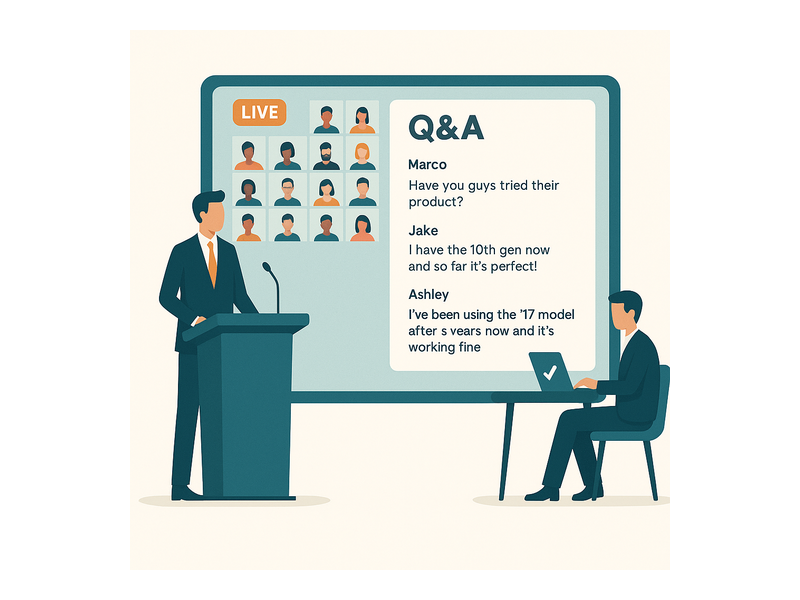
- Assign a dedicated moderator. Never ask the presenter to moderate their own Q&A. A separate team member focused entirely on queue management allows the speaker to deliver their content without distraction.
- Seed the queue. Prepare 3–5 high-quality questions in advance and approve them first. This primes the audience, demonstrates that the Q&A is live and active, and sets a quality standard for the questions that follow.
- Batch similar questions. When multiple attendees ask variations of the same thing, approve the best-phrased version and quietly discard the duplicates. The presenter gives one focused answer instead of repeating themselves.
- Mine rejected questions. After the webinar, export the full question archive — including rejections — and use them to create a post-event FAQ, brief the sales team on prospect concerns, and plan future webinar topics.
- Stay active after the session. Keep the chat room open for 15–30 minutes after the webinar ends. Your moderator can answer remaining questions directly, extending the event’s value. This principle of post-event audience engagement applies across all live formats — as explored in our post on Radio Audience Chat: Turn Listeners Into a Community.
- Rehearse the workflow. Run a full dry-run with a test attendee account before going live. Confirm that the moderation queue works as expected, the cooldown timer is set correctly, and all admin accounts have the right permissions.
How to Set Up a Moderated Q&A Chat for Your Next Webinar
Getting started with RumbleTalk’s moderated Q&A chat for webinars takes minutes. The typical setup workflow looks like this:
- Create your room. Log in to your RumbleTalk dashboard and select the Moderated Q&A chat type for your new room.
- Configure moderation settings. Enable the approval queue, set the cooldown timer, and add admin accounts for everyone on your moderation team.
- Brand the chat. Upload your logo, set your brand colors, and adjust the chat window dimensions to fit your webinar page layout.
- Embed the widget. Copy the embed snippet and paste it into your webinar landing page, event portal, or streaming page. The chat loads instantly in any modern browser.
- Brief your team. Walk your moderators through the approve/reject workflow and the admin interface so everyone is confident before the event begins.
- Go live. Open the chat as your webinar starts, approve your seeded questions, and let your audience engage while your moderator maintains the quality of the Q&A stream throughout the session.
Conclusion: Make Every Webinar Q&A Session Count
A moderated Q&A chat for webinars is no longer a nice-to-have for B2B event teams — it is the baseline expectation for any professional virtual event. The ability to filter audience questions in real time, maintain brand control, and deliver a smooth experience for both presenter and attendees directly impacts the quality, credibility, and conversion rate of your webinars.
RumbleTalk’s Moderated Q&A chat is purpose-built for exactly this use case: a fully customizable, embeddable, browser-based solution that gives event organizers complete control without adding complexity for attendees. Whether you are running a 50-person product demo or a 5,000-person virtual summit, the platform scales to your event and keeps the conversation exactly where you want it.
Ready to run your best webinar Q&A yet? Visit rumbletalk.com to create your free account and launch a moderated Q&A chat for your next webinar today.