WordPress Chat Integration Made Easy – Connect your Usersbase with a Click

What if I tell you that a WordPress chat integration is a click away. We have tried to make user base integration easy, so we took all the heavy lifting from you and made one checkbox to allow your chat to be fully integrated with your WordPress database.

Now your registered users will be able to automatically login to your WordPress chat room. This means that the chat can be accessed only by WordPress users, registered and/or by users, you decide to set as admin or simple users in the RumbleTalk users management.

Chat and User Base Integration made easy

WordPress chat integration is perfect not only for WordPress users base but for all products using it underneath, like members plugins, BBpress or BuddyPress plugin.
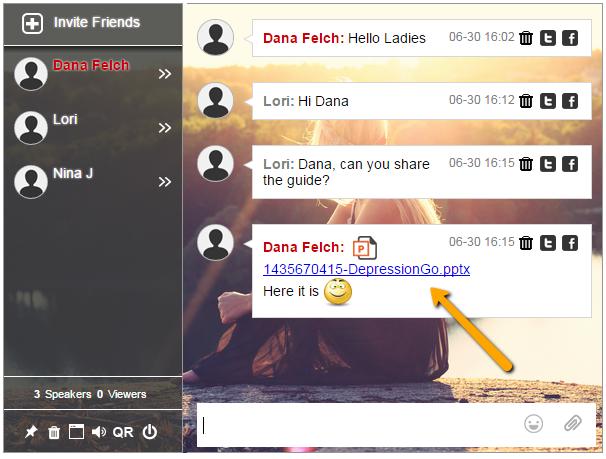
integarte your users base with WordPress. WP Chat Integration Made Easy

This feature is for companies that wish to create a private members group chat using their own existing users base.  It is perfect for closed group discussions, social trading websites, health support group, admin areas where discussions are private or any type of private chat rooms for websites.

WordPress chat integration with your users

After installing the RumbleTalk plugin and creating an account, instructions can be found in here.
You now can use our self-explanatory chat settings.

1. The plugin was installed and the chat account was created. You will see one default chat was created (you can add more rooms when you upgrade your plan). Now you want to connect your WordPress users to the chat. Simply check the MEMBERS checkbox (see below), save and you are done. Checking this checkbox will seamlessly set the WordPress chat integration to use WordPress registered users.

2. Embed – Add the chat to a page where users need to login in order to see (in your member’s area). Use the shortcode to do it.
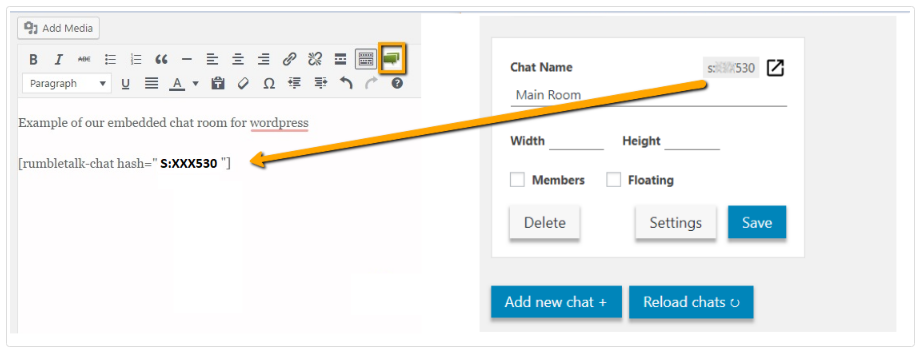
WP plugin short code

3. Test – Login to your WordPress members area, go to the page you added the chat too and you will see that you automatically logged in to the chat with their member’s area login username.
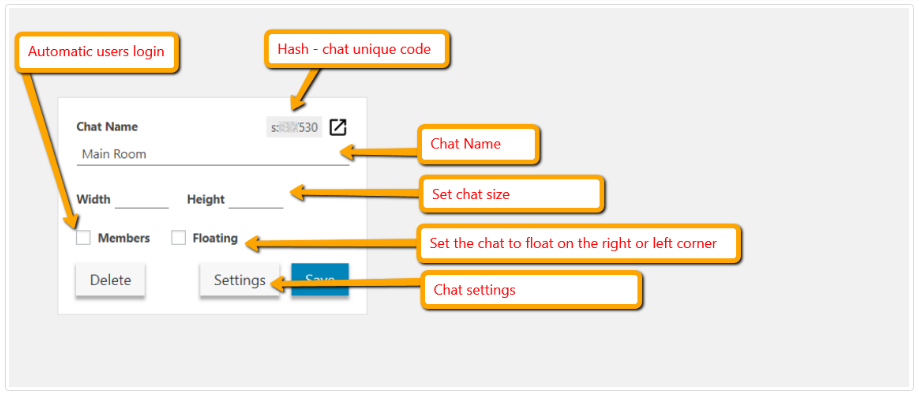
Wordpress chat plugins info

4. Important – Make sure the login option “Guests” checkbox is checked. Note, Although the “Guest login” is checked, it will not allow guests to log in but only the WordPress/BuddyPress/BBpress users.
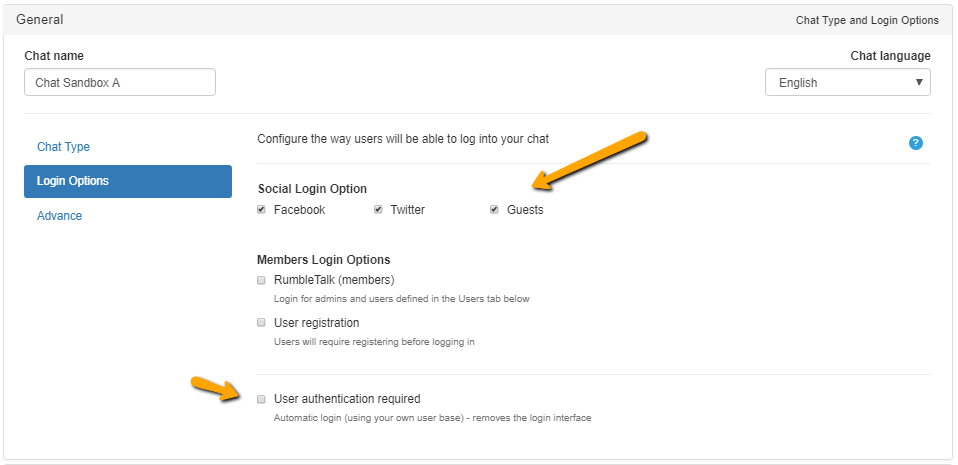
Wordpress chat integration guest login

5. Settings – Now you can change your chat settings and customize it to your liking. To do it simply click on the settings button (the options are endless).

The chat is integrated with your users base.
Now, let’s see an example of a using the chat. Let’s take an example of a website that has 500 registered users. This site is giving advice for a group of Stock Traders (the registered users). When these traders are logged in to the site (after supplying their users and passwords). They will be immediately and automatically logged in to the chat room. It is that simple.

When using members login your Social Login is now disabled

Now you made your chat members only (private room). It means only allowed registered users may log in to the chat. In addition, users will not be able to log in with their social logins. e.g

  • Guest
  • Facebook
  • Twitter

Set administrators for a members only chat room

To create a chat administrators create a user in RubmleTalk with a username that’s exactly the same as your displayname in your WordPress user base.

To do this, simply go to your chat settings and open the “Users” tab. Click on the + and add a user with a password (make sure you add the admin email).

Login as an administrator

When users will open the chat page, they will be logged in automatically. The chat will identify when a user is also an administrator and will prompt them for a password. The administrator will need to provide the password for the first time in this browser, latter on the login will be automatic.

Note, administrators name are show in red by default.
New Login SDK functions: Logout & LogoutCB (For Developers)

This is one of the most requested features by our customers using the RumbleTalk Login SDK.

When users have logged in automatically via the Login SDK. They actually inherit the credentials from the chat owner users base and are allowed to login automatically.
However, if the chat owner wishes to force a logout of a user, he was unable to do so.

Now, he can. RumbleTalk is happy to announce a new two Logout options.

Logout

Chat owner can now initiate logout of users using the Login SDK.

To do so, call the following function:

<script type="text/javascript">
rtmq(
    'logout',
    {
        userId: 'USERS_ID', // [optional]
        username: 'USERS_NAME' // [optional]
    }
);
</script>

The [optional] parameters “USERS_ID” and “USERS_ID” are optional and used only to validate that the correct user is being logged out.
They can be used separately or together.
Excluding them will remove the connected user (who’s browser called the function) regardless of their “user id” and\or “username”

Logout Callback

Chat owners can now also listen to the event of a user logout.

To do so, call the following function:

<script type="text/javascript">
rtmq(
    'logoutCB',
    {
        callback: 'CALLBACK_FUNCTION'
    }
);
</script>

The “CALLBACK_FUNCTION” will be called with a “reason” variable when the user logs out of the chat.
An example of the callback function is such:

function (reason) {
    console.log(reason);
    // code to execute on logout
}

currently, the following values are possible for the reason variable:

  • “button_clicked” – the user clicked on the logout button
  • “sdk_request” – the “logout” function of the SDK was called
  • “unknown” – the user disconnected from the chat for an unknown reason (such as network connectivity problems)

Chat Theme – Stylish and Unique to RumbleTalk Online Chat Rooms

As any good web developer knows, an eye-catching theme is key to drawing in visitors. That goes also for chat theme. You take the time to pick the colors, graphics, a layout and ensure everything complements each other.

Now, there are many reasons why a chat room on your website is required.

  • Chat room for an online community.
  • You wish to have a way for visitors to interact with one another.
  • A group chat room discussion for your team.
  • A live online event where an event chat is needed.

Different options with one common question, what chat theme should we use?

Many developers do not include a chat skin interface on their websites. While functionality has gradually improved, how they look has not. It’s this element that has put many people off, up until now.

Chat Theme — Painful If They’re Missing

There are lots of chat platforms available to choose from, and they’ll offer some good features too. You’ll get a bit more from a professional platform obviously, but essentially with respect to webchat (text only) they’re all giving the basic similar features. They also tend to carry one similar trait we wish they wouldn’t. They’re not easy to customize.

group chat theme

Now we don’t just mean the ability to select from a list of default colors, or to change the chat filter options. We mean the look of the entire chat room window. The rest of the site might look great, but when you add in that chat element, suddenly your skin is broken. You have a window that might match your background color if you’re lucky. What you get more often though, is something that stands out like a sore thumb.

You can probably imagine the sort of impact it has. Yep, quite detrimental. For one, it’s jarring for your visitors. The rest of your site is likely easy to read and very user-friendly. A chat room that breaks the page flow just makes browsing on your site unpleasant. Also, let’s face it, it doesn’t look professional either. It looks like you have spent time on everything else and simply slapped in a chat room at the last moment. Not a great introduction for new visitors…

What We Did about It

Imagine being able to customize your chat client completely. Not just filters and colors, but images, fonts—complete style sheets. It sounds like it’s too good to be true right?

Not in the slightest.

We’ve seen developers face problems like those mentioned before time and time again. So we put our heads together and added what we feel is a highly important aspect to web chats—chat themes!

You may be aware that other providers such as WordPress provide a selection of skins or themes for a website. You may even use them yourself. They’ll cover just about everything to make a site unique, but not for a chat. That’s what we find our and decided to change.

The first of their kind, our skinnable chats let you customize everything about your interface. You can now easily add a chat room to your website, forum, or blog, without killing its look. We’ve opened the doors with our chat to allow you to integrate web-based chat seamlessly.

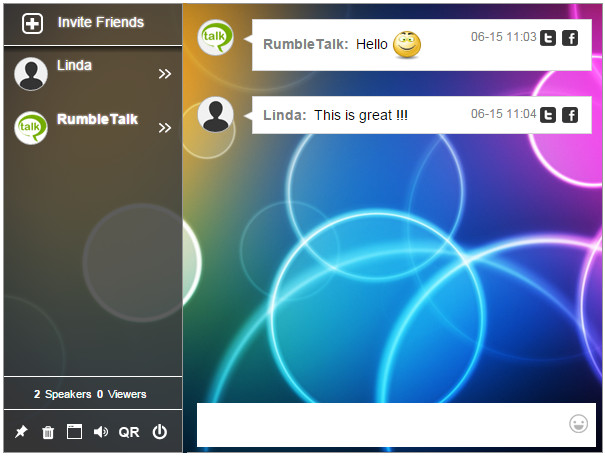
chat theme circles

These themes are ideal for web developers, webmasters and website owners who, like us, want to bring social elements to their websites. Whether your website is designed for a large or small audience, you are now able to add these elements and keep your site looking thematic throughout!

Chat Theme/Skins — What Can I Customize?

You can use the chat skins to customize literally every part of your chat. Let’s say you have a background image that would really complement your site nicely.

With our skinnable chats, you can now add this as well as changing the colors. We don’t just let you make basic changes though.

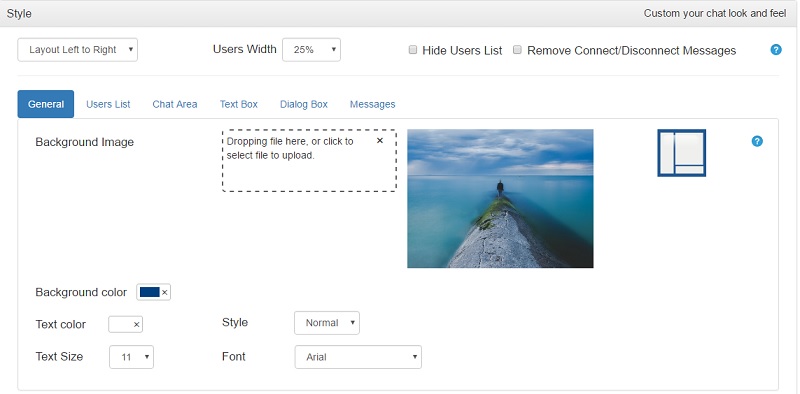
For one thing, you can change the size of the entire chat. Meaning you’ll be able to ensure it’s a perfect fit with your page layout. Fonts are another area that can set your sites apart from others. We recognize this, so not only can you change the font type, but even the colors and style.

Meaning you’ll be able to ensure it’s a perfect fit with your page layout. Fonts are another area that can set your sites apart from others. We recognize this, so not only can you change the font type, but even the colors and style.

chat theme settings

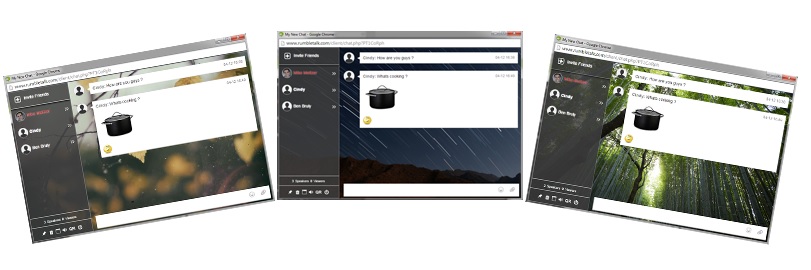
Another exciting feature is the ability to change the background for each part of your chat interface. You could add images, colors, and customize each area to get it looking exactly as you want it in the interface.

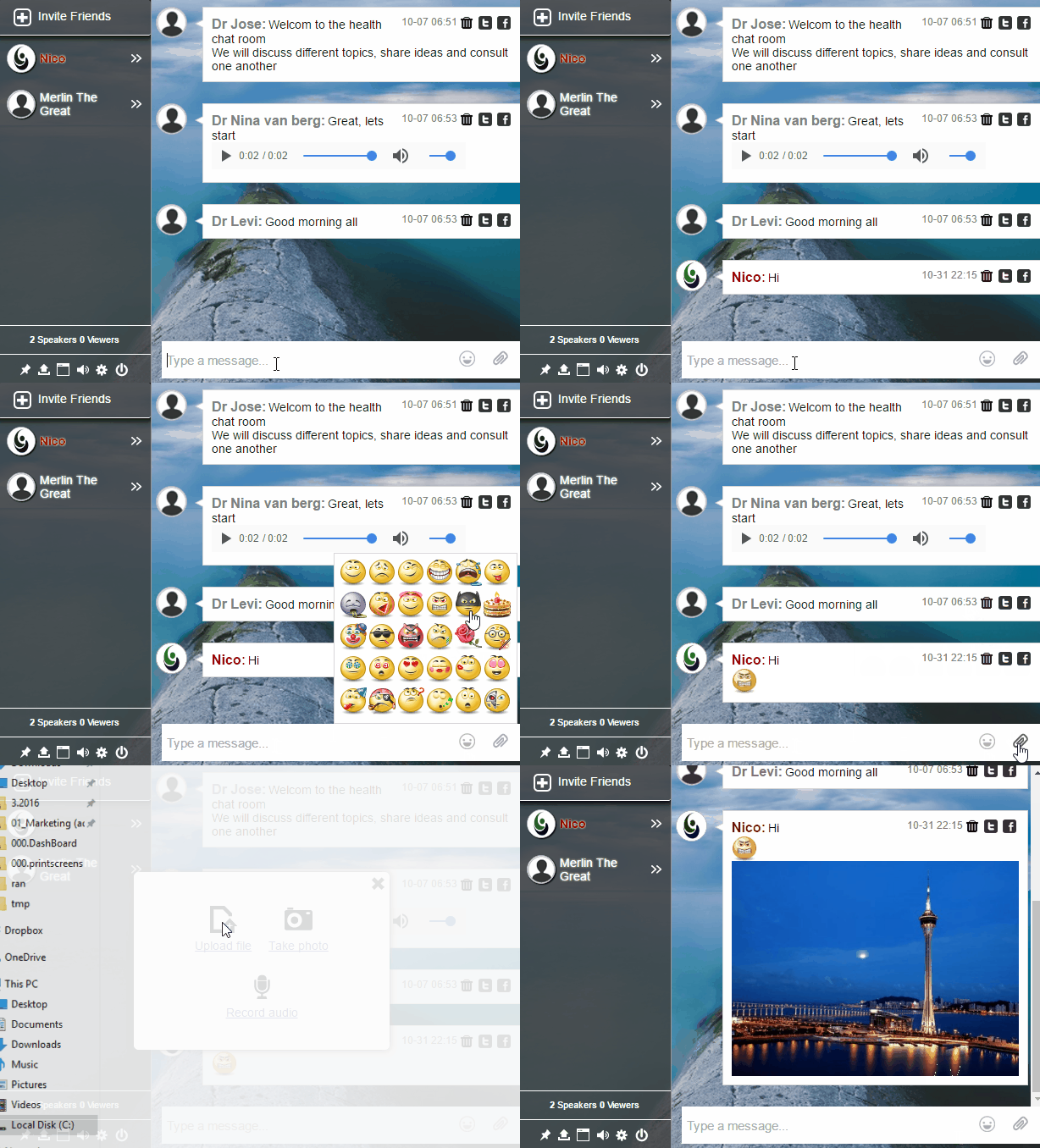
live online chat room example with chat theme
The possibilities are nearly endless here with chat themes. The important thing is figuring out what works best for your site. Don’t be afraid to play around with the options; you might be surprised just how much you can change. Not to mention all the different looks you can create!

How Well Do They Integrate?

One thing you might be concerned about is just how easy it is to take these chat theme and add them into your site. It’s incredibly simple. The code for all RumbleTalk chats is automatically created. RumbleTalk chat themes are no exception to this. The definitions for your skin get added into the generated code. This then just needs pasting into your site and there you’ll have your new room, complete with theme!
You may well have a flair for creating themes. You might even create interface skins already and provide them to customers. RumbleTalk chats are JavaScript orientated, so they can also be easily added to most sites. Unique site themes can now include chats, something that is changing how a lot of people think about website design.

What They Mean to Our Customers

We’re excited that we can offer themes here at RumbleTalk and we’ve seen some really amazing chats created as a result. It gives you the power to develop your websites and feel confident in the knowledge that the chat room interface you include on your site will look just as good as the rest of it.