3 Tips To Go About Moderating your Online Event

Constantly bombarded with messages and queries, conversations in an online event are getting harder to keep up with. Organizing a Q&A chat session with your online event participants could be the answer.

Because there may be hundreds or thousands of people attending such events, some may miss out on the opportunity to submit their questions. All they can do is watch the event intently in the hopes of gaining something from it.

By allowing everyone a chance to have their question chosen, this difficulty can be overcome. Admins can choose from the participants’ questions, not only what the speaker sees flashing on the live chat, as long as you use a regulated chat for Q&As.

We will discuss the following themes in this article:

  • Changing the mode of the monitored chat to Q&A
  • Scenarios for Q&A chats

Let’s get started with the fundamentals.

1. Configuring the Moderated Chat to function as a Q&A forum

The Moderated Chat is one of the chat types on the RumbleTalk chat platform. Admins can use this feature to pre-approve messages before they are sent to the audience. So, admins are moderators in charge of the event chat.

  1. Go to General & Logins > Chat type to begin using the Moderated Chat.
  2. Now that you’ve decided on it as your chat type, you’ll need to appoint administrators. On your admin panel, go to the Users tab and click Add a new user
  3. Appoint global administrators or administrators with only room access. The number of chat rooms will determine how many admins you need.
webinar
user roles

Now that you’ve completed that step, you can begin using the Moderated Chat.

When the speaker asks questions to the audience, the chat acts as a Q&A mode, with admins deciding which ones will be answered.

Only questions that have been approved will appear in the chat room. Additionally, only administrators have the ability to approve or delete messages.

This way, everyone has a chance to have their question chosen rather than just the last one the speaker sees on the screen.

2. Q&A mode: various scenarios

You can use the Q&A mode in a variety of scenarios. Here are some of the more common ones.

Online gatherings

online event

This is the most common scenario. Because online events are usually accompanied by live streams, it’s best to have a chat alongside them.

During the online event, the speakers will be able to ask the audience questions. The admins are then present to monitor and approve questions. If you want to learn more, check out this blog post about how to control the discussion with a Q&A chat.

Webcasts

rumbletalk chat

Do you know what a webcast is? If you answered yes, you understand how important it is for your audience to have a voice.

By providing them with what they want, they’re interested in chatting more about your topic, product, or whatever area you’re covering on your webcast.

Find more about it here: Interactive webcasting chat for live webcasts and events

Company meetings

Because of what is going on in the world, the majority of employees are working from home. This necessitates remote team meetings. When you introduce the Q&A mode to your team, you can hold sessions in which employees can submit questions for an executive/HR representative to answer. This is merely one example.

You can read this guide on managing remote teams in a virtual environment.

3. Q&A sessions in an online event supervised by admins

It’s easy to get lost in a large virtual event, especially in conversations. Q&As aren’t always straightforward to manage, but with the appropriate technology, they can be. If you know how to utilize the platform and have your admins with you, Q&As may be simple and enjoyable.

Virtually holding events is no longer as terrifying. Even complete strangers can host one. All you have to do now is prepare for the other items you’ll need for your Q&A session now that you’re confident with your chat platform.

If you want to learn more about RumbleTalk’s platform, contact us.

Master the art of hybrid events with these best practices

Hybrid events are all the rage these days, and it’s no wonder why! With the right planning and execution, they can be truly incredible experiences. Something that will fully immerse your audience in your business, while also increasing brand awareness and delivering impressive ROI. Rumbletalk is crafted to help you master the art of hybrid events. Here are some best practices to follow when planning your next one-of-a-kind event.

Planning hybrid events with RumbleTalk

Organizations should think outside the box when it comes to event planning. This is true especially as budgets continue to shrink and audiences demand more interactive experiences. So, how can marketers master these new trends? Whether your next event will be held in-person or on a live webinar, you’ll want to make sure you are maximizing all opportunities to connect with participants. So, we created a list of things you should keep in mind while planning your next hybrid events.

Keep it casual

Transitioning from face-to-face interaction into remote communication is hard enough for most of us. Making small talk could be good for building connections and developing trust. So, chatting with your audience members before or after an event can help you connect in a more meaningful way. 

Keep the audience engaged with multimedia sharing tools

live chat

Aside from having a speaker at your event, consider incorporating videos and documents before and during your program. With RumbleTalk’s file-sharing tools, you can keep your audience informed by sending multimedia files. For example, sending them tutorial videos, product photos, or a live video of you trying on the product. Furthermore, to get audience members even more involved, ask them to submit questions for you to answer live. 

Select a moderator ahead of time

hybrid events

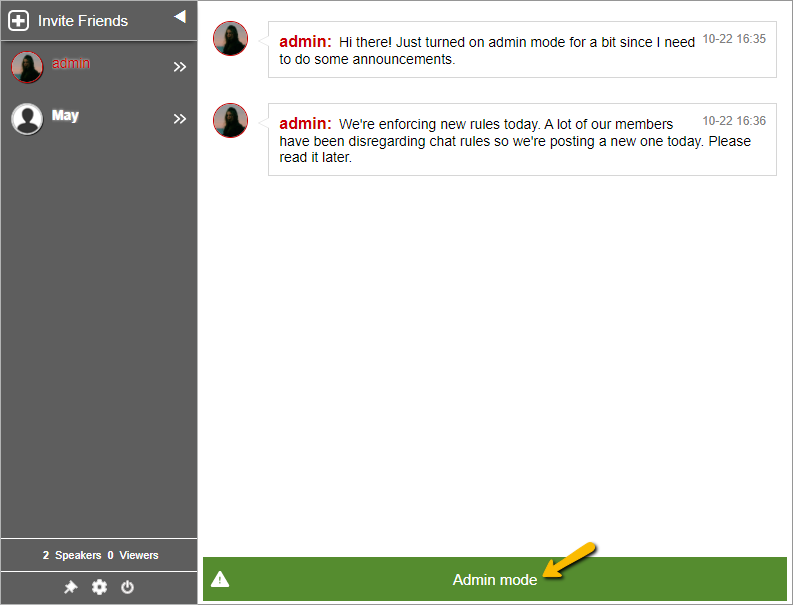
Look for a moderator who will not only deliver your material but also keep everyone involved and moving forward. The moderator will serve as the admin of your group chat. In the Moderated Chat, he or she has the power to block unwanted users, approve or reject messages before it goes live, mute everyone, and more.

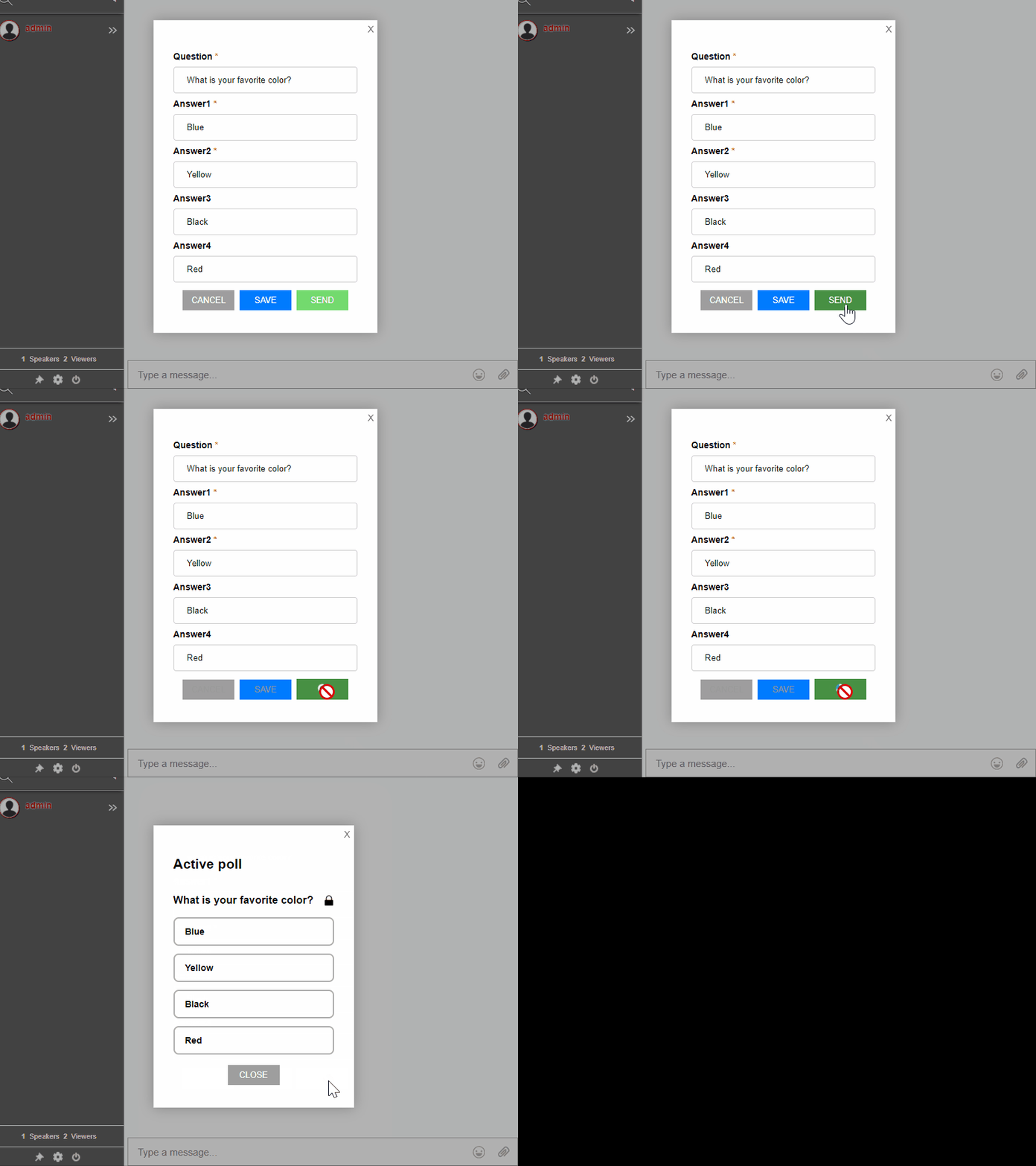
Use polls and Q&A to ask for feedback and suggestions for improvement

chat polls

People who come to your live event will have different opinions on what they liked and disliked. But it’s important to find a balance between listening too much to their opinions and staying focused on your own agenda. Always listen for critical feedback that can help you improve. But don’t let outsiders keep you from executing based on their ideas alone. You know what’s best for your business, so trust your instincts above all else.

Make sure both on-site attendees and remote attendees can “enter” the event early to engage in pre-event socializing

So, you’re hosting hybrid events and you have remote attendees. One way to get remote participants more involved in on-site activities is to give them early access to your meeting agenda (maybe even 24 hours in advance). If they can’t be there for kickoff, at least let them know what will happen so they don’t miss out entirely.

In addition, you can send them digital invites with a QR code that leads to your virtual event. This makes it easier and more accessible to your participants.

hybrid events

Make your virtual and hybrid events more inclusive

When planning an event, start by thinking about who you’re trying to reach. It can be difficult to get people involved if they don’t see themselves reflected in your content or are skeptical that they have something to gain from it. If a key part of your audience is a member of underrepresented groups, make sure their voice is heard at your event.

Send us a message at support@rumbletalk.com and we’d love to give you a demo of how our solution can work wonders for your next hybrid event.

Using InText keywords for better marketing

A chat plugin is a solution for businesses that want to embed a group chat to their websites without having to download anything. Coupled with an InText keywords feature, it transforms into the ultimate marketing platform.

You can easily direct your users to links from external sources, sites, or affiliate content when you use InText keywords. As a result, all messages are scanned for words or phrases that are linked to a URL. You can use this to easily direct users to affiliate content or related topics.

What exactly is the InText keywords function?

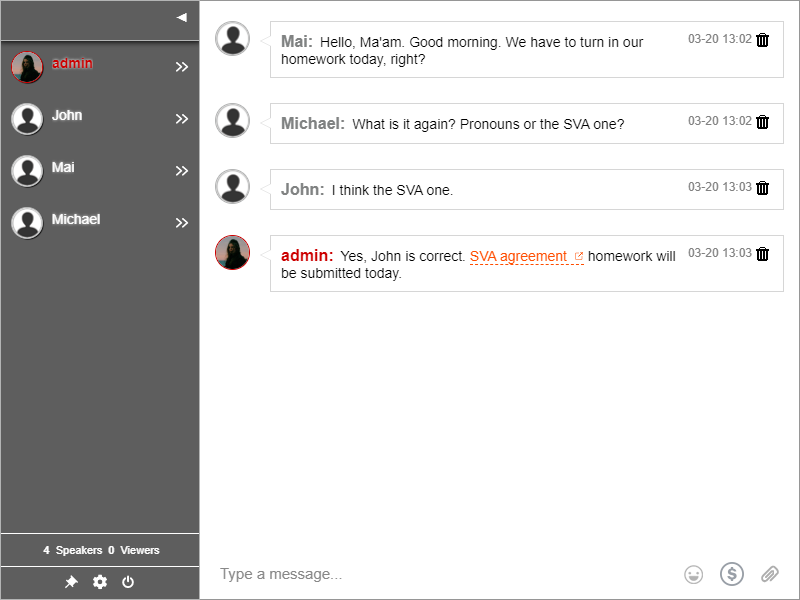
This is a technology that recognizes specific messages, texts, or phrases in a group chat and highlights them as keywords.

intext keywords

These keywords are provided by the chat owner. The chat platform’s role is then to search for these keywords in the chat and correctly link them. This is true for all chat rooms.

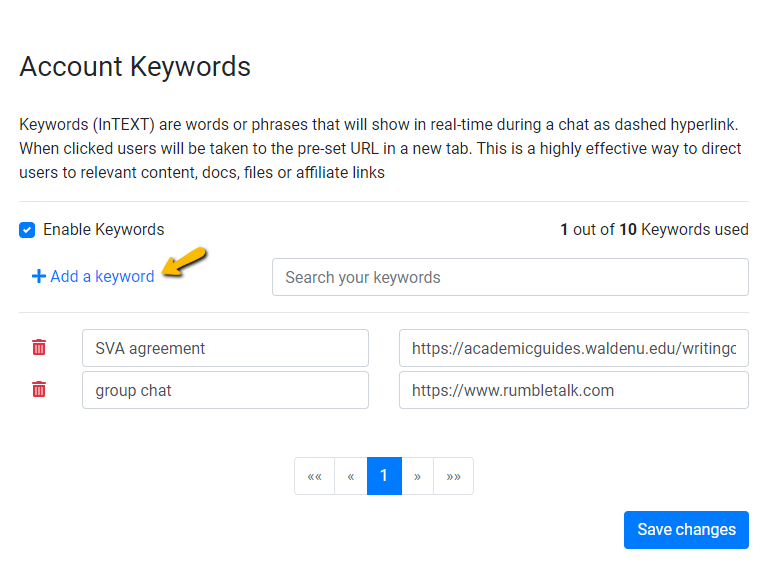
When you type a keyword, it must be followed by a URL. The URL is also provided by the chat owner. As long as you have keywords assigned to your chat, the keywords with links are recognized instantly.

If you wish to edit the keyword list, there’s no need to disconnect everyone in the conversation. A chat owner can add keywords, which will appear in real-time in the chat.

Without cluttering the chat with URLs, you can now add links or documents connected to the discussion. You can also utilize the tool to respond to inquiries from your audience about your topic.

If you’re a teacher, for example, you can send your students to review materials or informative videos. Another wonderful example is when a customer inquires about your social media accounts while you’re conducting a product launch. You can attach the names of social media pages to them, and they will be instantly redirected to them.

How can I turn on the feature?

online therapy

If you don’t assign keywords, they won’t be highlighted in a chat. You must manually assign them as the chat owner. You’ll need to do the following to accomplish this:

  1. Go to your admin panel first.
  2. Select Keywords from the drop-down menu under Settings.
  3. In your chat, enter the keyword(s) and URL that you want to appear.
  4. Last but not least, save your changes.

A link isn’t just for a single word. They can also utilize the following:

  • a single paragraph,
  • using short phrases, and
  • sentences that are complete.

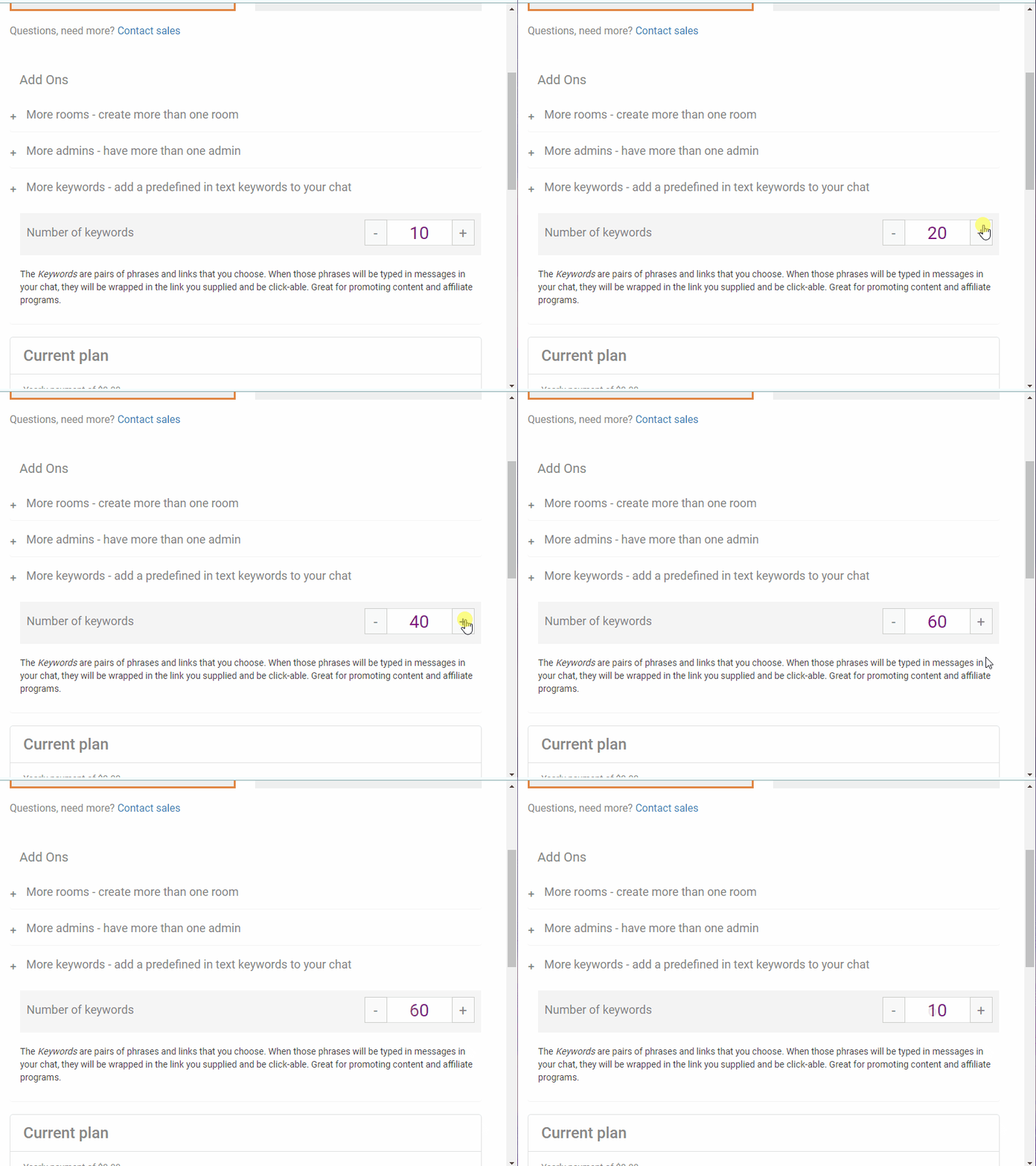
A keyword can be anything. The number of keywords you can add to a group chat is, however, limited. If you are in a hurry, you can upgrade and add keywords at any time.

intext keywords

When you upgrade, you’ll be able to add keywords to your limit right away. Add more keywords and URLs after that.

Marketing made efficient and easy through InText keywords

Finally, keywords are an excellent way to direct your audience to where you want them to go. Keywords are displayed in a new tab. As a result, they will not be disconnected from the chat. They can then watch the content at their leisure.

The audience can immediately spot them. If a member of the audience is bored, he can simply scroll through the chat and move on to the next message.

Administrators are not the only ones who can use them. These keywords are also searchable by your target audience. It then appears as highlighted text.

In private conversations, the keyword list is also active. As a result, give it a shot right now and see how it affects your website!

More information on how to use them can be found here.

Want to know more about RumbleTalk’s features? Don’t hesitate to connect with us through our support email. We’re more than willing to give you a demo call.