Create a Memorable Group Chatting Experience + YouTube Live

“I need a group chat next to a live video stream!”
This is easy today using a YouTube Live, but what if you wish to charge for entering a conversation?

This is why RumbleTalk pages, a group chat + YouTube Live is a great option for that.

  • Use your Youtube live for broadcasting live.
  • Charges are sent to your PayPal account.
  • Design your own page with ease.

When you think of YouTube live, you always want the best group chatting experience for our audience.

If you’ve ever said that, you may need to look for a platform where you can create a group chat for your event website that not only allows you to collect donations but actually collect an entrance fee.

Embedding your YouTube live event with a group chat on your website can be challenging. Now, we created a new option for you, where you can have a page in the cloud with your own chat and live video stream.

Many people want to chat about the event that’s currently happening. People are native talkers.

group chatting

Tips and tricks to achieve a memorable group chatting experience on your website

If you’re thinking of creating a memorable group chatting experience on your website, then you should know how to create your own chat first.

minisite

Did you know that RumbleTalk now offers a minisite on the platform (RumbleTalk pages)?

However, only a few people know of it and I’d like to take this opportunity and share it again here. Since this is already our topic, the minisite is called “Pages” on the platform.

It serves as a mini-website for individuals who don’t need to create a website or ones that just looking for a venue for their service, business, or themselves.

This is the perfect platform for your Youtube live if you want to put it on your website. Below, let’s discuss the steps on how you can create a minisite on the platform.

  • First, you need to register to RumbleTalk. Just go to the RumbleTalk website and click “Sign up.”
  • Second, on your admin panel, you will see “Pages.” Click that and you’ll be redirected to another page. This is called a minisite.
minisite

  • Third, set it up any way you like. It’s complete with a default template so you won’t have any problems on what you’ll put on the page. All you need to do is change it accordingly to your product or service (for this instance, your Youtube live).

How the Pages feature can change the way you look at websites

Minisites can help you communicate with your audience. In just one page, you can chat, stream, embed/hold a live event, share videos and documents, and more.

The Pages feature is an efficient way to have your own site/page dedicated to your service, business, or even your Youtube live. Editing the elements can help you decide the look of your page and what purpose it serves.

With this, you can create an event on your actual website not just in YouTube or any live streaming site. This is also the perfect solution for your dilemma if you want to embed your YouTube live on your website as the platform has its own group chat.

If you’re looking for just that, then you can head on to the RumbleTalk website and register to create one of your own. It’s free and easy to use!

Adding YouTube live on your website

Now that I’ve shared the platform’s Pages feature, it’s time that I share with you how you can add the YouTube live on your website.

Do you see the default template in the Pages feature? You can change any element there that’s suitable for your minisite. In this example, I’ll show you how you can add a YouTube live.

  • First, log-in to your YouTube account.
  • Next, you need to activate/verify your account to do a live stream. This takes 24 hours.
minisite

  • When it’s ready, you can now go live! To go live, just click the video cam button on the top right corner.
group chatting

  • Set your livestream to “Unlisted” so only those who know the link will be able to view the live. Otherwise, you can leave it on “Public.”
minisite

  • Save your changes by clicking the button on the right-hand corner on the bottom of the page.

NOTE: Don’t use the “Private” option because you will be the only one to see the live stream.

  • When you’re done with the basic settings, go to your Creator Studio. Select “Live Streaming,” and then “Events.” Go to “Advanced Settings.”
  • Make sure that the “Allow embedding” option is checked, so you can play your live stream within your page.
group chatting

  • Copy the URL of your YouTube live and paste it on your minisite. You can change this element anytime. So, you can use it for other videos and future lives as well.
group chatting

Start your live stream on your page! If you’ve done all the necessary steps, you can go live.

Start your live stream from your PC, laptop, or smartphone. As soon as you’re ready, let your members know via your group chat.

Reasons to use RumbleTalk as your live event platform

As all of us know, YouTube already offers a live chat along with your live stream. So, why would you want to use RumbleTalk as your platform?

Below are the reasons why you should use RumbleTalk.

  • Embed YouTube live on your actual website. This means that the YouTube live is happening on your website so you won’t be able to use the YouTube live chat, but you can use the platform’s chat as an alternative.

If you want to embed a chat on your own website (not on the RumbleTalk platform), you can find the instructions on our knowledge base.

  • If you want to have a closed group chat about the YouTube live event, you can also use the RumbleTalk chat for that. Some discussions need to be private and not public as seen in YouTube.
mute button

You can even mute regular users and only admins will be allowed to chat. However, that’s a discussion for another blog.

  • Last, you can create a room for paid live streaming. This means that users have to pay before they can enter the chat.
group chatting

Adding paid access chat on your minisite

How can you do this? There’s an option in YouTube live called “Unlisted.”
This means that only people with the link can view the live, so you can embed it on your site, and then you can add paid access if they want to enter the chat.

group chatting

If they don’t, the users will miss out on good info and they would not want that.

This is good for live workshops, seminars, and conferences. You are getting paid for your time and knowledge. Then, you can also answer questions of the audience through your chat.

Your audience can also donate in the chat so you can also use it for auctions or crowdfunding for organizations. The possibilities are endless.

If that’s what you’re looking for, then you can check out our previous blog on adding a group chat with a paywall.

You can now create your own unique live group chatting experience

With the tips and tricks that I shared with you, you can now create an unforgettable group chatting experience on your site along with your YouTube live!

As you can see, there’s not much to do if you want to create a community chat. It’s just some simple steps and you don’t need to create a new website just to go live and have a chat.

Just do these steps and you can see your audience’s positive reaction to YouTube live on your website.

What do you think makes a good live event?

Let us know in our social media pages. Share also this post if you’ve used these tips and tricks in creating a memorable group chatting experience.

If you want to visit RumbleTalk’s social media pages, I’ll leave the link down below. You could also check out our blog while you’re at it!

Here are the links to the pages: Facebook, Twitter

Are you ready to create the chat that’s made to change your approach in your group chatting experience? If you answer’s yes, head on over to the RumbleTalk website and create yours immediately!

Did this blog answer your questions? If you want to know more about us, you can find more about RumbleTalk and other chat solutions on our website.

Hope to see you again in the next blog!

New Feature: Mute Button and Improved Delete Archive Setting

New feature announcement 🙂

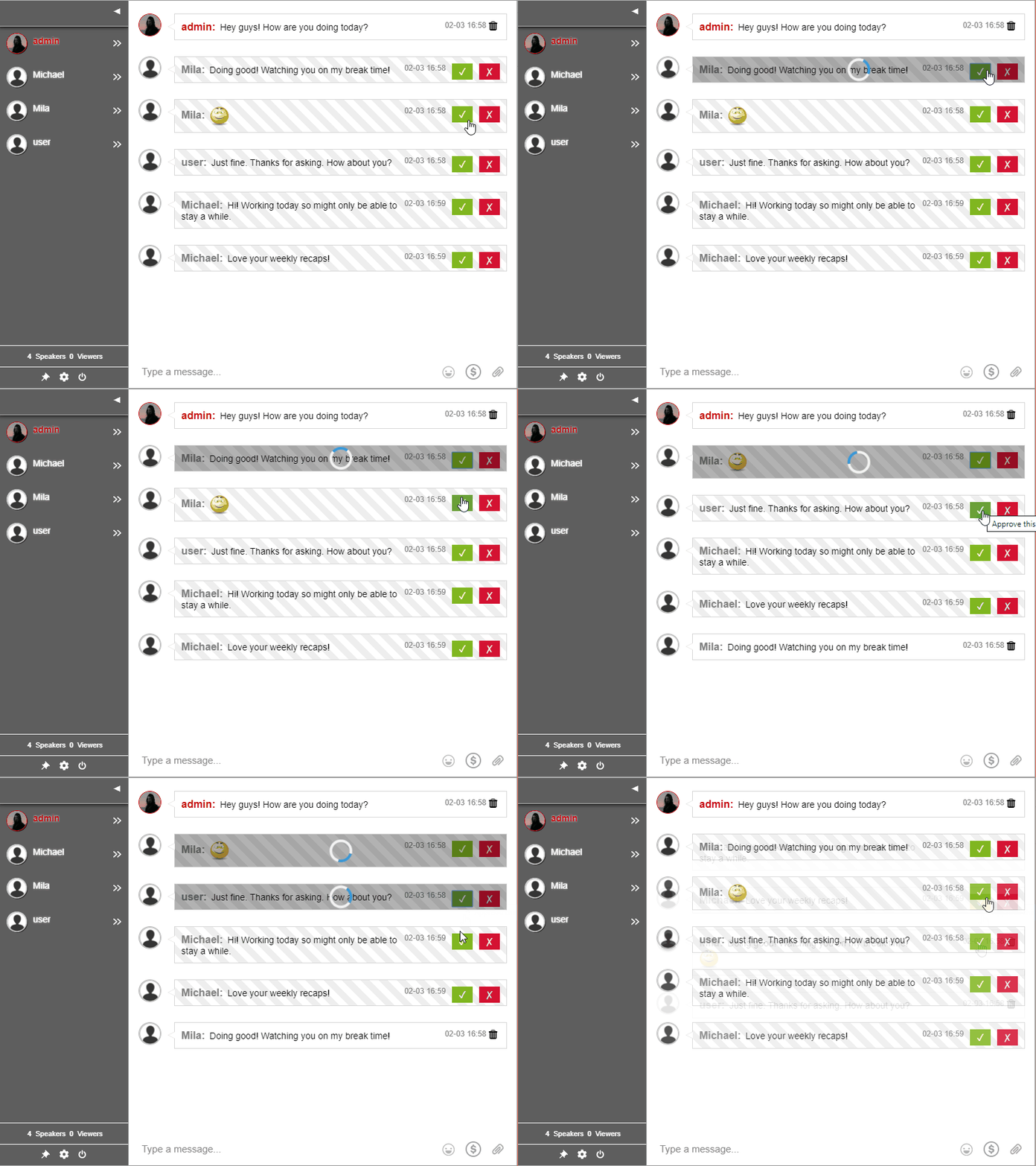
Now you can mute members and force everyone to only listen to you. Cool, right? The mute button lets you do the following.

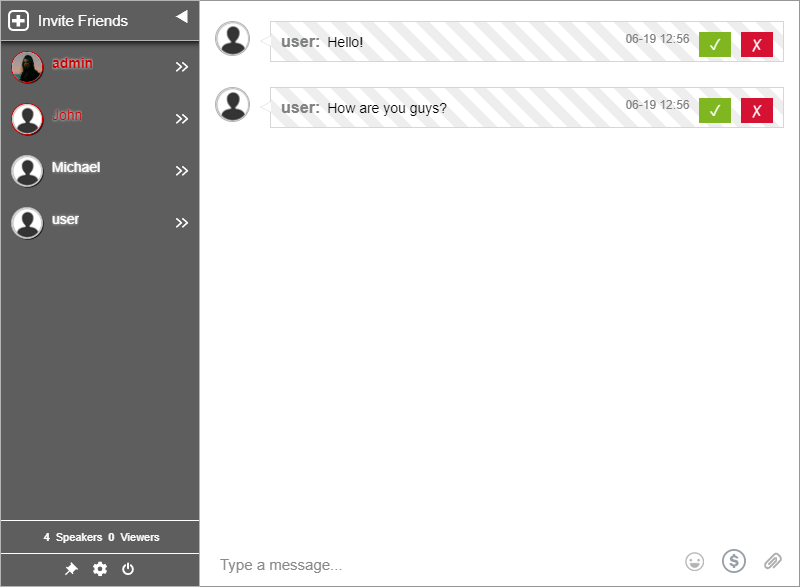
If you’re the chat admin, then you (and other admins) will be the only one to send messages. Everyone else just gets to read them. This is a great way to get your members’ attention.

The mute setting can only be activated by the chat admins.

Activating the setting disables all chat functionality for members of the chat. They wouldn’t be able to send pics or messages, videos, and documents.

Meanwhile, all admins will be able to chat normally. Everyone in the chat can read but not respond in the group chat (however private messages are still allowed). The members will need to wait for the admins to un-mute the chat before getting a word in.

Another cool feature to check out is the new and improved delete archive feature. Deleting private messages is not a dilemma anymore.

If you’re interested in these features, then stay on this page and keep reading to know more!

Why a mute button?

Are you holding a virtual event, discussion, or online class and you want to get your members’ attention? No worries, we’ve got the perfect feature for you! With just the click of a button, admins can stop non-admins from chatting. This is the magic of the mute button.

By using the mute button, the chat will enter admin mode. This means that only admins are able to talk in the chat room. Non-admins are only allowed to read and listen.

It’s a great feature to use when you want all the attention on you. This is a way for people in your group chat to receive announcements, pay attention to meetings, and participate in class discussions. You can use this feature in events as well. How? Events have speakers, right? This lets the speakers talk about the topic first before the audience can insert their comments. In general, the audience is on listening mode, while the speaker is in talking mode. This is just an example.

By adding this feature, it may encourage your members to listen more instead of just spamming. This is also a way to encourage other businesses to use a chat to provide one-way updates. Usually, customers don’t open their emails. Therefore, this is a great alternative for them to be informed.

New and improved delete archive feature

Previously, you were only able to delete messages in a group chat. This leaves all the private chat messages stuck in the private chat, leaving it full and unorganized.

Where can you find the mute button?

You can access the mute button via two ways.

The first way is to access it on your admin panel.

  • In your admin panel, go to “Chat Operations.”
  • You will see the “Mute” button below the contact form.
mute button

Second, you can access it directly on your chat settings.

  • Click the gear icon at the bottom of the user’s list to open the chat settings.
  • Then, click “Admin mode” to mute your chat.

In both ways, when the mute setting is activated, a red box that says “Admin mode” appears in the chat. This is for the admins. You, as the admin, can now talk freely without interruptions from other members of the chat. Non-admins will see a green button on the text area.

mute button
mute button

Delete archive feature

As I’ve previously shared, we’ve updated the delete archive feature. Now, you can delete messages in the private chat also. You don’t need to delete one of the messages in the private chat.

When you clear all chat messages in the group chat, you will be asked if you want to delete the private chat messages as well. You will see this in the text box when you prompt to delete messages.

mute button

Stay tuned for more features and updates

If you liked these features, then stay tuned for more. There are upcoming new ones as we speak! If you’re subscribed to our newsletter, then you’ll be one of the first ones to be informed! If not, subscribe now!

Keep up with the new releases when you follow us on our social media pages: Facebook and Twitter. You will also see previous articles that you haven’t read yet. Also, check out this previous blog on another new feature: text formatting. It’s a great way to catch up!

Don’t hesitate to contact us if you have questions. We are also open to comments and suggestions. See you on the next blog!

When You Need to Talk to Your Community

Interacting with your community is essential for your business. Talk to your community, make them interact and see your business grow.

Everybody knows that communication is key. Technology is a big part of achieving this nowadays.

We already have the tools we need to communicate effectively. Yet, sometimes we don’t use them correctly or to their full capabilities.

How This Impacts Businesses Today

membership

This is twice as true when it comes to businesses, communities, and other large groups. Having a bigger number of people poses additional difficulties. This can range from moderation to handling the number of people going in and out of the conversation.

One of the effective tools for communicating in and with groups is an online chat room. These are virtual spaces that users can access from anywhere, anytime.

RumbleTalk’s chat rooms fit the bill perfectly. They’re simple and powerful. Also, it can be used by anyone to enhance their website and communication experience.

It’s particularly suitable for communities with lots of varied members. People live very different lives. Therefore, a suitable solution for that problem is different kinds of access.

Chat rooms allow both registered users and guests to chat without a long sign-up process. A long process delays participation. Without any easily forgotten login details, visitors can jump in straight away.

login options

This means that people can use the chat on the go, whether it be on their phone or laptop. Whenever they get a chance in their busy day, they can immediately log-in.

Building meaningful connections starts with significant conversations. What’s on your mind? Take this chance to talk to your community.

As a result, you may be surprised by the impact it gives on your website.

Go Beyond A Simple Text Chat to Talk to Your Community

To really talk to your community, it’s necessary to offer varied means of communication. This includes large chat rooms filled with lots of people. Also, smaller ones offer the possibility of private one-on-one discussions.

With RumbleTalk’s chat rooms, this is the standard. Few or many individuals can chat in a room. In fact, the chat room can be large or small as needed.

It’s not a just simple text chat either. With just a few taps or clicks, it’s possible to share files, photos, audio messages, and more.

online class

This means that it’s possible to bridge any gaps in communication much faster than before. Instead of sharing a link to a video that a person may lose interest to check later, you can directly include the video in the conversation. That way, that person can watch it directly in the chat. No more redirecting links.

As this saves time and effort, this keeps the conversation going for hours. For many community-type chats, this is essential. Showing examples, proof, and interesting media can also be an important aspect of open discussions and moderated discourse.

InText Keywords

The same goes for sharing links. Clunky, overly long, and complicated URLs can hinder the flow of a chat. A much better alternative is the InText keywords feature. These hyperlinked keywords are a way of sharing a link within a text without interrupting the flow.

In other words, one word, e.g., “camera,” turns into a link. It will be visibly different so that users know that they are looking at a link. They can click on it if they choose. As the URL itself won’t be visible, you can ensure that it will not interrupt the flow of conversation.

The administrator sets and designs these InText Keywords. Therefore, you don’t need to worry about spam links when you talk to your community. Instead, you can use and insert predefined links on the go. No need to intrude on conversations or make any further changes.

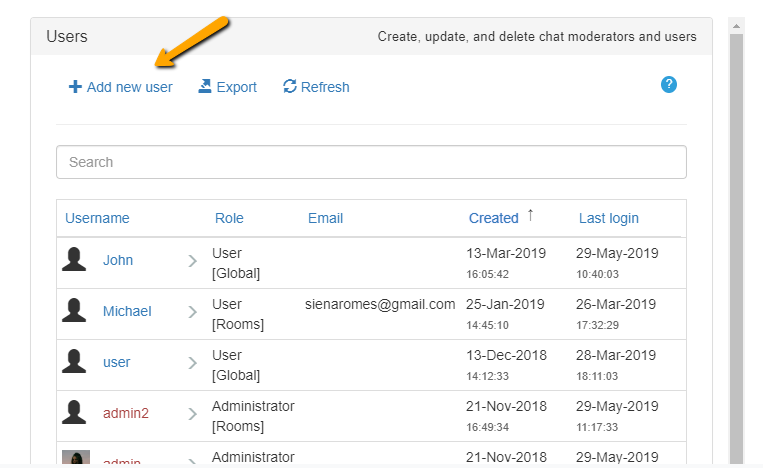
Just go to the “Keywords” option in your admin panel. Then, add a keyword and a corresponding link.

talk to your community

Regardless of the contents of the chat, there’s another important aspect of it, i.e., location. For a chat to work effectively, it needs to be easily accessible to its user base. This usually means embedding it in a responsive website.

RumbleTalk’s chat rooms are easily embedded and fully responsive. Thus, it looks and works great on any screen size and any scenario. Also, you can even use it on mobile browsers.

Creating your own community

Creating your own community is made easy by RumbleTalk. With different chat types to cater to your need, you can build a chat in minutes.

You can follow this tutorial to start building your community and make meaningful conversations:

  1. Register on the RumbleTalk website.
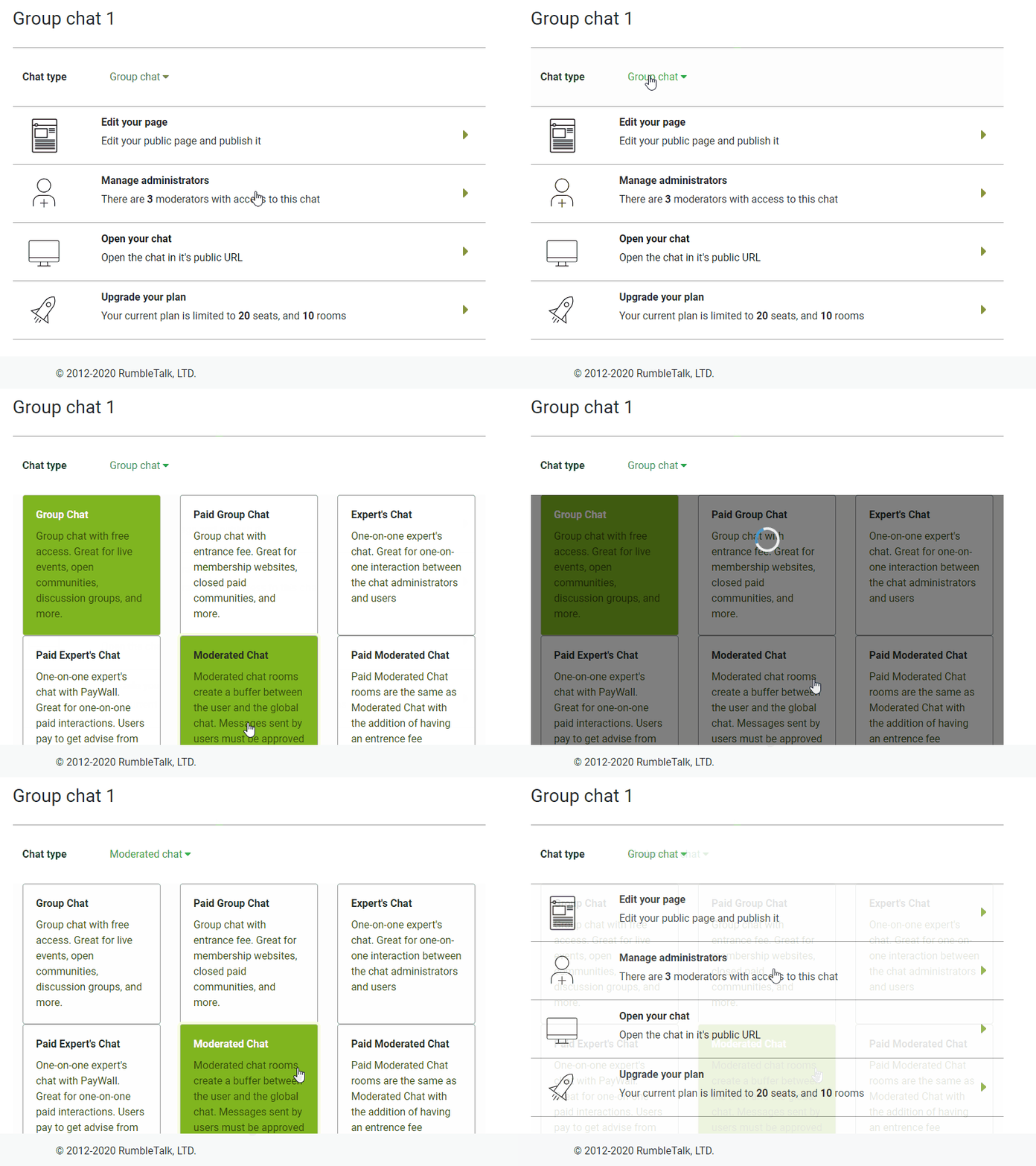
  2. After logging in, choose your chat type as “Group Chat” or “Paid Group Chat.”
  3. If you choose “Paid Group Chat,” you can change your entrance/subscription fee via “Monetize Settings.”
talk to your community

A paid group chat works if you want a closed community chat. This is best used for trade groups, advice, and other expertise.

You can also check out “Monetize Records” from time to time. This lets you keep track of your earnings from the closed community chat.

remote work

Talk to your community today

By talking to your community, you strengthen your relationship and audience. The chat room provides opportunities for people to interact, learn, and explore. You can help develop a wide range of experiences by getting involved in healthy discussions and discourse.

A good relationship with your community is a key to engagement and to widen audience and audience participation. As you grow as a community, you celebrate your expertise and knowledge. By using a platform that’s suited to your community, you can do much more than just a chat.

Sharing videos, documents, images, and more is just a basic feature of the platform. You can do so much more with your community if you explore the admin panel.

The RumbleTalk chat room is catered to every individual, community, and business. It’s not just for communication but also for accessibility and acknowledgment of feedback.

To take advantage of clear communication and a responsive interface, visit the RumbleTalk website. Sign up and be a part of our community!

Then, go check out our blog and social media pages for more news and updates. Visit RumbleTalk’s social media pages here: Facebook, Twitter

Get your community engaged and involved today!