Make private payments using a chat on your website

An online chat service where you can request private payments?

Introducing, “payment request,” where you can request payments through private chat. This is extremely helpful if you advise, tutor, coach via a live chat.

When your customer wishes to pay for your time, you simply ask for payment and the customer pays online (in our case, using PayPal). PayPal will authorize the transaction and directly transfer the money to your RumbleTalk account.

How can you set it up?
You can do this just by activating the payment request feature first. To know how just keep on reading!

What are private payments?

private payments

You might be a bit confused as to how it really works.

Well, you can use the RumbleTalk chat for charging for your time. For example, if you’re a trade expert and you’re chatting privately with a customer, you can request him a payment for your additional time. Moreover, this can be useful for professionals like counselors, therapists, and experts in their respective fields.

If you’re more of a group chat person, you can use it for charging for your knowledge on a certain topic. For instance, let’s say that you’re in a group chat for trading and you talk about tips, right? Then, one of the members of the group is impressed with your tips and wants to talk to you in private. So, this is your opportunity to ask him/her for payment if he/she wants some additional tips besides what you’ve said in the group chat. As a result, that’s how you realize the worth of your knowledge.

Did I explain it clearly? Do you understand it better? If yes, then let’s go to how you can actually use it!

Activating payment request for private payments

If you want to use our payment request feature, then you can follow these easy steps I’ll show you.

  • Go to “Monetize” in your admin panel. You will see the option for “Payment request.” Click the box to activate it. Oops, don’t forget to save your changes!
payment request

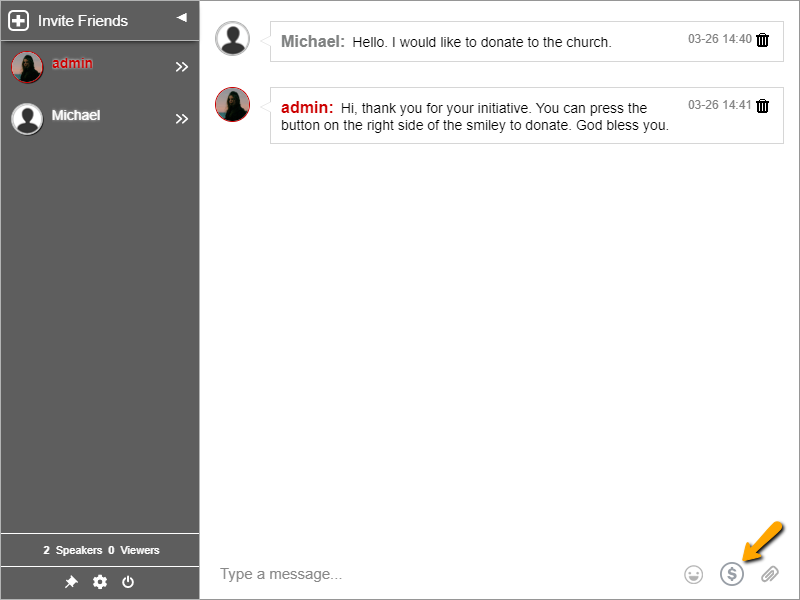
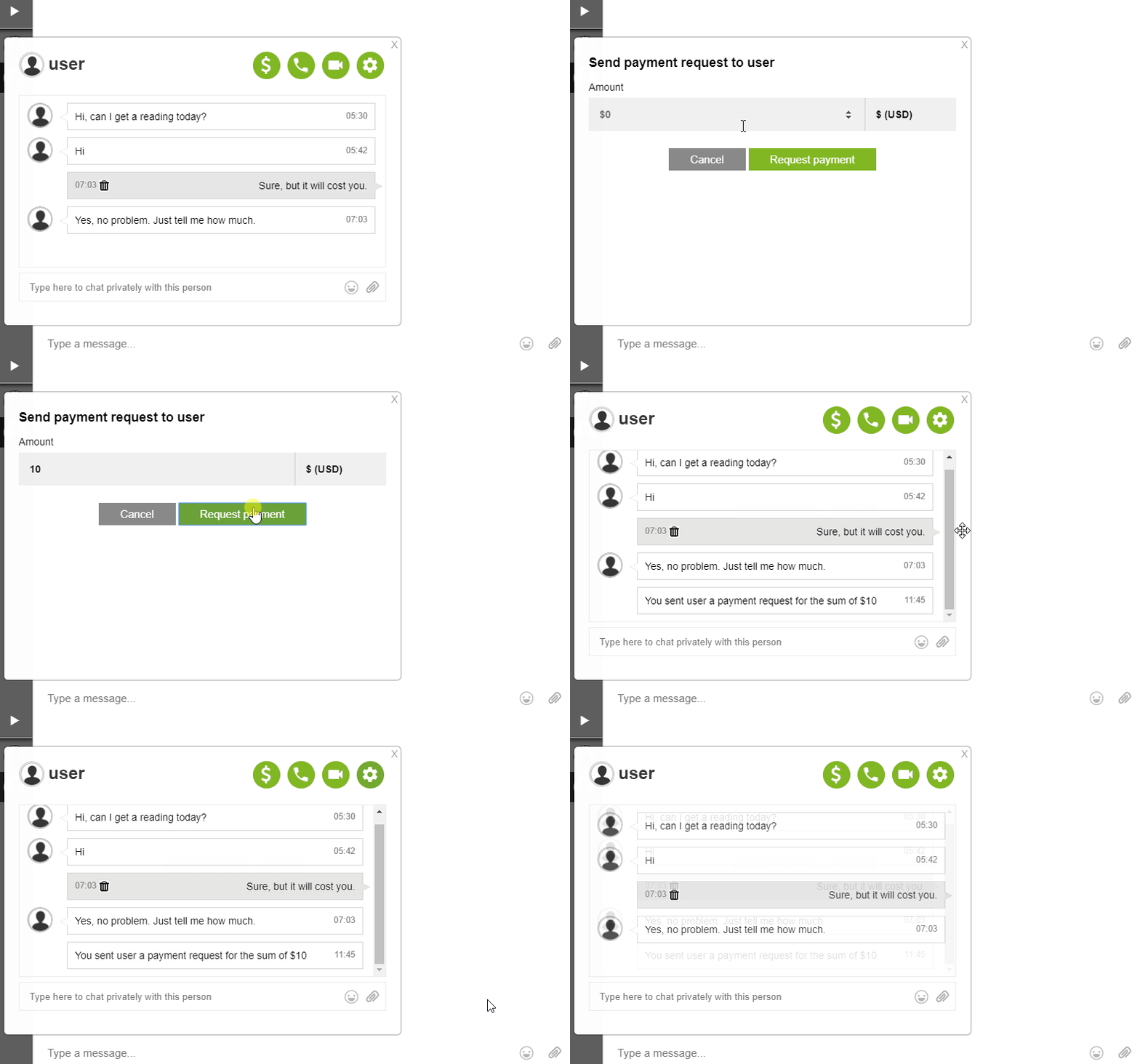
  • Next, to request payment in a private chat, just click the dollar sign button in the upper right corner.
dollar sign

  • Then, add the amount you want to charge the other party.
payment amount

  • As a result, they will receive a message in the private chat that you’re requesting payment.
payment notification

  • They only need to click the pay button to be redirected to PayPal. Afterward, they can log-in to their account or they can use their debit/credit card if they don’t have one.
pay button

  • Once you get the payment, it will reflect immediately on your account. You can see it on “Monetize Records.”
monetize records

Important things to note:

  • You can only set your currency once so be sure before you set it. You will need to contact support if you ever need to change it.
  • Only you, the admin, can do a payment request.
  • Payment requests expire so be sure to finish the transaction immediately.

Our online payment service provider

There are lots of services that will process payments on your behalf through a payment system built into your website. Companies like PayPal and Venmo offer various payment options for businesses. Some companies do charge fees.

At RumbleTalk, we use PayPal for any kind of payment, may it be a donation, payment request, etc. PayPal is an e-commerce service that allows both individuals and companies to pay, send money, and accept payments without revealing any important financial information.

The platform uses a secure payment technology that enables individuals and businesses to accept debit/credit cards and PayPal payments for a percentage transaction fee. With multi-channel capability, individuals and businesses can accept payments on their website, mobile device, in-app, in-store, or send an invoice to customers via email.

With PayPal, we can ensure you that our payment request feature is safe and secure. Try it out and let us know what your experience is with PayPal and payment request. You can contact us via the “Support” button on your admin panel or through our website or any of our social media pages.

Using payment request

Using PayPal and our chat service, you can now request payment for your time and knowledge. Why don’t you try it? Instead of going through the hassle of pasting a link to an external site, you can just do it via our payment request feature.

With the payment request feature, you are able to lessen the time and hassle for you and your chatters. With a simple click, your money will be sent to you. Your chatters will also learn quickly the steps of sending you money. They only need to accept your request and they’re done! Once it goes through, you also get the money on your RumbleTalk account.

The payment request feature is very useful to gain some income. It makes you realize the worth of your time, knowledge, and yourself. Private payments can be made only by PayPal as of now, but we’re working on adding more currencies in the future. Subscribe to our newsletter to be updated for future features, updates, and releases.

Make secure online private payments via private chat

Remember how payments were made before when you needed to pay for advice or consultancy? We are happy to introduce the new online private payments!

Through private messaging, our online chat service supports online private payments. This means you, as the chat owner, can request for payment from a certain chatter.

Benefits of online private payments

payment request

Through payment request, customers will have the option to click the “Pay” button and be redirected to a secure payment portal. In the RumbleTalk platform, we use PayPal. That’s already one benefit down.

Second, online private payments are instantly reflected to your account. This means that these are real-time payments. You could send a payment request to a customer, he pays via chat, and voila, you can already see it in your “Monetize Records.”

Third, this saves time and effort. Instead of meeting a customer face-to-face, you can just send him/her a payment request.

So, you should take advantage of using online private payments for your website. It can not only benefit you but your customers as well. It makes a new connection between you and your customers.

Online private payments via payment request

Say goodbye to the days where you had to endure long lines just to make a single payment. With the payment request feature, you can send a payment request to your customer with a single click anytime, anywhere!

To activate the payment request feature, follow me through these simple steps!

  1. The first thing you need to do is activate it in the “Monetize” option in your admin panel. Just tick the box and save your changes! Actually, that’s the only thing you need to do to activate it. The other steps are just examples.
    payment request
  2. Second, see the dollar sign in your private chat? Click that to request payment from another chatter. Next, type in the amount you want to request.
    dollar sign
    payment amount
  3. As a result, the other chatter will be messaged by us that you have requested a certain amount. He/she needs to click the “pay” button to proceed.payment notificationpay button
  4. Finally, he/she will be redirected to PayPal for payment. online private payments

How is it? Easy, right? The most important thing you need to remember is to save your changes (always)! 

Conclusions

In conclusion, in today’s generation, we need online private payments. With the Internet and the progress of technology, we can rely more on our gadgets to make our lives easier.

The payment request feature is something that we added to do just that.

Finally, we’ve reached the end of this article. Did you learn something new? The real question is: Are you going to use this feature? Tag @RumbleTalk on Twitter and let us know about your experience. You can also read more of our blogs if you don’t want to wait! See you next time!

Create a predator Safe Chat Room for your community

When a conversation is open to everyone on the web, a predator safe chat room is necessary.

As we’ve all come to know, the internet is a place to create communities and make new friends. A tiring day becomes easier when you can chat with someone. However, when creating a chat room for your community, you have to take extra precaution, especially with kid-oriented chat rooms. If you create a chat room for your website/blog or any social media page, you should set it in a way that will lower the risks (e.g trolls or online predators).

These are six steps to create a predator safe chat room and, overall, make your chat room safer.

1. Let people log-in with an authenticated user

Nowadays, there is an option where you can log-in as a guest in chat rooms. With respect to kids’ security, you should avoid this kind of log-in option.

You may limit your chat room to log-in only with Facebook login/Twitter login. This is called the social login option. You can also limit the login to your own authenticated users base (via REST API, read more in here). This removes the login interface. As a result, this will reduce dramatically both chat spammers and the risk of predators.

2. Check user credentials and friends

Once a user logged in with social login credentials (Facebook or Twitter user), you may check the social media page of this user by clicking the Twitter/Facebook information button. Then, you can check his/her tweets (if he/she spams or if tweets that are inappropriate) and the number of followers. Are they real users? What is the age bracket and what kind of people are they?

To show the dialog below, click on the user name and click the gear icon.

predator safe chat


3. A predator safe chat starts with creating a trusted user base

When you see that a user is continuously contributing to the discussions in the chat room, you can add them as a user with a password.

This is done in the chat room user management section (you can also set the REGISTER option in the chat). To do this, just go to “Users” and click “Add new user.” Create a user name and password for the chat member. After, tell him/her to use that as his/her login credential. Creating a safe users list is a step by step approach to creating a long-lasting predator safe chat room.

predator safe chat


4. Put it in the open

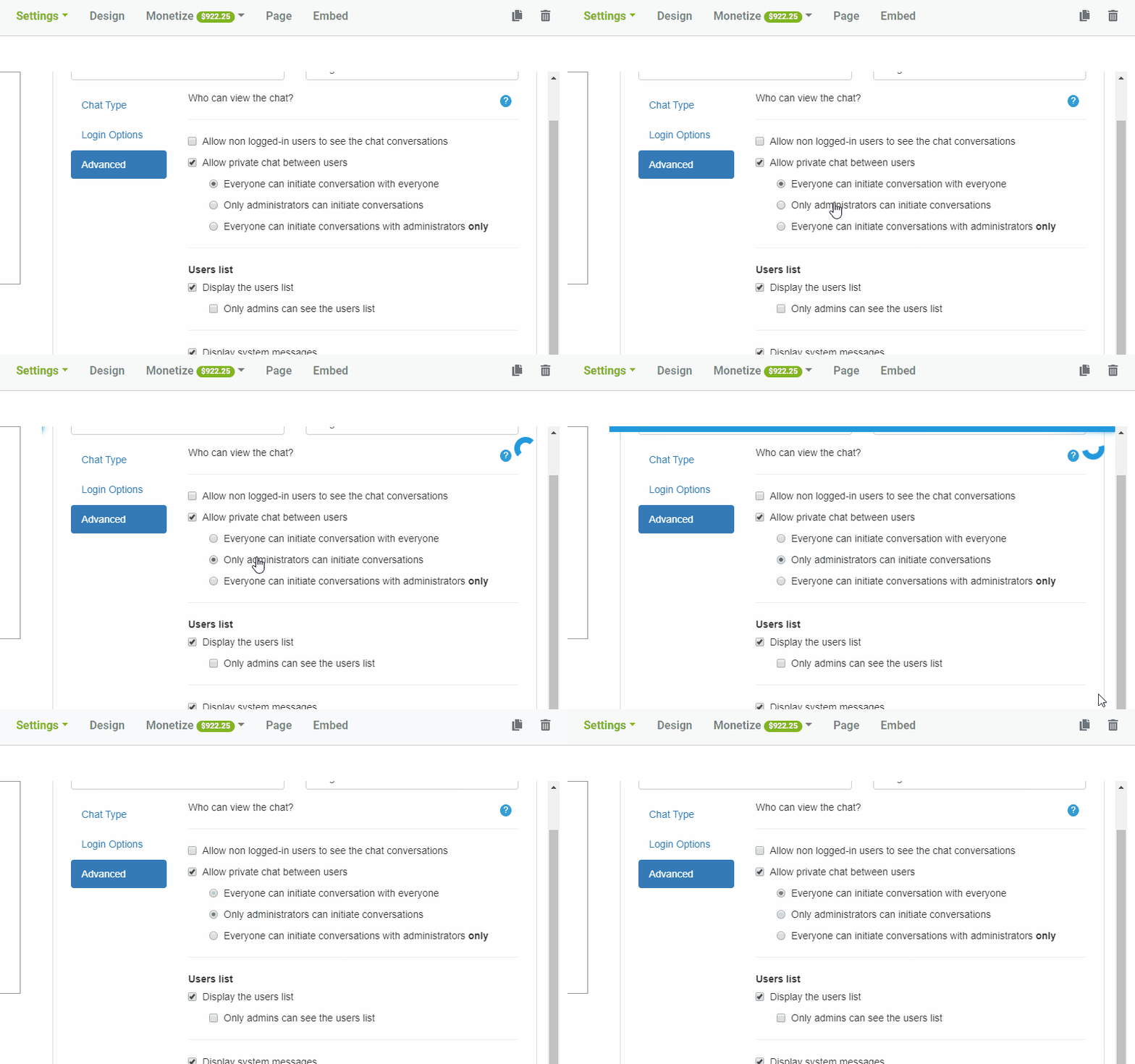
By preventing private chats, you can set users to chat in the open. This means that they will be forced to chat and talk with each other publicly (lobby). In any instance, you can change the settings of the chat room to enable/disable private chat. Just go to “Advanced” in your chat settings. You will see there the option to allow or disallow private chat between users.

5. Listen and observe carefully

Try to create a dummy account and login with a different browser. You need to change the names and the profile picture to make it believable. Then, start the observation on your chat.

If a current user starts asking you personal or private questions about you, like your location or if you are home alone, then they are not trying to be friends. They’re taking advantage of you like predators. They are trying to find out personal information so that they can easily harm you.
Ban those people by IP.

6. Disconnecting and banning users

As a last resort, you can disconnect and ban users on your chat room. If you see users that are always creating a negative impact on your chat, then don’t hesitate to ban them. Sometimes, warnings are not just enough. With the different login options, some predators might be able to enter the chat. When someone is being harassed or being asked too much personal information, you can use your administrator rights to correct it.

In RumbleTalk, we do not tolerate any form of bullying or harassment. If you do happen to see any form of a predator in the chat, you can do the following.

  • As the admin, you can disconnect and ban the IP of any user from the chat. If users were harassed or stalked, they can turn to you and you can disconnect the user who sent the predatory messages.
ban and disconnect

NOTE: If you want to unban an IP address, you can do so by going to the “Banned IP” section in your chat’s settings.

predator safe chat

  • When an admin is not around, a user can also choose to ignore any message from a predator.
ignore

All of these features can be found by clicking a user on the chat and then clicking the gear icon. To know more about disconnecting and banning users, you can check out the knowledge base.

Why do you need to create a predator safe chat room?

It’s because it’s not safe for anyone, especially kids or teens. When you create a chat room, you don’t know who’s going to be a member of your chat. They might not use their real names or their real age. To keep things safe for everyone, take extra precaution. That’s the use of a predator safe chat room.

This does not only concern your users’ safety but also yours as well. A predator can target anyone on a chat room depending on his likes. To avoid any risk of being targeted by a predator, always keep your chat room safe. Advise your users to not ask too much personal information or they will be banned or kicked out of the chat.

Keep everything under control

With the actions you can do to make your chat room safe, always be alert and don’t panic. You’re the admin and chat owner; you can keep things under control. Don’t let the predators take advantage of your chat room.

If you want to know more about keeping your chat room safe, then you can read our blogs about Blocking Words and Profanity on Your Chat, Limiting Users in the Chat Room, and Users Per Room feature.