Interactive webcasting chat for live webcasts and events

For people watching a live webcast, the main benefit on top of listening is having a voice. That’s why, with an interactive webcasting chat, the audience can communicate online through Q&A sessions.

When the audience is able to submit a question online, the speaker can answer through the live webcast. Therefore, each answer is relayed in real-time.

It’s a powerful tool for live webcasts. A moderated webcasting chat is the best medium for communication in these kinds of live events.

Webcasts and webinars group controlled group chat

The audience can participate in the event through Q&As. Moreover, all of their questions are moderated by someone at the event. The moderator is usually someone who knows the topic. This can be the chat owner, a friend, or a hired employee.

The moderators also act as the voice of the audience. They simply need to gather the questions and post them on the screen. After that, the speaker will answer the chosen questions.

This interactive webcasting chat lets the moderators post questions in the chat room. By screening the messages, the moderators can choose the appropriate ones for the webcast.

Additionally, the speakers can also ask questions to the audience. As such, the audience can reply through the webcasting chat. So, the moderators are tasked to choose the good replies.

For example, the webcast can start with greetings. The speakers can ask where the audience is from. Then, the audience will type in their replies in the chat. It’s that kind of communication.

By using this kind of webcasting chat, it gives the event a more international vibe.

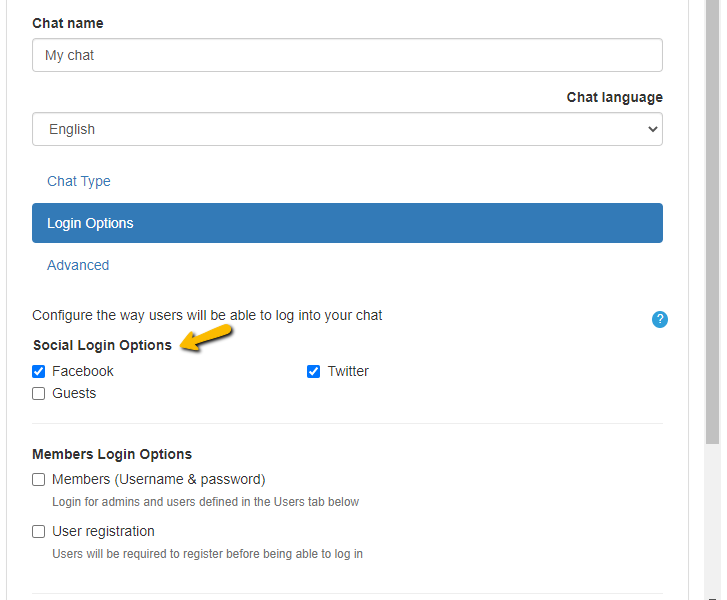
Another way to include your audience is by letting them join through various log-in means. You can let them log-in via the following:

  • Guest
  • Username
  • Facebook
  • Twitter
  • Register as a new user
  • Connecting your own users base

With this, you can bring in more audience to your webcast. Your webcasting chat can also be shared with other prospective audiences.

How does a webcasting chat work?

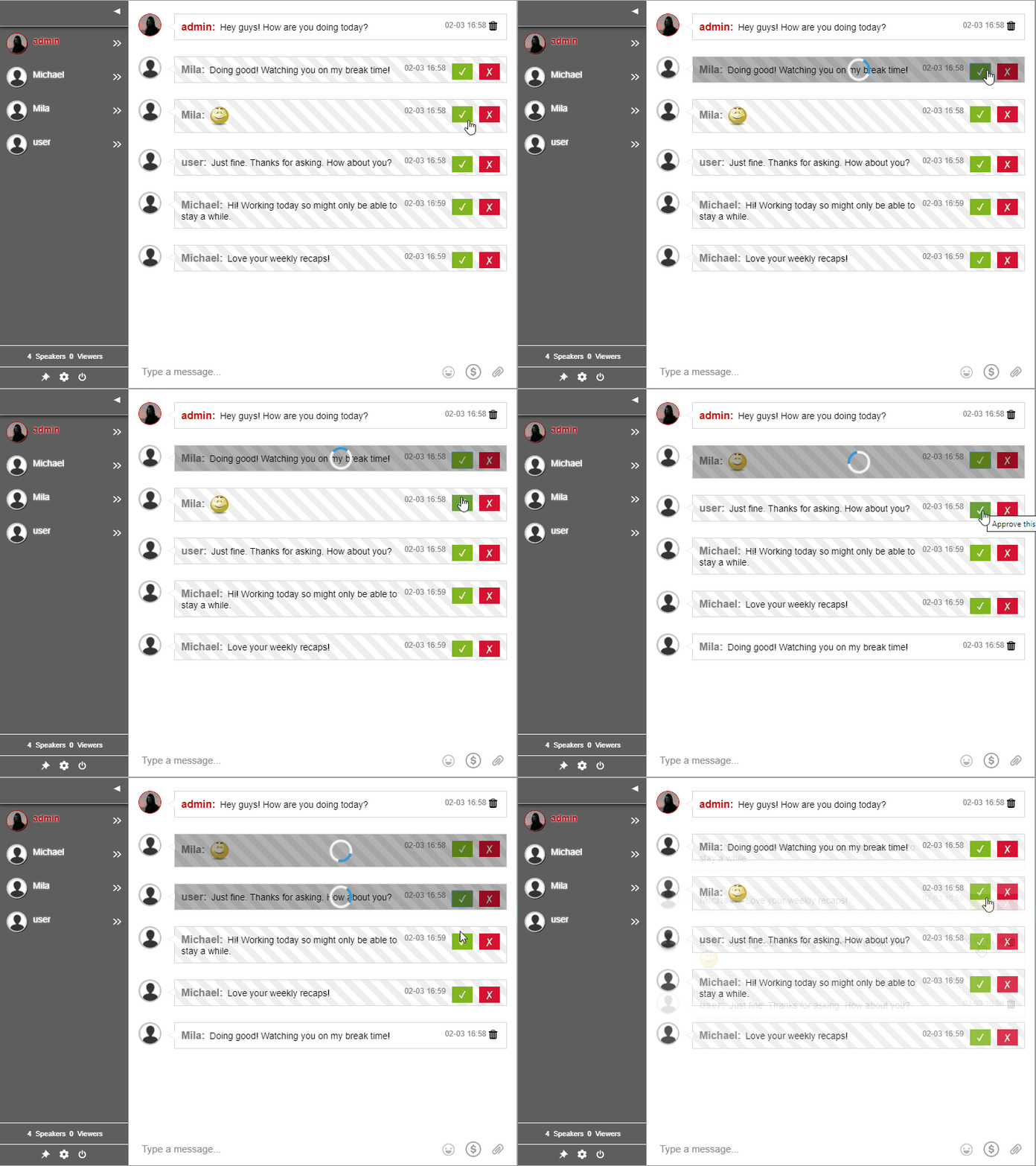
The webcasting chat works only if a moderator is logged-in. This means that the chat depends on its moderators to approve messages sent by the audience.

Let me show you how it works. Let’s discuss the two roles in the chat and their respective POVs.

  • Admin/moderators – The admins need to approve messages. Therefore, they choose from the messages of the audience and it appears in the chat room. All the admins see each message of the audience. Each message is accompanied by check and cross boxes. These represent approval and delete, respectively.
Q&A

  • Audience – The audience can only send messages in the chat room. They won’t be able to see the messages of other members unless they have been approved. Therefore, the admins must ensure that the messages are approved and safe. If their message is approved, it will appear normally in the chat room. If not, it will not be shown in the chat.
moderated chat

Get your own webcasting chat

To get your own webcasting chat, you need a chat platform first. That’s where RumbleTalk comes in.

interactive presentations

  • Firstly, sign-up for an account on RumbleTalk.
  • Secondly, create your account with moderated chat as your chat type.
  • Next, agree to the terms and conditions to proceed.
  • Set your chat settings on your admin panel.
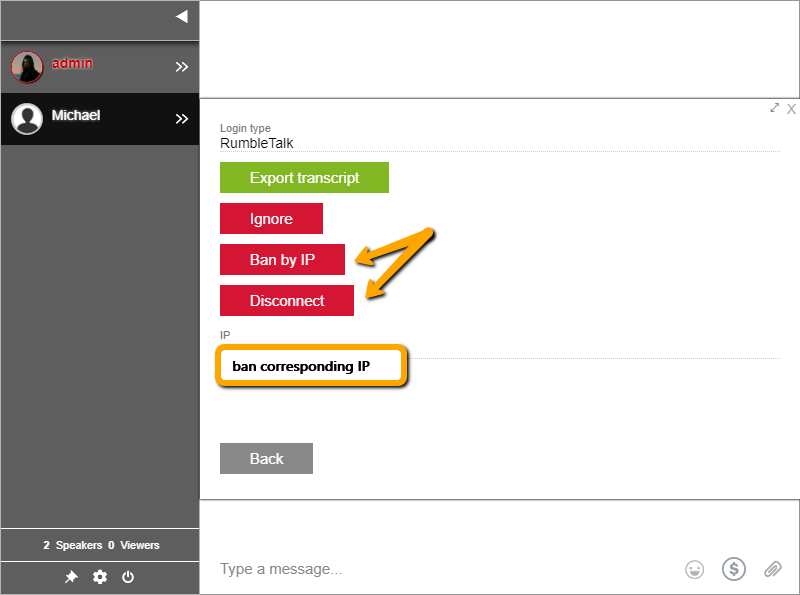
  • You can appoint admins on the “Users” section of your admin panel. Type their username and password and give administrative rights to your chat. Don’t forget to share with them their credentials.
predator safe chat

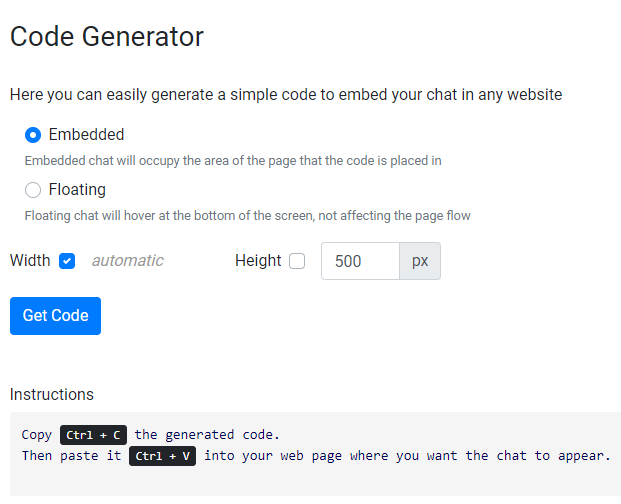
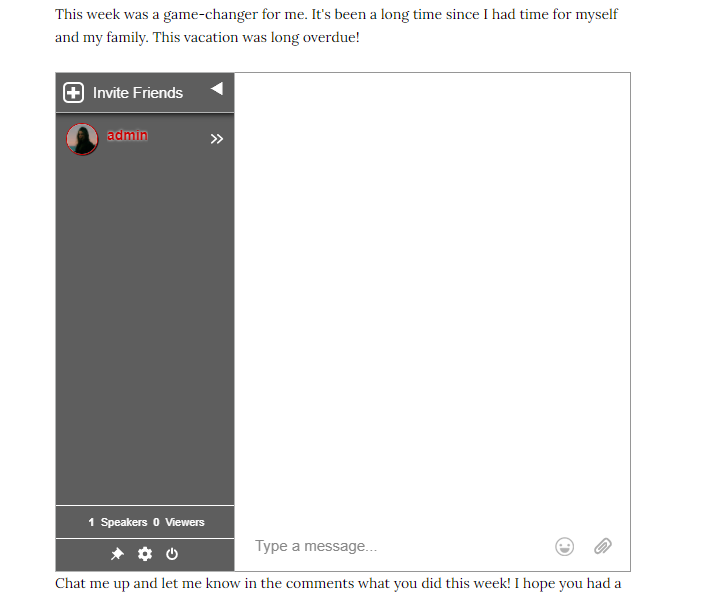
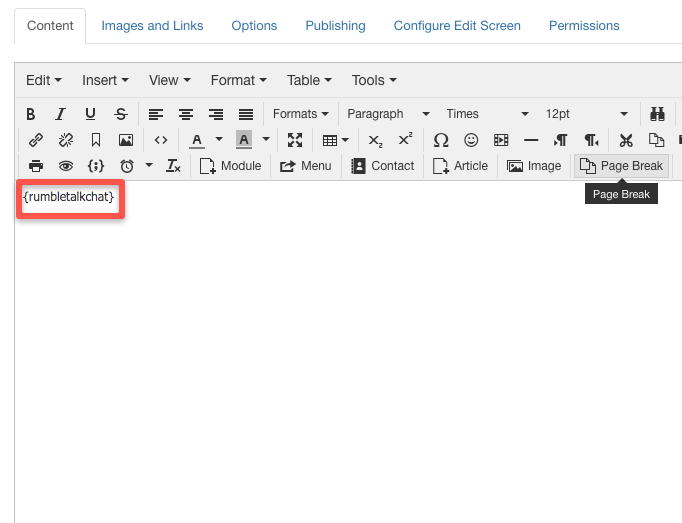
After that, your webcasting chat is ready. All you need is to embed it on your website next to your webcast. Alternatively, you can also share the chat link if you’re using a separate webcasting platform.

Webcasts and Q&As

Webcasts are not easy to do. But with the right tool, you can expect a successful event.

When you have a chat in parallel with your event, you attract the audience. With an audience, you create conversation. Online events become successful because of a two-way conversation. That conversation is from speaker to audience.

If you want the best experience for your audience, you need to have a medium for conversation. And that’s where your webcasting chat comes in. Hold Q&As and moderate your chat. Connect with people. In time, you’d have made a name for yourself in discussions, conferences, and more.

Still hesitant to get your moderated chat? Chat with us on Facebook and Twitter. We might be able to help you with your questions.

So, what are you waiting for? Head on over to the RumbleTalk website and see other features that you might like!

Simple and Fun Q&A Tips to Enhance your Event Engagement

Q&A sessions are the ultimate learning experiences during online webcasts or events. When executed well, these can be the way for the audience and the speaker to engage easily. So, to help you enhance your live events, let’s get started with some simple and fun Q&A tips.

These Q&As are helpful for the audience and the speaker. The audience asks, whereas the speaker answers. This can make clear what the speaker wants to deliver.

Usually, Q&As are filled with “Does anyone want to ask something?” questions. A moderated chat can help you collect those questions answer them one by one. See here: Q&A tips for moderated chat.

Groundwork

In an event, it’s all about planning. You have to know the flow of the event. Therefore, the speakers should too.

Before the event, discuss with your speakers the schedule. Sometimes they forget the time and you have a hard time to cut them off. A 4-hour event is not equal to 4 hours of speaking.

Give clear instructions. Also, a counter is a good indicator of time. Always be sure to set the time accordingly in any event.

For events, there’s only a little time given for Q&As. For yours, why don’t you try to dedicate more time to it? Let’s say, an event runs for 4 hours. You can use an hour for the Q&A session.

This is a great tip for beginners. Always remember that a quarter of your event should focus on Q&A.

A great Q&A tip is to let all speakers talk first and then dedicate a whole Q&A session at the end. Usually, some speakers’ topics overlap and are identical. To save time and allow more for Q&A, you can suggest the Q&A happen at the end.

By doing this, there’s room for more interaction between the audience and the speakers. Besides, the speakers can answer more questions this way.

Moderating

The moderator is the one to ensure that all the audience’s questions are answered. Usually, the audience sends a lot of questions. The moderator’s job is to monitor and screen all of those.

In big events, it’s good to have more than one moderator. If you’re the speaker and the moderator, it will be hard for you to keep up with the barrage of questions. So make sure that you have help with huge events.

Change the way you ask questions. Questions on events can sometimes get repetitive. As the moderator, instead of asking “Do you have any more questions?”, try asking it by “What other questions would you like to be answered?” This little change makes a big difference.

audience interaction

However, this kind of question can invite debate or open discussions. So, if you don’t want to prolong the discussion, you can ask “Do you have any more questions about (topic)?”

In this way, you don’t steer off the topic. You also keep the question concise and clear.

Q&A chat platform

Using a Q&A platform is good for events. You let your audience have their own voice. Therefore, before starting, you need to introduce the platform first.

As this might be their first time to use the platform, you can teach the basics. In time, they’ll adapt. If more people are joining in, take time to teach them in between messages.

When the event is ongoing, some participants may be shy to submit their questions. As the moderator, you can submit questions so they’ll get the confidence to ask. Sometimes all it takes is a little nudge.

In events, it’s best that you answer all the questions. The moderator should take note of the most asked questions and answer those. If a lot of those questions are ignored, your audience might lose interest.

If the event is coming to a close and you don’t have any time to answer more questions, it’s good to acknowledge them. Therefore, say ‘thank you’ and they’ll be answered them next time.

Here’s a Q&A platform that you can use for your event. Follow these steps to get your own account.

  • Firstly, go to the RumbleTalk website.
  • Secondly, sign up to create an account.
  • Then, choose moderated chat as your chat type.
  • Lastly, adjust your chat settings (e.g., design, users, etc) on your admin panel.
chat settings

With this, you can share your chat link in the event or embed it on your website.

Useful Q&A tips for your next event

Q&A tips

According to these Q&A tips, the important things to note for your next event are groundwork, moderation, and the use of a Q&A chat platform. Of course, don’t forget to interact with your audience.

As always, you can use these Q&A tips to make your next event a success. I hope you learned something you can use!

Improve your Q&A session with RumbleTalk.

New Feature: Introducing the Improved Mentions Option

When you have chatters in the chat room, sometimes it’s hard to keep up with all the messages. You just feel the need for a quick solution like mentions.

Not everyone will be able to see a specific message. Mentiones help you pinpoint who you direct the message too.

I’m excited to share with you a new feature called Mentions. The Mentions option offers a simple solution to avoid missing important messages.

Here’s what you should know.

What are Mentions?

Think of Mentions as tagging someone. When you type @ in the chat room, you will see a list of users.

Firstly, it can help you better manage messages in the chat room. Secondly, you can capture the attention of a specific user in a particular message.

Once you’ve tagged a user, he/she can immediately see the message. It will be highlighted in blue.

Another cool feature is that, when a user clicks on the tagged user, his user info will be displayed. The private chat will also open.

When to use Mentions?

You can use Mentions anytime you like. Whether you’re in a normal group chat or a hectic moderated chat, use the feature infinitely.

live stream chat

Additionally, here are some examples when it can help you the most.

Notify another user

Mentions are used to refer to another user in your chat room. This can help notify them that you are replying to them.

Join a conversation

Using the Mentions option is a great way to get others to join a conversation. Then, you can also use this to share interesting topics with other users in the chat.

Remember that any punctuation, special character, or space breaks the mention. So, skip those in your mentions. You can include them anywhere on your message.

How to use it?

The new feature is an extension of the current option to choose a user name from the user’s list.

As said previously, when you type @, a list of users will pop up.

When you hover on the list of users, different colors represent the authority level of each user. The colors are as follows.

  • When admin users are mentioned, the background color is red.
mentions

  • When non-admin users are mentioned, the background color is green.
mentions

NOTE: You can disable the option on your admin panel via CSS. Just paste the following CSS on the Design tab.

.mention-tooltip {
display: none !important;
}

Using Mentions

If you need help regarding the new feature, make sure to read about it on the knowledge base.

We’d love to hear what you think. If you have any comments or suggestions on Mentions or new features that you’d like to see, connect with us on Twitter and Facebook.

Alternatively, you can contact us via Support on your admin panel.

Get your group chat here.