
If you’ve ever embedded a chat room on a website, you already know the uncomfortable truth: the bigger the audience, the messier the chat can get.
A chat box can turn into a magnet for spam, off-topic posts, harassment, link drops, and “drive-by” troll, especially when you’re running:
- livestreams and webinars
- membership communities
- product launches
- public events and Q&A sessions
- news sites and comment-style chats
- support and onboarding rooms
So when people ask “what’s the best embedded chat solution,” the real question is usually:
Which chat gives me the most moderation control with the least friction for my team and users?
In this post, we’ll compare moderation approaches, explain pre-moderation (queued chat), show what “moderating directly inside the chat” actually changes, and cover SDK-based user integration (which quietly becomes one of the strongest anti-spam tools you can use). We’ll also go into the practical side: designing the chat room via admin tools and CSS customization for both desktop and mobile.
Moderation and control: what you’re really trying to achieve
“Moderation” is not just deleting messages. In real-world embedded chats, control usually means:
- Preventing spam before it appears
- Keeping conversation on-topic
- Protecting speakers, hosts, and community members
- Making moderation easy for non-technical staff
- Scaling when the audience grows (fast)
Different platforms solve this in different ways, and the biggest difference is when moderation happens.
Normal moderation vs pre-moderation (queued chat)
Most embedded chat solutions start with normal moderation, meaning messages appear instantly, and then moderators clean up after the fact. Pre-moderation flips that model: messages are held for approval first, then published.
Here’s the side-by-side:
| Feature | Normal moderation (post-moderation) | Pre-moderation (queued chat) |
| When messages appear | Immediately | Only after approval |
| Best for | Small/medium communities, fast conversation | Large audiences, public events, sensitive topics |
| Risk of spam being seen | High (spam shows first, removed later) | Low (spam never appears publicly) |
| Moderator workload | Reactive, can get overwhelmed | Proactive, calmer pace |
| Audience experience | Fast and “chatty” | More structured, cleaner feed |
| Typical tools | Delete, mute, ban, keyword filters | Approve/reject queue + optional filters |
| Common failure mode | Spam floods faster than you can delete | Queue grows if you don’t staff enough moderators |
A simple rule of thumb:
- Normal moderation is fine when trust is high and the crowd is manageable.
- Queued chat (pre-moderation) is best when the crowd is unknown, the event is public, or the reputational risk is high.
What is pre-moderation (queued chat), in plain terms?
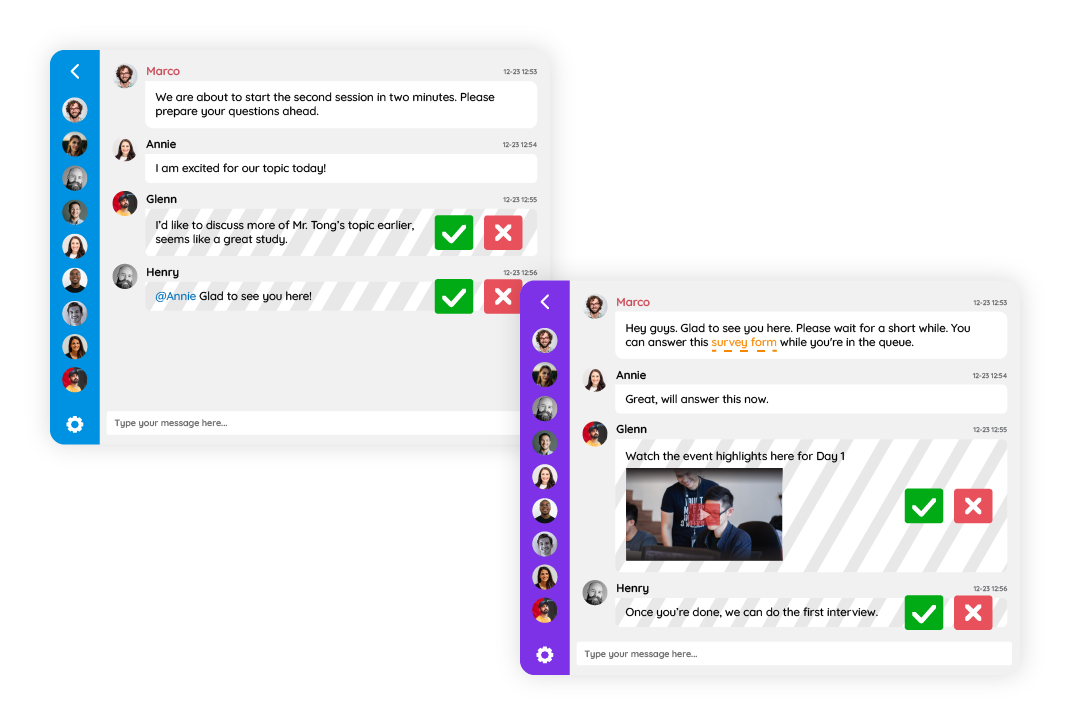
A queued chat is a chat room where messages don’t go live immediately.
Instead:
- A user types a message and hits send
- The message goes into a moderation queue
- A moderator approves or rejects it
- Only approved messages appear to everyone
This is extremely useful when you need broadcast-level control, like:
- live events with thousands of viewers
- political or controversial topics
- finance/trading rooms where spam and scams are common
- schools and student chats
- brand-sponsored livestreams
- any event where you can’t risk “that one message” showing up
The real value: you stop chaos before it’s visible
With normal moderation, every spam message becomes a mini incident:
- audience sees it
- someone reacts
- conversation derails
- moderator deletes it (too late)
Queued chat prevents that chain reaction.
Why “moderation workflow” matters as much as moderation features
Here’s a sneaky problem: many chat solutions technically support moderation, but the workflow makes it painful.
In practice, moderation is easiest when the tools are:
- where the conversation is happening
- fast to use
- available to multiple moderators
- designed for real-time decisions
That’s why one of the most important comparisons is not “does it have pre-moderation,” but:
Do you moderate directly inside the chat, or do you need a separate admin panel to manage the queue?
Queued chat moderation: in-chat vs separate admin panel
Some solutions run queued moderation through a dedicated admin dashboard where moderators switch views, refresh queues, and manage approvals outside the main chat interface.
The RumbleTalk approach emphasizes moderation actions directly from within the chat, which reduces context switching and speeds up decisions when the room is moving fast.
Here’s the comparison:
| Queued moderation experience | Moderation directly in the chat (RumbleTalk) | Dedicated admin panel (many other solutions) |
| Where moderators work | Inside the live chat interface | Separate moderation dashboard |
| Context (seeing conversation flow) | Immediate, in the same view | Often split across views/tabs |
| Speed of approve/reject | Fast, fewer clicks | Slower, more navigation |
| Training non-technical staff | Easier (“log in as admin and moderate”) | Harder (learn the panel + workflow) |
| Risk of missing nuance | Lower (you see thread + tone) | Higher (queue feels detached) |
| Best for | Events, livestreams, large audiences | Teams with dedicated moderation staff and tooling |
This difference sounds small until you’re moderating a real event.
When the chat is flying, every extra click matters. And when moderators are volunteers, interns, or event staff, not community pros, keeping moderation inside the chat interface often reduces mistakes.
Which embedded chat solution is “best” depends on your risk profile
Instead of ranking platforms by popularity, a more useful way to decide is to match your embedded chat solution model to your event.

Choose normal moderation when:
- your community is logged-in and mostly known
- conversation speed matters more than perfect cleanliness
- you can tolerate occasional cleanup
- you have keyword filters and quick tools (mute/ban/delete)
Choose queued chat (pre-moderation) when:
- your chat is public, anonymous, or open
- you expect spam links or abusive posts
- you have brand/legal sensitivity
- you’re hosting speakers who shouldn’t be exposed to garbage
- you want a “Q&A feel” rather than a free-for-all
Practical moderation controls you should look for
Regardless of whether you choose normal or queued chat, strong moderation and control usually includes:
- multiple moderators (not just one admin)
- mute/ban tools with clear durations
- message deletion and user removal
- IP/user-level blocking options (depending on platform)
- link controls (block links, allow only trusted users)
- rate limiting / slow mode for high-volume rooms
- roles and permissions (admin vs moderator vs member)
- history and logs (useful for reviewing incidents)
If a solution is missing several of these, it may be fine for casual use, but it won’t feel “controlled” in production.
Integrated users via the RumbleTalk SDK: moderation starts before anyone types
Here’s the part many site owners miss:
The biggest spam reduction doesn’t come from moderation tools. It comes from identity.
If your embedded chat solution allows anonymous visitors to post instantly, you’re basically inviting bots.
When you integrate your own userbase through the RumbleTalk SDK, you can enforce:
- auto-login into chat using your site accounts
- consistent user identity (same username, same user ID)
- optional role mapping (member vs guest vs moderator)
- blocking and permissions tied to real accounts
Why using your own userbase reduces spam (a lot)
Spammers thrive in low-friction environments. If they can open a page, type anything, and disappear; there’s no cost to them.
However, when chat posting is tied to your real user system:
- creating throwaway accounts becomes harder
- bans become meaningful
- rate limiting can be applied per user
- reputation systems (even informal) start to work
- “drive-by spam” drops dramatically
Typical SDK integration patterns (realistic use cases)
- Membership site chat: only paying members can post
- Livestream chat: guests can read, members can post
- Course community: students auto-join course-specific rooms
- Multi-room events: attendees are routed to rooms based on ticket type
- Support chat: logged-in customers get a verified badge/role
A quick “best practice” bullet list
- Require login to post (even if reading is public)
- Map your user ID into chat identity (so bans stick)
- Assign roles automatically (member/moderator)
- Use queued chat for high-risk public events
- Combine identity + moderation rather than relying on one tool
Designing and branding your embedded chat solution: admin controls + CSS for web and mobile
Moderation and control isn’t only about behavior—it’s also about visual clarity.
A messy-looking chat invites messy behavior. A branded, structured chat encourages:
- better tone
- clearer conversations
- more trust in moderators
- fewer “is this legit?” moments
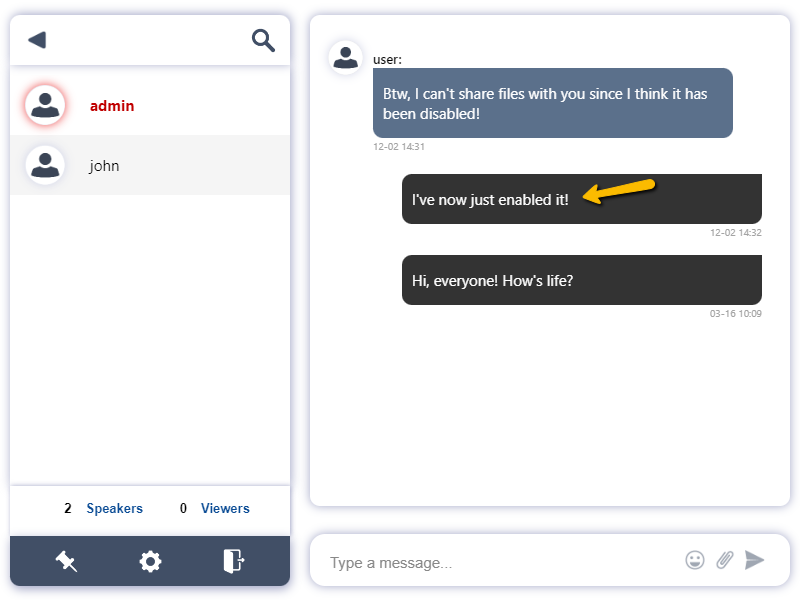
With RumbleTalk, you can design your chat room through the admin panel (layout, colors, elements), and then take it further with CSS customization for both desktop and mobile.
What you can typically control from the admin panel
- chat size and embedded layout
- theme (light/dark) and color palette
- fonts and spacing
- message bubble styles
- system message appearance
- user list visibility
- room structure and multi-room navigation (if enabled)
- moderation-related UI elements (depending on room type)
Why CSS editing matters
Admin settings are great for 80% of cases. CSS is what you use when you need the last 20%:
- match your site’s exact typography
- adjust spacing so chat fits next to a livestream player
- improve mobile readability (bigger tap targets, cleaner layout)
- hide or simplify elements for specific pages
- create a consistent brand feel across multiple rooms
Desktop vs mobile: design them differently on purpose
A common mistake is forcing desktop layout rules onto mobile.
On mobile, you usually want:
- fewer side panels
- larger input area
- clearer message separation
- minimal clutter above the fold
On desktop, you can afford:
- user list
- multiple room tabs
- richer header area
- pinned messages or announcements
A solid approach is to apply CSS rules that target different breakpoints, so the embedded chat feels native on every device.
Putting it together: recommended moderation setups by scenario
Here are practical “recipes” that tend to work well:
1) Public livestream with large audience
- Use queued chat (pre-moderation)
- Moderate directly inside the chat
- Allow posting only for logged-in users (SDK)
- Consider limiting links to trusted roles
2) Members-only community
- Use normal moderation (faster conversation)
- Use SDK auto-login so identity is real
- Assign moderators based on member roles
- Use admin styling + CSS to match your community UI
3) Webinar Q&A format
- Use queued chat if it’s public or high-risk
- Or use normal moderation + slow mode if audience is known
- Style chat to feel like a Q&A panel (clean, readable, structured)
4) Sensitive topics (finance, politics, mental health communities)
- Use queued chat
- Use identity via SDK (or require login to post)
- Keep moderation in-chat for speed and context
So, which embedded chat solution is best for moderation and control?
The “best” embedded chat solution is the one that combines:
- The right moderation model (normal vs queued chat)
- A fast moderation workflow (ideally in-chat, not a detached panel)
- Identity integration (SDK auto-login using your own users)
- Strong customization tools (admin design + CSS for web and mobile)
If your priority is maximum control, especially in public or high-risk settings, pre-moderation (queued chat) plus real user identity integration is the strongest foundation you can build on. And if your moderators need to move fast, keeping the workflow directly inside the chat interface can be a meaningful advantage over systems that force you into a separate moderation dashboard.