

Online events have changed the way organizations communicate with their audiences. Whether it’s a global conference, a job fair, a live training session, or a hybrid on-site event, people expect more than watching a video. They want interaction, connection, and a sense of being part of something live, like having a multi-room chat for communication.
But one of the biggest challenges event organizers face is managing crowd communication. When hundreds or thousands of participants join a chat simultaneously, a single discussion space quickly becomes overloaded. Comments flood in, questions get buried instantly, and moderators struggle to keep up.
This is why multi-room chat has become a core tool for managing modern virtual and hybrid events. By organizing conversations into multiple rooms, event teams can distribute engagement, improve moderation, and create specific spaces for each type of interaction.
Why Multi-Room Chat Is the Foundation of Event Communication
Large events move fast. Without structure, communication becomes chaotic.
Multi-room chat solves this problem by breaking conversations into parallel channels. Instead of one massive chat space, organizers can create:
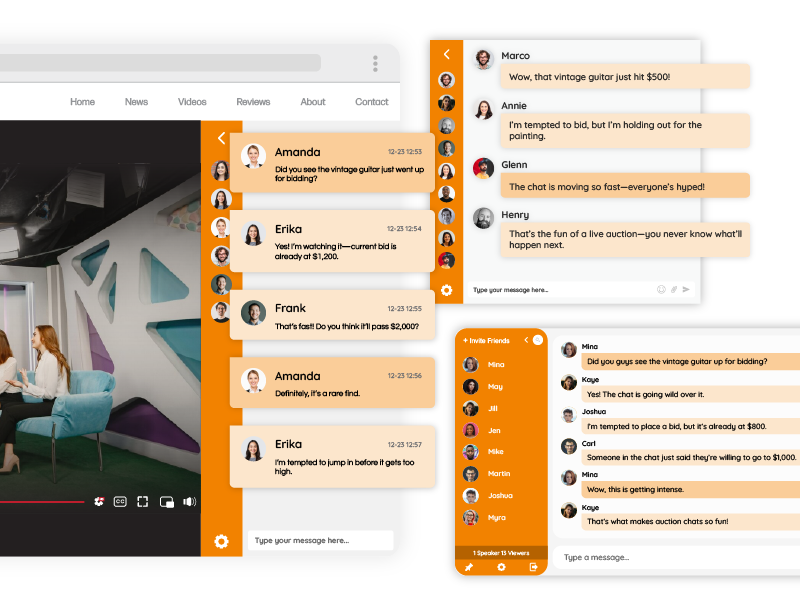
- A main room for all attendees
- Breakout rooms for specific sessions
- Private rooms for VIPs or small groups
- Rooms for different departments in a job fair
- Language-based or region-based rooms
- Rooms for technical support or onboarding
- Exhibitor and sponsor rooms
In other words, instead of making everyone shout in one giant hall, multi-room chat gives the event a full building with many rooms.
This instantly improves both engagement quality and moderation control.
The Crowd Management Advantage: Keeping Conversations Clear and Organized
One of the biggest benefits of multi-room chat is its ability to manage large crowds.
When a single chat collapses
A typical single-room live chat often ends up filled with:
- Off-topic messages
- Repetitive questions
- Fast-scrolling comments
- Missed announcements
- Unmanageable audience reactions
Moderators cannot keep up, and attendees lose interest.
How multi-room chat fixes it
When organizers divide discussions into multiple rooms:
- Each room has fewer people
- Moderators can monitor rooms smoothly
- Users find conversations that are relevant to them
- Important questions don’t disappear instantly
- Events stay organized and enjoyable
As a result, the event feels professional, structured, and easy to navigate.
From Main Room to Smaller Sessions: Moving Conversations Smoothly
One of the most powerful features of multi-room chat is the ability to begin a discussion in one room and continue it in smaller, focused rooms.
This mirrors the structure of in-person events:
- Everyone gathers in a main hall.
- Attendees move to breakout spaces for deeper conversation.
- Groups reconvene in the main room to share insights.
Virtual events benefit from the same model.
Example scenario
The keynote starts in the main room.
After a presentation, attendees receive a message:
“Interested in topic A? Join Room 1.
Interested in topic B? Join Room 2.”
Participants then move into the smaller rooms where moderators guide deeper discussions.
This movement between rooms keeps the event dynamic while preserving order.
Multi-Room Moderation: One Moderator, Many Rooms
Multi-room chat also gives event organizers powerful moderation advantages.
Using a central moderation panel, a moderator can:
- View activity in all rooms at the same time
- Approve or reject messages
- Pin announcements
- Remove spam
- Block users who violate rules
- Post updates across selected rooms
This means that one moderator can effectively manage multiple conversations, even if hundreds of participants are active.
For larger events, organizers often assign one moderator per room. But RumbleTalk also allows a single moderator to oversee several rooms at once, which is ideal for medium-sized events or live shows with limited staff.
Video + Chat: The Perfect Engagement Duo
A virtual event becomes significantly more engaging when video and chat appear side-by-side.
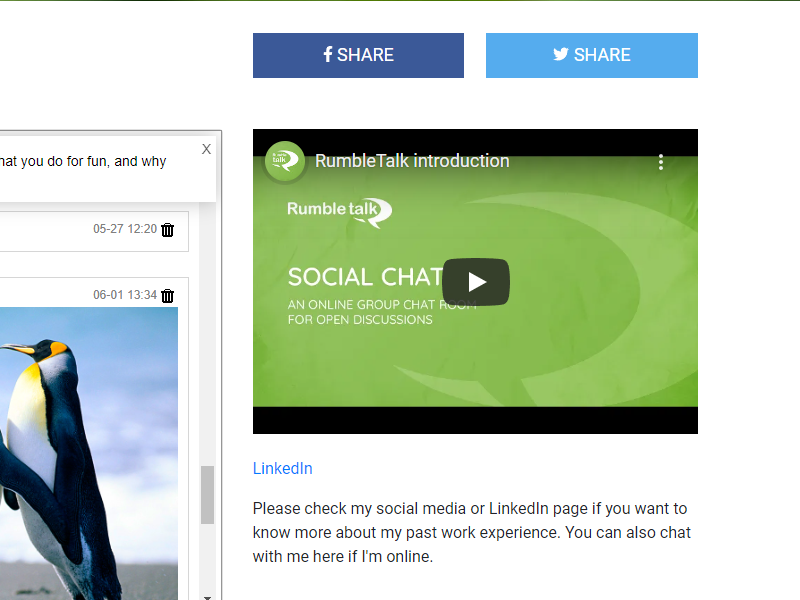
With RumbleTalk, organizers can embed a video broadcast window next to any chat room. This can be:
- YouTube Live
- Vimeo
- Custom RTMP video feeds
- Recorded presentations
- Embedded livestreams
This transforms a static video page into an interactive experience.
Why this matters
- Participants ask questions in real time
- Moderators relay questions to speakers immediately
- Viewers respond to each other
- The event feels alive, not passive
Pairing chat with video is one of the most effective ways to increase engagement and retention during virtual events.
Multi-Room Chat for Different Types of Events
Many people hear “virtual event” and think only of conferences or webinars, but multi-room chat is useful across the entire event spectrum.
Tech Events and Hackathons
- Rooms for coding teams
- Mentor help rooms
- Demo rooms
- Main announcement room
This organization helps teams collaborate without getting distracted.
Job Fairs
- Rooms per company or department
- Private chat rooms for interviews
- General help desk or support room
Candidates can speak directly with recruiters without waiting in a crowded general chat.
Product Launches
- One room for Q and A
- Another for customer onboarding
- A third for deeper technical discussions
Multi-room chat allows users to select the experience that fits their interest level.
Sponsored Events
Sponsors can each have their own chat room, turning sponsorship into an interactive experience instead of a static banner.
Community or Fan Events
Topic rooms, language rooms, activity rooms — all functioning simultaneously and moderated separately.
Multi-room chat adapts to nearly any event format.
Hybrid Events: Bringing Virtual Attendees to the Physical Room
Many in-person events now include an online audience. Multi-room chat makes hybrid participation not just possible, but exciting.
How hybrid chat works
- The on-site audience watches the live speaker.
- Remote participants join via virtual chat rooms.
- A large screen at the venue displays audience questions from the chat.
- Moderators select and highlight messages to show on stage.
- Speakers interact with both in-person and remote attendees at once.
This creates a unified event where physical and virtual audiences participate equally.
Hybrid events are becoming the norm, and chat rooms are the link that connects both worlds.
Multi-Room Setup in WordPress Simple and No Coding Required
For organizers using WordPress, adding multi-room chat is incredibly simple.
With the RumbleTalk WordPress plugin:
- You install the plugin from the WordPress dashboard
- Connect your RumbleTalk account
- Each room you create appears as a shortcode
- You place each shortcode on its own page
Example:
[rumbletalk-chat hash="roomA"]

[rumbletalk-chat hash="roomB"]
Each shortcode represents a different chat room.
Your WordPress site instantly becomes a multi-room event platform.
This is perfect for events where each session or topic gets its own page.
Paywalls and Access Control Adding Chat to Members-Only Areas
Event organizers who run ticketed or paid-access events can easily place chat rooms behind a paywall. Here’s how it works:
- Users purchase access or log in through your website.
- Once they are logged in, the chat automatically detects their username.
- This is done with the RumbleTalk Auto-Login integration.
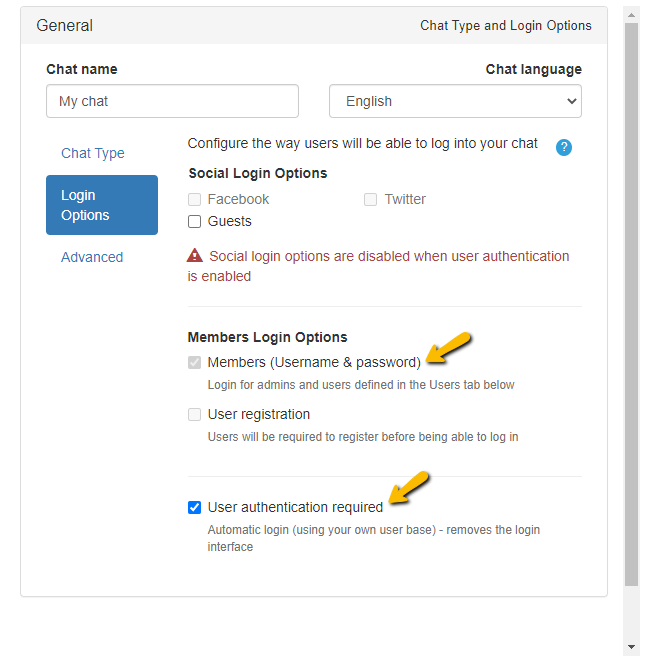
This integration allows:
- Paid attendees to be identified by name
- Automatic chat login without extra forms
- Full access control — non-members cannot use the chat
This setup is ideal for premium webinars, training programs, VIP events, or subscription communities.
REST API for Developers Automating Room Creation
Some organizations want complete automation. They may want:
- A new chat room created for each session
- Temporary rooms that only exist during the event
- Rooms generated based on user activity
- Rooms assigned to specific user groups automatically
Developers can accomplish this using the RumbleTalk REST API.
This requires technical experience, but it gives full control to event platforms that want advanced automation or integration with internal systems.
Non-developers can simply use the dashboard or WordPress plugin.
Members-Only Events Private Rooms for Exclusive Communities
Multi-room chat is ideal for members-only events, where organizers want to offer exclusive experiences to specific groups.
A members-only setup can include:
- A main private room available only to logged-in users
- VIP rooms for top-tier members
- Private coaching or consultation rooms
- Expert hot-seat sessions
- Regional or niche interest rooms
This structure helps build a strong sense of belonging. Participants know they are receiving value that general audiences do not have.
By combining a website login system with RumbleTalk’s Auto-Login integration, the chat automatically shows each user’s name and grants them access only to the rooms they are allowed to join.
Members-only events become smoother, more professional, and more controlled.
Designing Your Event Chat With Custom CSS
When hosting a virtual or hybrid event, design plays a huge role in how professional and immersive the experience feels. Your chat shouldn’t look generic or disconnected from the rest of your event environment. With RumbleTalk, you can fully customize the design of each chat room using CSS so it visually matches the event theme, brand identity, or session type.
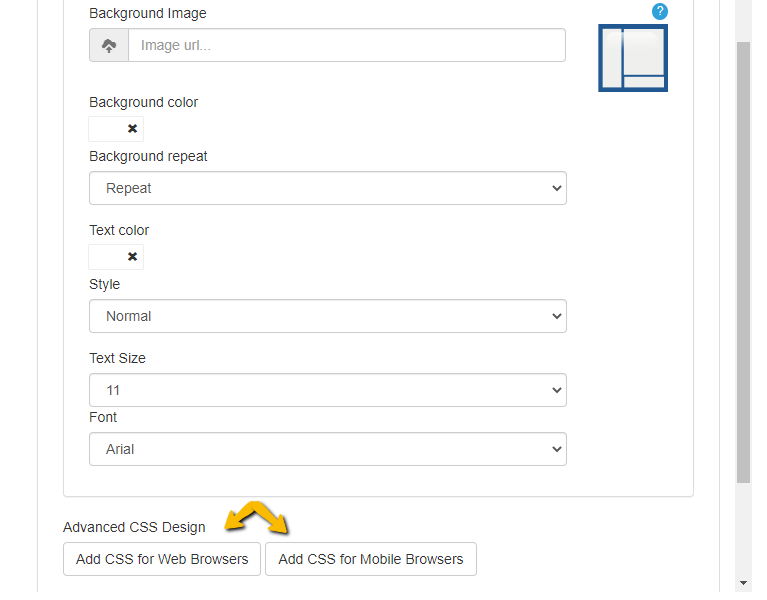
Whether you’re running a tech conference, a corporate summit, a product launch, or a members-only workshop, custom CSS helps you turn your chat into a polished, event-ready communication space.
Why Event Chats Need Custom Styling
A well-styled chat room can:
- Reinforce your event branding
- Match the theme of each stage or session
- Make VIP or premium rooms feel exclusive
- Create a “studio look” during livestreams
- Help attendees instantly recognize which room they’re in
- Keep the experience consistent across all event pages
For example, your main keynote room may use bold colors and high visibility, while your breakout rooms adopt a softer, more conversational style.
Customizing the Look for Each Room Type
Because each chat room has its own CSS settings, you can create unique themes per room:
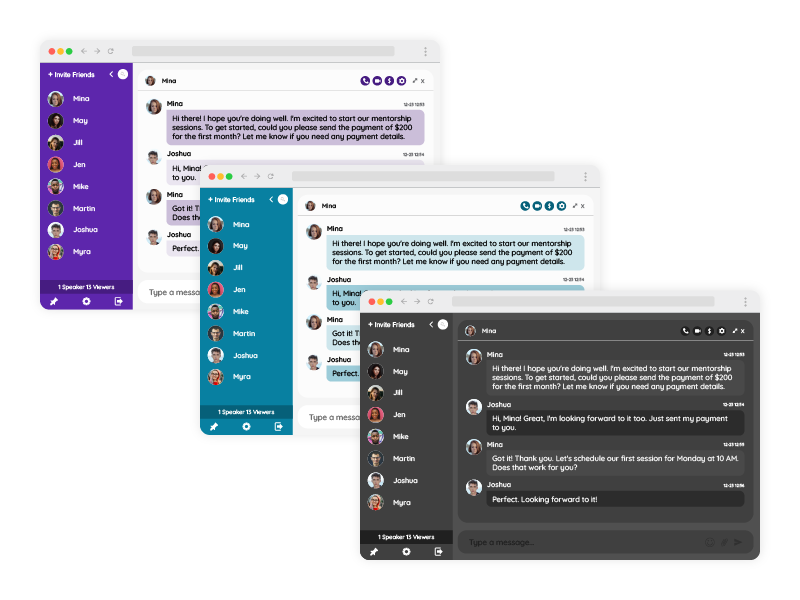
- Keynote or main hall chat: Large fonts, bright colors for high energy
- Workshops or breakout sessions: Neutral tones that encourage discussion
- Networking lounges: Softer palette, rounded edges, more relaxed feel
- VIP or members-only rooms: Dark mode, gold accents, premium styling
- Sponsor rooms: Styled with sponsor colors or wallpapers
This gives your virtual event the richness of a real multi-room venue.
What You Can Customize
With CSS you can tailor every visual element:
- Chat background (solid colors, gradients, or event-themed images)
- Message bubbles and text styles
- Moderator and speaker messages (highlight them for visibility)
- Input field and send button
- User list panel and avatars
- Spacing, layout, shadows, borders
- Pinned messages or announcements
- Reaction styles or icons
Even simple changes like adjusting colors and fonts make a huge difference in the event atmosphere.
Easy for Non-Developers, Powerful for Developers
If you’re not a developer, you can start with:
- Adjusting colors
- Changing fonts and text sizes
- Adding your event’s brand palette
- Using pre-made CSS templates
If you have developer support, you can create:
- Animated transitions
- Fully themed layouts
- Responsive event-specific styles
- Custom message types
- Session-specific branding
This ensures the chat looks integrated, not like a generic add-on.
Designing For Engagement
Good chat design helps manage crowd behavior too:
- Highlight moderator questions for orderly Q&A
- Use color cues so attendees identify different roles
- Make announcements visually distinct
- Style different rooms differently to signal topic changes
The result is an event that feels coordinated, polished, and visually aligned from start to finish.
Bringing It All Together
As virtual and hybrid events continue to grow, multi-room chat has become one of the most powerful tools available to event organizers. It brings structure to large audiences, keeps conversations relevant, and enables moderators to manage discussions across multiple spaces at once. When paired with live video streams, custom room designs, and seamless user authentication, it creates an environment that feels dynamic, professional, and truly interactive.
Whether you are hosting a conference, a job fair, a product launch, or a members-only gathering, multi-room chat allows you to shape the experience just as you would in a physical venue: a main hall for everyone, breakout rooms for deeper conversations, VIP spaces for select guests, and functional rooms for support or sponsors.
With the flexibility to design each room individually, integrate it into WordPress, add paywalls, or automate room creation through the REST API, you can build an event communication system that scales effortlessly and feels custom-made for your brand.
In the end, the events that stand out are the ones where people don’t just watch; they participate, they interact, and they feel connected. Multi-room chat makes that possible.