According to studies, stress is normal. This can be both positive and negative. Negative stress is called “distress.” This is the reason why we need to release stress.
Now, this is what’s damaging our mental health. Seeking online therapy may just be the best thing right now.
What is stress?
Stress is part of our day-to-day life. We can’t escape it. I experience; you experience stress. It’s a never-ending cycle. But, do know that there are two kinds of stress? And you already know their differences, one is good and one is the evil one.
Normal stress is a positive kind of stress. This allows us to become faster workers, problem solvers, and to be more alert of our surroundings. However, if stress is piled up (because we’re not always in danger), it might affect you negatively.
How can you help people release stress?
As an online therapist, we tend to go to you to help us de-stress. Sometimes, all we need is a peaceful talk and some tea on the side. You can help do that. Just to make sure, here are some of the de-stressing activities you can advise to customers:
- Browsing social media – This is helpful if you want to see something you might like. For example, you can watch some dog/cat clips on YouTube. You just sometimes need furry friends to make your day bright. You can also tweet your rants on Twitter. This is best if you just want to let it all go.
- Hang out with friends and family – “Home is where the heart is.” This is especially true when you’re life is taken over by stress. Tell them that they need to be surrounded by people you love and trust for you to enjoy yourself in their company.
- Spend some alone time – A person can be overwhelmed by people or work. As a result, one forgets to take care of himself. Pamper yourself by lighting some candles or putting a bath bomb in your tub. You could go as simple as eating take out and binge-watching some series you like. It doesn’t have to be fancy. The important thing is that they enjoy it and they do it to release stress. Don’t forget to do this for yourself, too! From all the daily rants of your customers, online therapists also need a break!
- Talk to a professional – If the aforementioned things did not do it for you, then maybe it’s time to talk to a professional. Seek therapy so you can release stress. You can also try online therapy, which is best for first-timers.
Where can you avail online therapy?
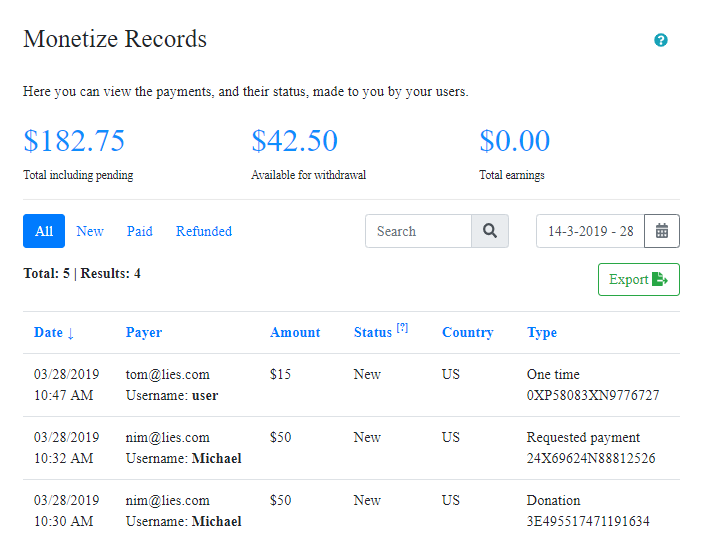
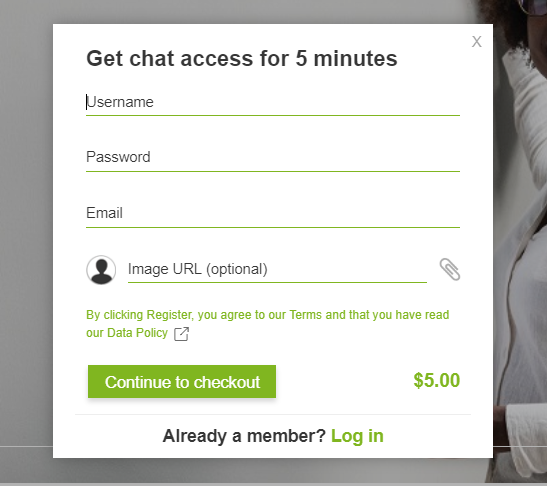
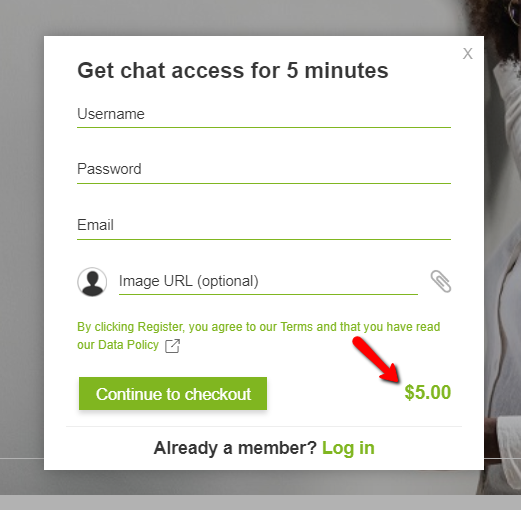
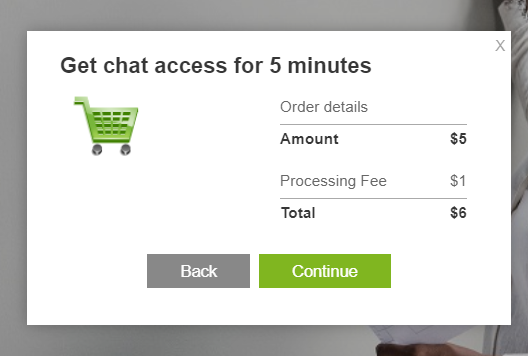
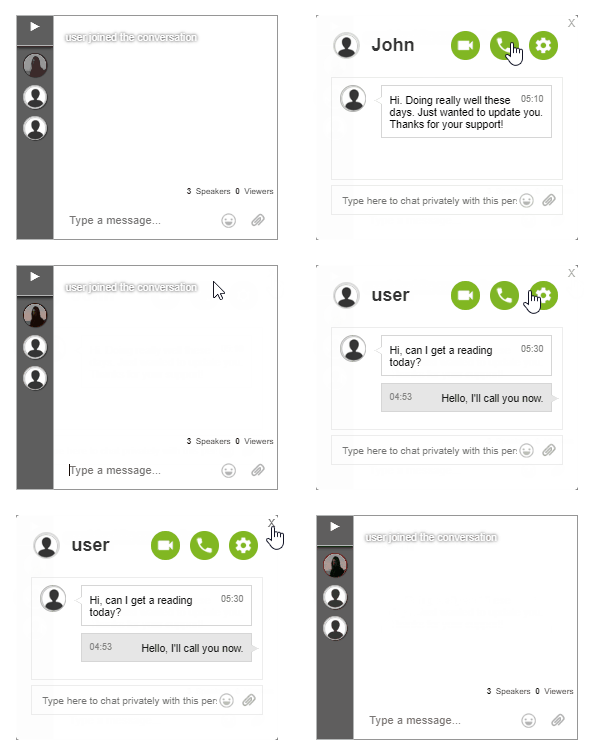
We released a feature called expert’s chat. We did this for you, so you can share your services online. It can be free or not. I’m sure you’re choosing the second option. You can offer online therapy with just a few simple steps.
Now, this is just getting longer. If you want to register (I know you want to), you just need to follow what I say.
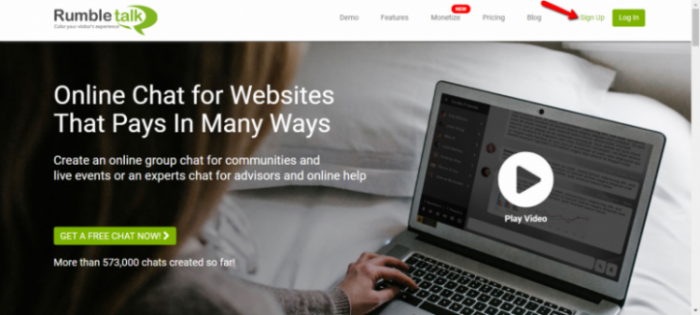
- Before everything else, first, go to www.rumbletalk.com and sign up.
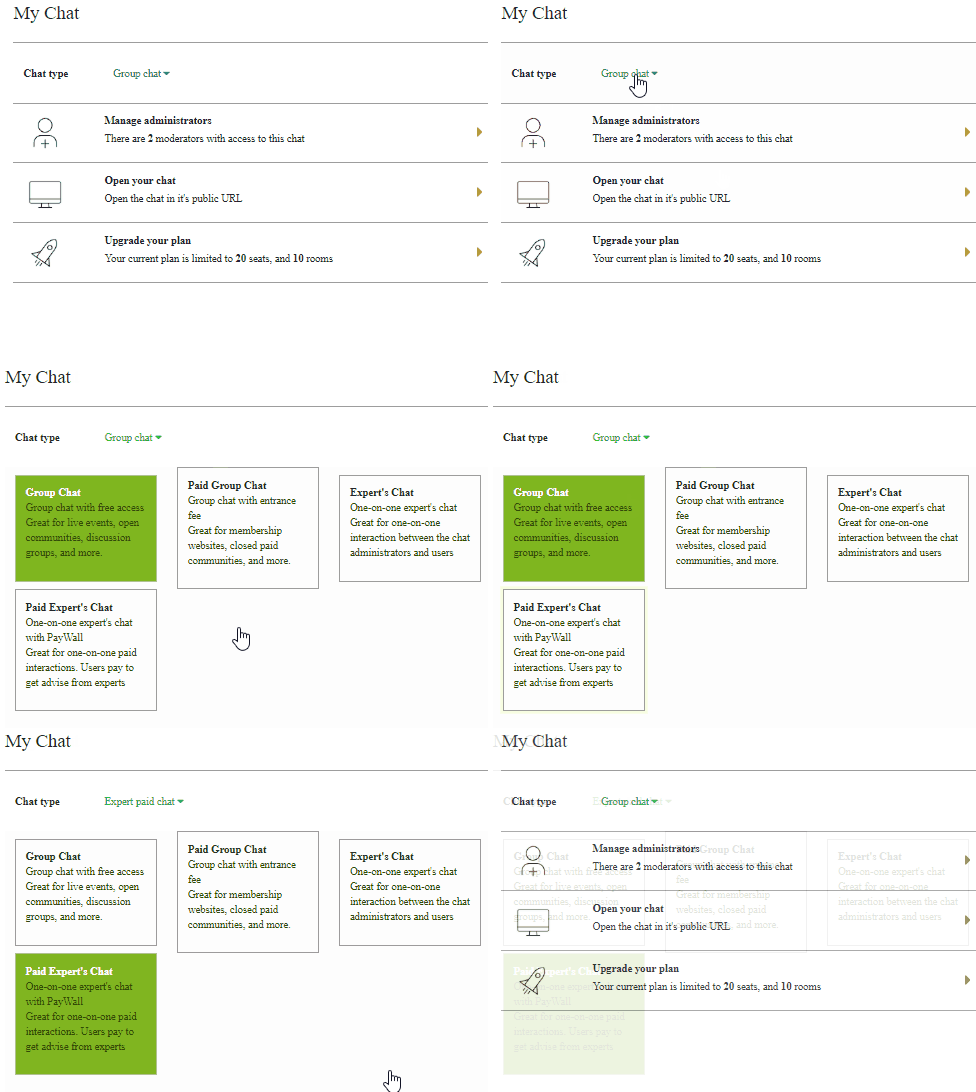
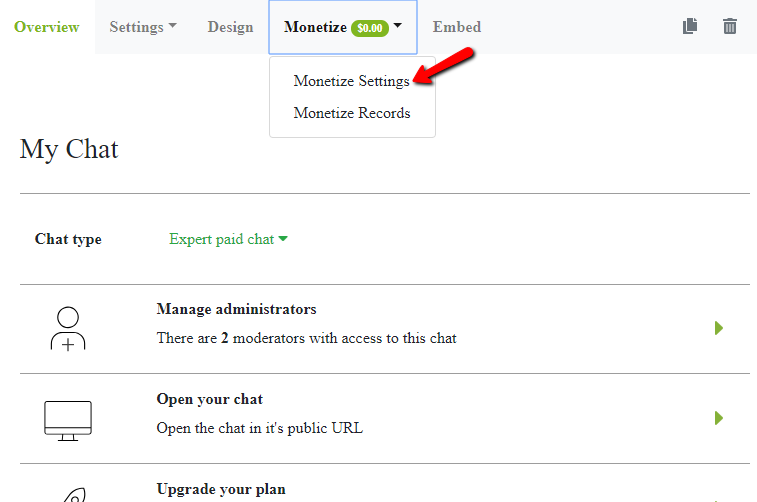
- Now, for the next step, you need to change your chat type. All you need to do is switch from “Group chat” to “Expert’s chat” for private messages only. This could be for online therapy, live events, trades, or more. Now, if you want to get some extra money (you know that’s the real deal), you can choose “Paid Expert’s Chat.”
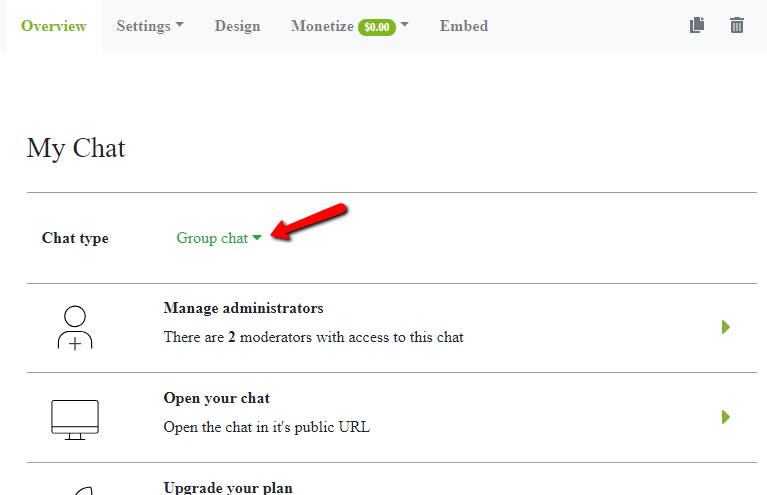
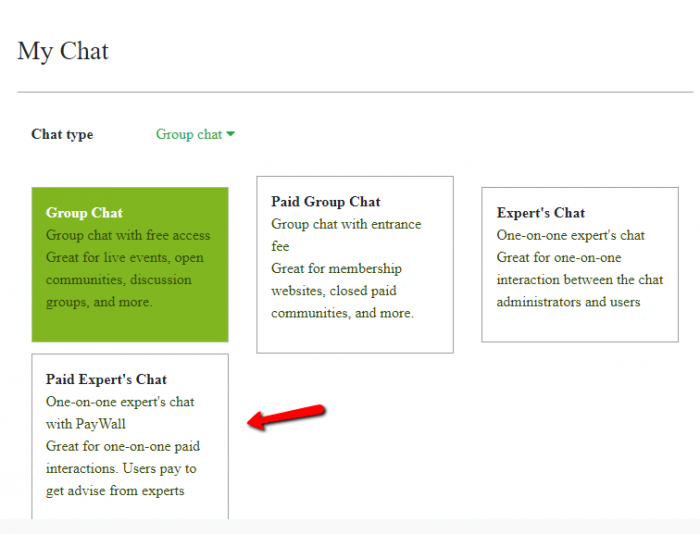
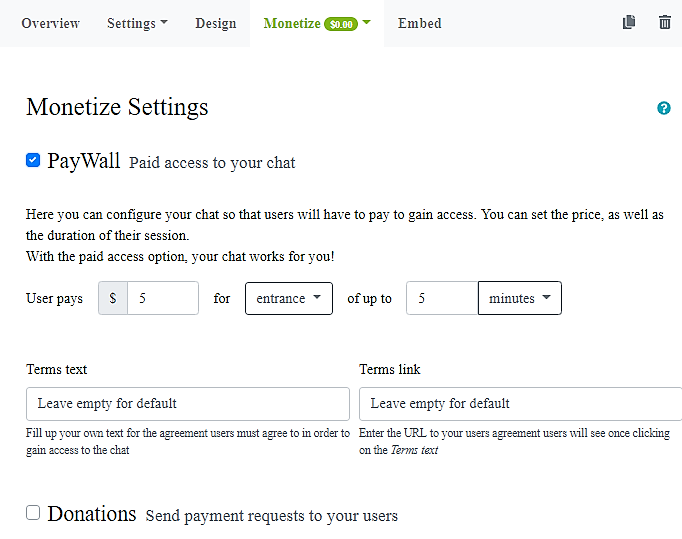
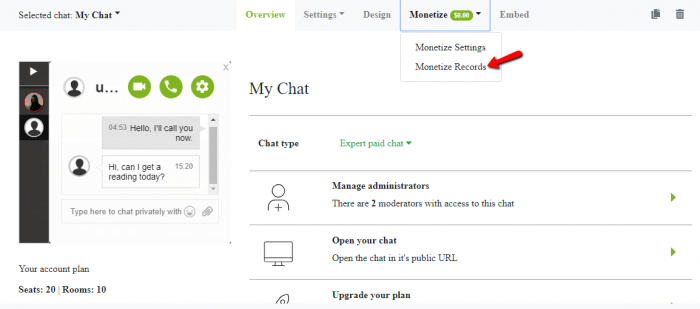
That’s it! I told you it was easy. Now, if you want to read more about the payments and other things related to that, read our previous article. You’ll also do us a favor.
Using this, you can help more people and save more money. It’s a win-win situation. We need you as an online therapist to talk to us and listen to us. You are our lifesaver. You can use expert’s chat to do that.
Online therapy has proven to be helpful in times of need or when you just want someone to listen. You, as an online therapist, can do more for your customers. Try it, and it may just be the opportunity to help someone release stress.