
How to change users’ messages background colors?
The RumbleTalk group chat platform allows you to customize your chat room the way you want, meaning it lets you change the look and feel of your chat room.
Why would you change a message background color?
In order to keep your chat room alive, you can change the messages’ background colors. This will also help in distinguishing your website’s branding.
Changing the messages’ background colors
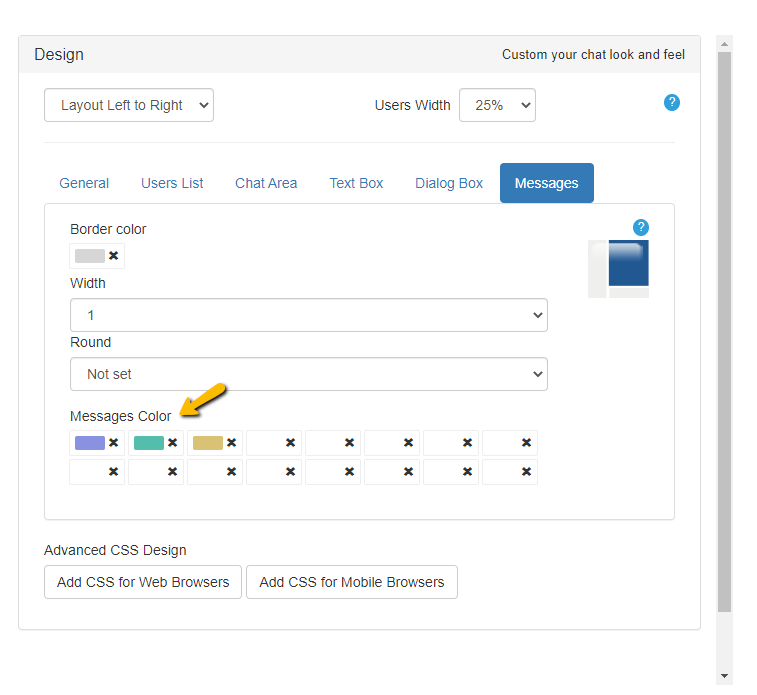
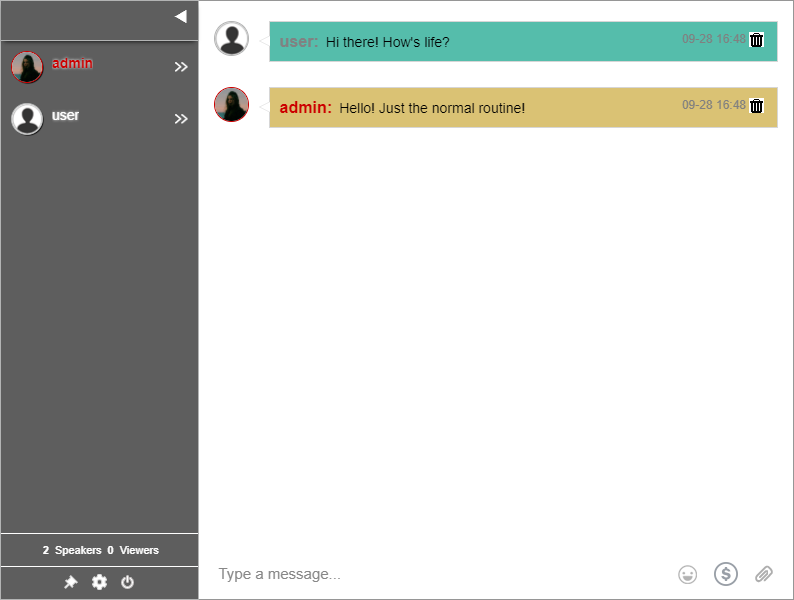
In here, we’ll show you how to assign different background colors for different users. When they send a message, their chat box will reflect their assigned color.
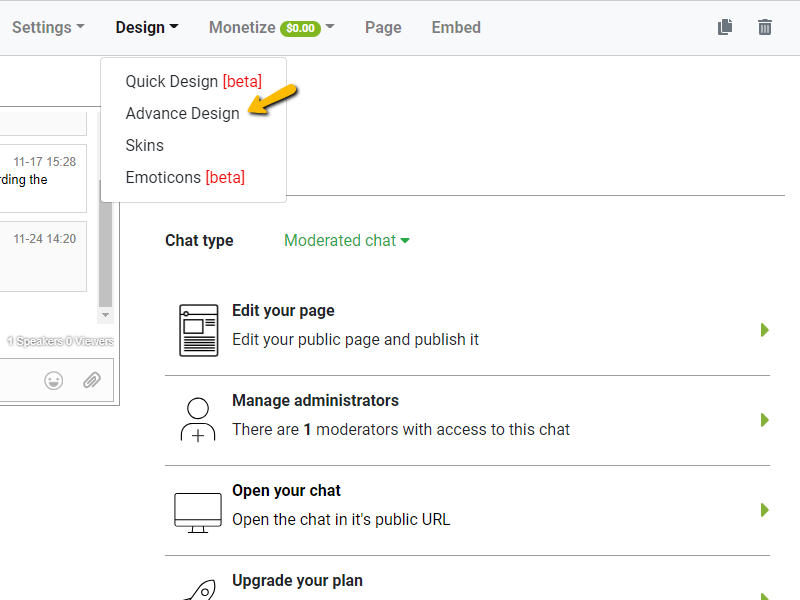
- To change users’ login colors, click Design > Advance Design.
- Then, click Messages and choose the color you want for each of your users.
- Then, it will look like this.
Here’s a video that we made to show it works.

Yes. RumbleTalk allows you to assign different background colors to different users’ messages to match your branding and help distinguish between users.
Changing message background colors keeps your chat visually engaging, helps distinguish between different users, and aligns with your website’s branding.
Go to the RumbleTalk admin panel, navigate to the design settings, and assign custom background colors per user login type.
You can assign specific background colors to individual user types, so each user’s messages appear in their designated color when they send a message.