
How Do User Roles Work in a Chat Room and Why Should You Define Them?
When setting up a RumbleTalk chat, defining chat room user roles is one of the most important steps. Roles determine what each participant can see and do in your chat room, whether they’re simply signing in as a registered member or moderating as an admin for all chat rooms.
Understanding these roles helps you maintain order, manage conversations, and ensure a safe and professional chat environment.
The Importance of Chat Room User Roles
Assigning clear user roles improves the experience for everyone in the chat. Here’s why:
- Security: Prevents unauthorised users from controlling the room.
- Moderation: Gives admins the tools they need to manage disruptive participants.
- Personalisation: Allows registered members to create profiles with avatars and passwords.
- Flexibility: Lets you choose between open guest access or restricted entry for private events.
By defining chat room user roles, you make sure the right people have the right permissions.
Types of User Roles in RumbleTalk
1. Registered Users (Members)
- Users can sign up for your chat room if registration is allowed.
- They can upload an avatar and set a password.
- Registered members are listed in the Users tab of your admin panel.
- Registered users can access one chat room or all chat rooms.
2. RumbleTalk Account Users
- If you or your participants already have RumbleTalk username, they can log in using their username and password.
- Admins can also manually add users to the room for direct access.
3. Admin / Moderator
- Admins have the highest level of control in a chat room.
- They can disconnect or ban users, moderate conversations, and even start private video or audio chats if enabled.
How to create an admin user:
- Log in to your RumbleTalk dashboard.
- Go to Settings > Users.
- Click Add new user.
- Enter a username and password.
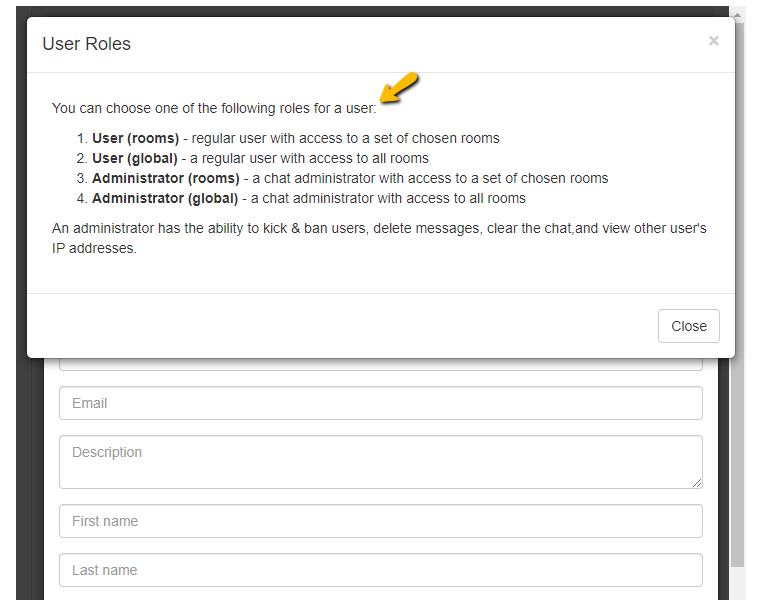
- Set the User Role to Administrator (room).
- Administrator (room): Limited to one specific room.
- Administrator (global): Has control over all your chat rooms.
- Assign the room you want the admin to manage.
This ensures that only authorized moderators can take administrative actions.
Best Practices for Defining User Roles
- Require Registration for community-building and user accountability.
- Always create at least one Admin account for moderation.
- Use Global Admins if you manage multiple chat rooms under one account.
User roles are the backbone of your RumbleTalk chat management. By clearly defining chat room user roles, you can balance accessibility, security, and control. Guests can join easily, registered users can build an identity, and admins can ensure everything runs smoothly.
Setting roles thoughtfully ensures your chat room aligns with your event or community goals—whether that’s open engagement, controlled discussions, or professional moderation.
RumbleTalk supports multiple user roles including admin, moderator, registered member, and guest. Each role has different permissions and levels of access.
Defining user roles improves security, prevents unauthorized users from controlling the chat, and ensures a professional and orderly chat environment for all participants.
Admins have full control over the chat room. They can moderate messages, ban users, approve messages in moderated chat, pin messages, send polls, pause the conversation (admin mode), and manage all participants.
Yes. a chat owner can assign roles such as admin or moderator to specific users, while others join as regular members or guests depending on your login settings.